192.168.0.1 Login Admin – Username & Password
Typo 192.168.o.1? The correct address is 192.168.0.1
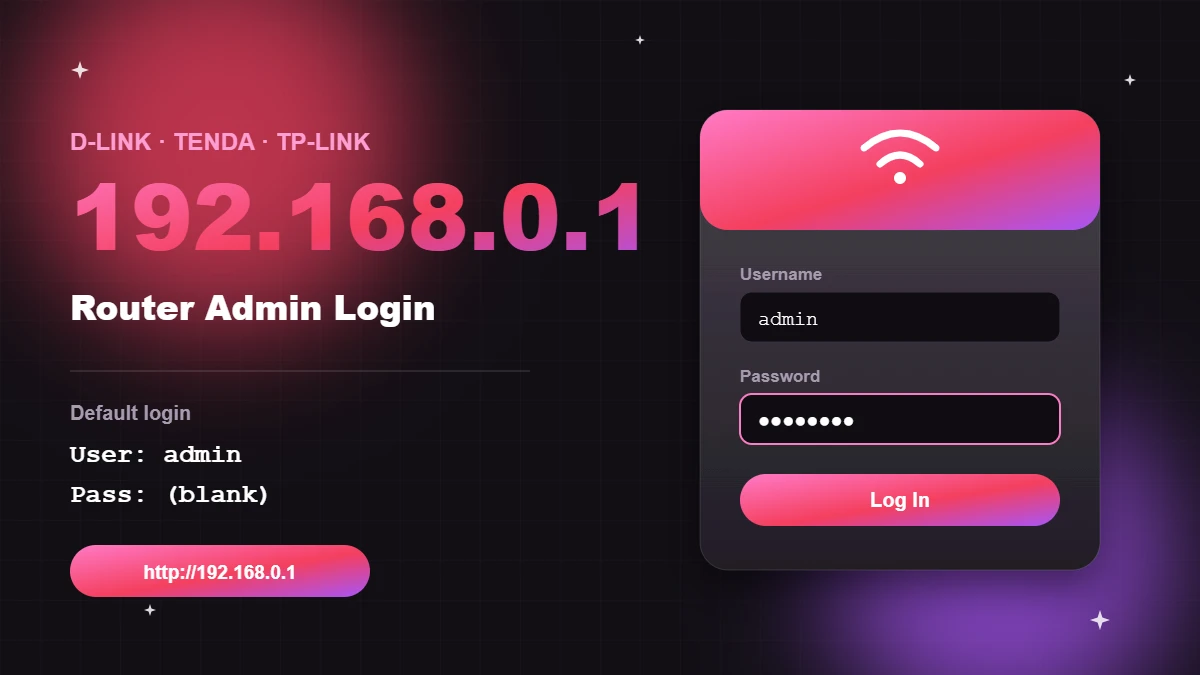
Quick answer: Open http://192.168.0.1 while connected to your router. D-Link usually uses admin with a blank password, and Tenda asks you to set a password on first login. Then open Wireless or WiFi Settings to change your WiFi password.
What Is 192.168.0.1?
192.168.0.1 is a private IP address used as the default gateway by many routers – especially D-Link, Tenda, some TP-Link and Netgear models. It opens the router’s web setup page.
A common mistake is typing 192.168.o.1 (letter o) or 192 l.168.0.1. Use only numbers: 192.168.0.1 with a zero.
Why Your Router Uses a Private IP Address
Every home network has one device that connects your phones, laptops and TVs to the internet. That device is your router, and it gives itself an address from a private range so that it can only be reached from inside your home.
These ranges are set aside by the private network standard (RFC 1918): 10.0.0.0 to 10.255.255.255, 172.16.0.0 to 172.31.255.255, and 192.168.0.0 to 192.168.255.255. Router makers simply pick one easy address from these ranges as the factory default.
Because the address is private, millions of homes can use the same one at the same time with no conflict. Your neighbour may also log in at 192.168.0.1 – the two routers never meet, because private addresses are not sent across the public internet. Your internet provider gives your router a different public IP address for the outside world.
This is also why the login page only opens when your device is connected to that router. On mobile data, or on someone else’s WiFi, the address points nowhere and the browser shows an error.
| Gateway address | Commonly used by |
|---|---|
| 192.168.0.1 | D-Link, Tenda, some TP-Link and Netgear models |
| 192.168.1.1 | TP-Link, Linksys, Asus, ZTE and many ISP modems |
| 192.168.10.1 | Many PTCL DSL modems in Pakistan |
| 192.168.100.1 | Huawei fiber (GPON) ONT devices |
| 10.0.0.1 | Some cable gateways, such as Xfinity |
Modem vs Router: What Is the Difference?
Many homes have two boxes: a modem from the internet provider and a separate WiFi router. Others have a single device that does both jobs. Knowing which one you have helps you open the right login page.
- The modem connects to your provider’s line – a phone line (DSL), a cable, or a fiber optic cable (ONT). It brings the internet into your home.
- The router shares that internet with your devices over WiFi and LAN cables. It hands out local IP addresses and runs the firewall.
- A combo device does both. Most provider-supplied boxes in Pakistan, such as PTCL and fiber ONTs, are combo devices.
When you have two separate boxes, each has its own login address. The router is often at 192.168.0.1, while the modem or ONT may be at 192.168.10.1 or 192.168.100.1. If one address does not open the settings you need, try the other device’s address, or check the sticker on each box.
How to Login to 192.168.0.1
- Connect to the routerWiFi or LAN cable.
- Open a browserChrome, Edge, Firefox or Safari.
- Type http://192.168.0.1Or tendawifi.com for Tenda.
- Enter usernameUsually admin.
- Enter passwordBlank, admin, or the sticker password.
- Click LoginThe setup page opens.
How to Log In From a Mobile Phone
You do not need a computer to manage your router. Any Android phone or iPhone can open the same dashboard in its web browser.
- Connect to your home WiFiJoin the router’s network, not someone else’s.
- Turn off mobile dataSome phones send traffic over 4G when the WiFi has no internet, so the page fails to load.
- Open Chrome or SafariUse the normal browser, not a search app.
- Type the address in the top barEnter http://192.168.0.1 and tap Go.
- Enter the username and passwordUse the details from the sticker or the table above.
- Rotate to landscape if neededOlder router pages are made for computer screens and are easier to read sideways.
Many brands also have a free app – D-Link WiFi, Tenda WiFi and TP-Link Tether or Deco. The app shows the same settings in a phone-friendly layout, so it is worth installing if you change settings often.
How to Find Your Router IP Address
Not every router uses 192.168.0.1. If the page does not open, first check which gateway address your own network is using. It only takes a minute on any device.
Windows PC
- Press Windows + R, type cmd and press Enter.
- Type ipconfig and press Enter.
- Find your WiFi or Ethernet adapter.
- The number next to Default Gateway is your router address.
macOS
- Open the Apple menu and choose System Settings.
- Click Network, then your WiFi or Ethernet connection.
- Click Details and open the TCP/IP tab.
- The address next to Router is the gateway.
Android phone
- Open Settings and tap WiFi or Network & internet.
- Tap the gear or arrow next to your connected network.
- Open Advanced if you see it.
- Look for Gateway or Router. Menu names change a little by phone brand.
iPhone and iPad
- Open Settings and tap Wi-Fi.
- Tap the small (i) next to your network.
- Scroll to the IPv4 section.
- The address next to Router is the one to type in your browser.
If the gateway shows 192.168.1.1, use our 192.168.1.1 login guide. If it shows 192.168.100.1, follow the 192.168.100.1 guide instead.
What You Can Change in the Router Admin Panel
Once you are logged in, the router dashboard gives you full control over your home network. Menu names differ between D-Link, Tenda and TP-Link, but the main settings are almost always the same.
- WiFi name and password – rename your network (SSID) and set a strong password so neighbours cannot use your internet.
- Admin password – replace the factory login with your own so nobody else can open the settings.
- Connected devices – see every phone, laptop and TV on your network and block anything you do not recognise.
- Parental controls – limit internet time for children or block certain websites on their devices.
- Guest network – give visitors internet access without sharing your main WiFi password.
- DHCP and reserved IPs – decide which addresses your devices get, and give a printer or camera a fixed address.
- Port forwarding – open ports for game consoles, CCTV recorders or remote desktop tools.
- DNS servers – switch to a faster or filtered DNS service for the whole house.
- Firmware update – install the latest software from the maker to fix bugs and security holes.
Write down any setting before you change it. If something stops working, you can switch it back without resetting the whole router.
192.168.0.1 Default Username & Password
| Brand | Username | Password |
|---|---|---|
| D-Link | admin | (blank) |
| Tenda | – | Set on first login |
| TP-Link (some models) | admin | admin |
| Netgear (some models) | admin | password |
| Cisco | admin | admin |
192.168.0.1 Change WiFi Password
D-Link
- Log in at 192.168.0.1.
- Go to Setup → Wireless Settings.
- Change the Pre-Shared Key.
- Click Save Settings.
Tenda
- Log in at 192.168.0.1.
- Open WiFi Settings → WiFi Name & Password.
- Enter a new password.
- Click Save.
How to Change Your WiFi Name (SSID)
The WiFi name, also called the SSID, is the network name you see when you search for WiFi on your phone. Factory names such as “D-Link_5G” or “Tenda_A1B2C3” tell everyone which router you own. A custom name looks better and gives attackers less information.
- Log in to the dashboardUse your admin username and password.
- Open the wireless settingsUsually called WiFi Settings, Wireless or WLAN.
- Edit the network nameType a new name in the SSID field. Do not use your full name, address or phone number.
- Set both bandsDual-band routers have a 2.4 GHz and a 5 GHz network. Rename both, or turn on Smart Connect to use one name.
- Save and reconnectAll devices will disconnect. Join the new name with your WiFi password.
192.168.0.1 Not Opening?
- Type 192.168.0.1, not 192.168.o.1.
- Check your gateway – it may be 192.168.1.1 or 192.168.100.1.
- Stay on router WiFi and turn off mobile data.
- Clear cache or try incognito.
- Restart the router for 30 seconds.
- Reset if you forgot the password.
How to find your router IP address
- Windows: Command Prompt →
ipconfig→ Default Gateway - Mac: System Settings → Network → Details → TCP/IP → Router
- Android: Settings → WiFi → your network → Gateway
- iPhone: Settings → Wi-Fi → (i) → Router
What the Router Lights Mean
The small lights on the front of your router tell you a lot about what is wrong before you even open the browser. Colours and labels vary by model, but most routers follow the same pattern.
| Light | Normal | If it looks wrong |
|---|---|---|
| Power | Solid on | Off or blinking for a long time – check the adapter or restart the router. |
| Internet / WAN | Solid or blinking green | Off or orange – the router has no internet. Check the cable from your modem or call your provider. |
| WiFi / WLAN | Solid or blinking | Off – WiFi may be disabled. Turn it on from the dashboard or the WiFi button. |
| LAN ports | On when a cable is plugged in | Off with a cable connected – try another cable or port. |
| WPS | Usually off | Blinking – a WPS pairing is in progress. It stops after about two minutes. |
Simple Tips for Better WiFi Speed
Logging in to the router is also the first step to fixing slow WiFi. Try these changes before you call your internet provider.
- Move the router to the middle of your home – keep it high up and away from walls, mirrors and the microwave.
- Use the 5 GHz band for nearby devices – it is faster but has shorter range. Use 2.4 GHz for rooms far from the router.
- Change the WiFi channel – in a busy building, set 2.4 GHz to channel 1, 6 or 11 to avoid your neighbours’ networks.
- Restart the router once a week – a simple restart clears memory and often fixes slow or dropping connections.
- Remove unknown devices – someone using your WiFi without permission slows everyone down.
- Update the firmware – newer software often improves speed and stability.
- Use a cable for TVs and PCs – an Ethernet cable is always faster and more stable than WiFi.
If speed is still low with a cable plugged directly into the router, the problem is likely with your internet line. Contact your provider and ask them to check the connection.
Common Typing Mistakes to Avoid
Most login problems come from a small typing error in the address bar. Check that you are using numbers only, with three dots and no spaces.
| Wrong | Problem | Correct |
|---|---|---|
| 192.168.o.1 | Letter o instead of zero | 192.168.0.1 |
| 192.168.0.l | Letter l instead of one | 192.168.0.1 |
| 192.168.01 | Missing dot | 192.168.0.1 |
| 192.168.0.1.1 | Extra number | 192.168.0.1 |
| www.192.168.0.1 | “www” is not needed | http://192.168.0.1 |
Type the address in the browser’s address bar at the top, not in the Google search box. If you search for it instead of opening it, you will see search results rather than your router’s login page.
How to Change the Admin Login Password
The default username and password are printed in manuals and on websites, so anyone connected to your WiFi could try them. Changing the admin password is the single most important step after your first login.
D-Link
- Log in to the router dashboard.
- Open Management or Tools, then Admin.
- Type a new admin password and confirm it.
- Click Save. You will be asked to log in again.
Tenda
- Log in at tendawifi.com or the gateway address.
- Open Administration or System Settings.
- Choose Login Password and enter the old and new password.
- Click Save and sign in again.
Use at least 10 characters with a mix of letters, numbers and symbols. Do not reuse your WiFi password here – keep the two different so a guest who knows your WiFi key still cannot change router settings.
7 Easy Ways to Secure Your Router
A few minutes of setup keeps strangers off your network and protects every device connected to it. These steps work on almost every router brand.
- Change the admin passwordNever keep admin/admin or a blank password.
- Use WPA2 or WPA3 securityChoose WPA2-PSK (AES) or WPA3. Avoid WEP and open networks.
- Set a long WiFi password12 characters or more, not your phone number or name.
- Turn off WPSThe WPS button and PIN are easy to attack. Switch it off if you do not use it.
- Update the firmwareCheck for updates every few months in the System or Maintenance menu.
- Disable remote managementKeep the admin page reachable only from inside your home.
- Check connected devicesLook at the device list once a month and block anything unknown.
How to Factory Reset Your Router
If you changed the admin password and cannot remember it, the only way back in is a factory reset. This erases all your settings, including the WiFi name, password and internet connection details, so use it as a last step.
- Keep the router onLeave the power cable connected.
- Find the reset holeA small pinhole on the back, often labelled RESET or RST.
- Press and hold for 10 secondsUse a pin or paper clip until the lights blink.
- Wait 2 to 3 minutesThe router restarts with factory settings.
- Connect to the default WiFiThe name and key are printed on the sticker under the router.
- Log in and set up againUse the default username and password from the table above.
Before resetting, keep your internet account details ready. Many providers use a PPPoE username and password that you must enter again after a reset. If you do not have them, call your internet provider first.
When to Contact Your Internet Provider
Some problems cannot be fixed from the router dashboard. Call your internet provider or the router maker if any of these apply:
- The Internet or WAN light stays off or orange even after a restart.
- Speed is slow even with a cable plugged straight into the router.
- You reset the router and do not have the PPPoE username and password for your connection.
- The router was supplied by your provider and its admin page is locked to a support account.
- The device is very old and no longer gets firmware updates – ask about a replacement.
Before you call, note your router brand and model from the sticker, the colour of each light, and the steps you already tried. This saves time and helps the support team solve the problem on the first call.
Frequently Asked Questions
What is 192.168.0.1?
It is a private IP address used by D-Link, Tenda and other routers for the admin login page.
Is 192.168.o.1 correct?
No. It uses the letter o. The correct address is 192.168.0.1.
What is the D-Link 192.168.0.1 password?
The default is username admin with a blank password, unless it was changed.
What is the Tenda 192.168.0.1 password?
Tenda routers ask you to create a password on first login. If you forgot it, reset the router.
Why is 192.168.0.1 not opening?
Your router may use another IP like 192.168.1.1, or your device is not connected to it.