
192.168.100.2 Login – Admin Guide
Typo 192.168.l00.2? The correct address is 192.168.100.2
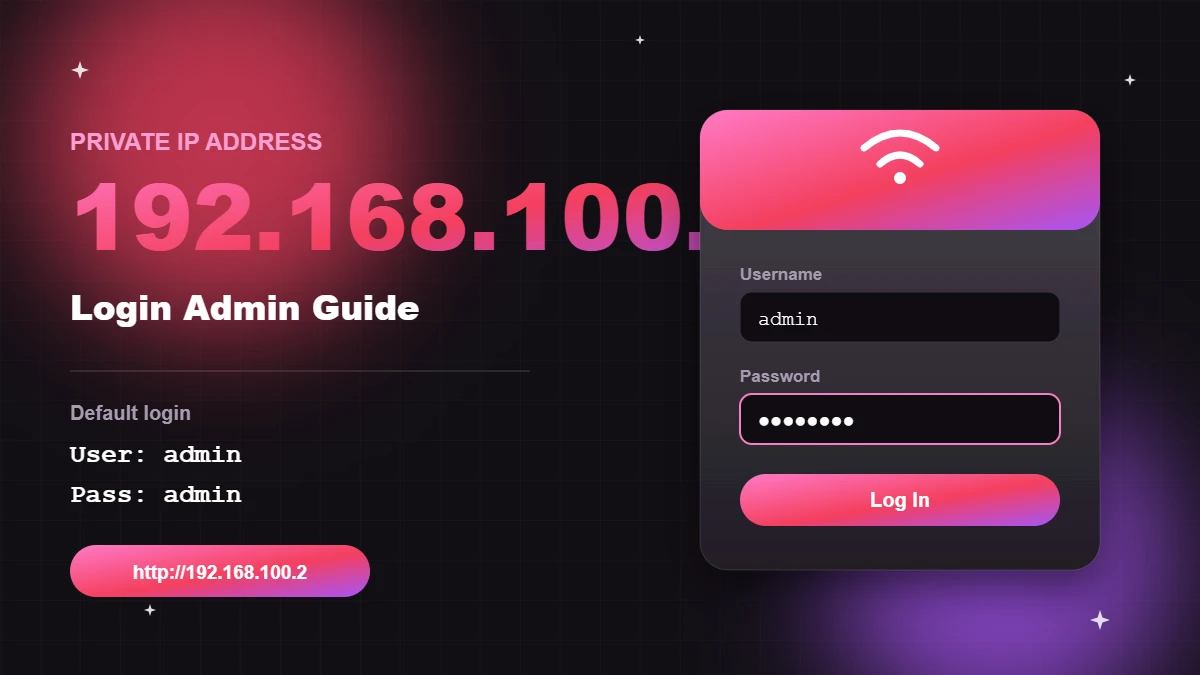
Quick answer: 192.168.100.2 is a private IP address. On most networks the router is 192.168.100.1 and 192.168.100.2 is the first device that gets an IP. Some modems, access points and extenders use 192.168.100.2 as their own login page – open http://192.168.100.2 and use the sticker username and password.
What Is 192.168.100.2?
192.168.100.2 is a private IPv4 address in the 192.168.100.0/24 range. Private addresses work only inside your home or office network – they cannot be reached from the internet.
On a network where the router or fiber modem uses 192.168.100.1, the address 192.168.100.2 is usually given by DHCP to the first connected device, such as a phone, laptop or a second router. Some devices also use it as a fixed admin address:
Second router / access point
A router connected behind a Huawei ONT often gets 192.168.100.2 on its WAN side.
WiFi extender or mesh node
Some extenders use a 192.168.100.x address for their setup page.
Cable or LTE modem
A few modems use 192.168.100.2 for status pages.
Your own device
If your phone shows 192.168.100.2, it is simply the IP your router gave it.
Understanding the 192.168.100.x Network
Every home network is a small group of addresses that share the same first three numbers. Network engineers call this a subnet. On a network that starts with 192.168.100, the last number can be anything from 1 to 254, so up to 254 devices can join at once.
By convention, the router or fiber modem takes the first address, 192.168.100.1. It then hands out the rest to phones, laptops, TVs and other gadgets using DHCP – the automatic address service built into every router. The first device to connect often receives the next free number, which is why this address so often belongs to a phone, a laptop or a second router.
The subnet mask on these networks is normally 255.255.255.0. It tells your device that every address from 192.168.100.1 to 192.168.100.254 is local, while everything else should be sent to the router and out to the internet.
Devices That Often Get This Address
| Device | Why it has the address | Login page? |
|---|---|---|
| Phone, laptop or TV | Given automatically by DHCP | No – it has no admin page |
| Second WiFi router behind a fiber ONT | Its WAN port gets an address from the ONT | Not on this address – use the router’s own LAN address |
| Access point or range extender | Set by the user or given by DHCP | Yes, if it is set to this address |
| Cable or fiber modem in bridge mode | Some models use it for their status page | Sometimes |
| CCTV recorder or IP camera | Often set to a fixed address by the installer | Yes, with the recorder’s own login |
If you are trying to reach your main router, you probably want 192.168.100.1, not .2.
How an IP Address Is Built
An IPv4 address has four numbers separated by dots, and each number can be from 0 to 255. Computers store each part as eight binary digits, which is why the hero above shows the binary form under each number.
| Part | Value | Meaning on a home network |
|---|---|---|
| 1st and 2nd | 192.168 | Marks the address as private, for local networks only |
| 3rd | 100 | The network chosen by your router – here, the 100 network |
| 4th | 2 | The individual device on that network |
Changing only the last number moves you to a different device on the same network. Changing the third number puts you on a different network altogether, which is why 192.168.1.2 and 192.168.100.2 are not the same thing and cannot see each other without a router in between.
How to Login to 192.168.100.2
- Connect to the networkUse the device’s WiFi or a LAN cable.
- Open a browserChrome, Edge, Firefox or Safari.
- Type http://192.168.100.2In the address bar, not the search box.
- Enter the loginUse the sticker details or the defaults below.
- Click LoginThe device admin page opens.
- Not opening?Your router is probably 192.168.100.1 – try that instead.
Open the Address on Android or iPhone
- Connect to the same WiFiYour phone must be on the 192.168.100.x network.
- Turn off mobile data and any VPNA VPN sends traffic away from your local network.
- Open Chrome or SafariType the full address with http:// in the top bar.
- Use desktop view if the page looks brokenIn Chrome, tap the three dots and choose Desktop site.
- Log inUse the username and password for that specific device.
Check If the Address Is Alive
A simple ping test tells you whether any device is answering at an address before you spend time on the browser.
- Open Command Prompt or TerminalOn Windows press Windows + R and type cmd. On Mac open Terminal.
- Type the ping commandping 192.168.100.2 and press Enter. On Mac press Ctrl + C to stop it.
- Read the result“Reply from” means a device is there. “Request timed out” or “Destination host unreachable” means nothing is using that address right now.
Some devices, including many phones and Windows PCs with the firewall on, do not reply to ping even when they are connected. A failed ping is a hint, not proof.
How to Find Which Device Has 192.168.100.2
Before you try to log in, it helps to know what is actually sitting at that address. Here are three easy ways to find out.
Check the router’s device list
- Log in to your main router or ONT at 192.168.100.1.
- Open the DHCP client list, LAN status or connected devices page.
- Find the entry for .2 and read the device name and MAC address.
Use the ARP table
- Open Command Prompt.
- Type ping 192.168.100.2 and press Enter.
- Then type arp -a to see the MAC address of that device.
- Look up the first part of the MAC online to see the maker.
Scan with an app
- Install a free network scanner app such as Fing.
- Connect to your WiFi and run a scan.
- The app lists every address with the device brand and type.
If the result is a phone or a laptop, there is no admin page to open. If it is a router, extender or camera, log in using that device’s own default details.
192.168.100.2 Default Username & Password
| Username | Password | Common on |
|---|---|---|
admin | admin | Most routers and extenders |
admin | password | Some cable modems |
admin | (blank) | Some access points |
root | admin | Huawei devices |
Using a Second Router With a Fiber ONT
Many homes with fiber internet use a Huawei or ZTE ONT from the provider and add their own WiFi router for better coverage. In this setup the ONT is usually 192.168.100.1, and your own router’s WAN (internet) port often receives the next address from it.
That WAN address is not where you log in. Your second router creates its own separate network for your devices, normally at 192.168.0.1 or 192.168.1.1, and that is the address you type to manage it. See our 192.168.0.1 and 192.168.1.1 guides for those logins.
Router mode
- ONT LAN port → router WAN port.
- Router WAN set to Dynamic IP.
- Easy to set up, but creates double NAT.
Access point mode
- ONT LAN port → router LAN port, or switch the router to AP mode.
- All devices stay on the 192.168.100.x network.
- Give the access point a fixed address such as .2 so you can always find it.
What Is Double NAT and Does It Matter?
When two routers both hand out private addresses, your traffic is translated twice before it reaches the internet. This is called double NAT. For browsing, streaming and social media it makes no noticeable difference.
It can cause trouble for online gaming, voice chat, VPN servers and viewing security cameras from outside the home, because incoming connections must pass through both devices. You can fix it in one of three ways:
- Put the ONT in bridge mode and let your own router handle the internet login.
- Switch your second router to access point mode so only the ONT does routing.
- Set your router’s WAN address as the DMZ host on the ONT, so all incoming traffic is passed straight through.
Bridge mode changes may need your PPPoE username and password from the provider. Get these details before you change anything.
Change Your Router’s LAN Address Range
Sometimes two devices on your network both try to use the 192.168.100.x range – for example, a fiber ONT and a second router that came with the same default. This can stop the internet working or make one of them impossible to reach. The fix is to move one device to a different range.
- Log in to the second routerUse a cable connection so you do not lose access mid-change.
- Open LAN settingsUsually under Network, LAN or Advanced → Network.
- Change the LAN IPFor example, set it to 192.168.0.1 or 192.168.1.1 with mask 255.255.255.0.
- Save and wait for the restartThe DHCP range updates automatically on most routers.
- Log in at the new addressYour devices will now get addresses from the new range.
Only change the LAN address of your own router. Leave the provider’s ONT at its default so their support team can still reach it.
192.168.100.2 Not Opening?
- Check the spelling – use 1 and 0, not l and o (192.168.l00.2 is wrong).
- 192.168.100.2 may be a phone or PC, not a router – it will not show a login page.
- Find your gateway – your router is usually 192.168.100.1.
- Stay on the same network and turn off mobile data and VPN.
- Restart the device and try again.
How to find your router IP address
- Windows: Command Prompt →
ipconfig→ Default Gateway - Mac: System Settings → Network → Details → TCP/IP → Router
- Android: Settings → WiFi → your network → Gateway
- iPhone: Settings → Wi-Fi → (i) → Router
Avoid These Typing Errors
| Typed | Mistake |
|---|---|
| 192.168.l00.2 | Letter l instead of the number 1 |
| 192.168.1oo.2 | Letter o instead of zero |
| 192.168.100,2 | Comma instead of a dot |
| 192.168.1002 | Missing dot |
| https://192.168.100.2 | Many small devices only answer on http:// |
Type the address directly into the browser’s address bar and press Enter. If your browser turns it into a Google search, add http:// at the start so it knows it is an address.
How to Fix a 192.168.100.2 IP Conflict
An IP conflict happens when two devices use 192.168.100.2 at the same time. To fix it:
- Restart the router so DHCP gives new addresses.
- On Windows, run
ipconfig /releasethenipconfig /renew. - Remove any manual (static) 192.168.100.2 setting from your devices.
- Set a DHCP reservation in the router for devices that need a fixed IP.
How to Set a Static IP on Your Device
If you want a computer, printer or access point to always use the same address, you can set it by hand. Pick a number that the router will not hand out to other devices, or reserve it in DHCP (see below).
Windows 11
- Open Settings → Network & internet and select your connection.
- Next to IP assignment, click Edit and choose Manual.
- Turn on IPv4 and enter the IP, mask 255.255.255.0 and gateway 192.168.100.1.
- Add a DNS server and click Save.
Android
- Long-press your WiFi network and choose Modify.
- Open Advanced options and set IP settings to Static.
- Enter the IP address, gateway and DNS.
- Tap Save.
Reserve an Address With DHCP Reservation
A DHCP reservation is cleaner than a manual static IP. The router keeps a chosen address for one device, identified by its MAC address, and never gives it to anyone else. This prevents conflicts completely.
- Log in to the main routerUsually at 192.168.100.1 on this kind of network.
- Open the LAN or DHCP settingsLook for Address Reservation, Static Lease or DHCP Binding.
- Add a new entrySelect the device or type its MAC address, then choose the address to keep.
- Save and reconnectRestart the device so it picks up the reserved address.
Keep Devices on Your Network Secure
- Change default passwords on every router, extender, camera and recorder – not just the main router.
- Use WPA2 or WPA3 WiFi security with a long password.
- Update firmware on access points and cameras as well as the router.
- Turn off unused services such as UPnP, WPS and remote management.
- Put smart home gadgets on a guest network so a weak device cannot reach your laptops and phones.
- Review the DHCP client list regularly and remove anything you do not recognise.
How to Reset a Router or Access Point
If the device at this address is a router or extender and you have lost its password, a factory reset is the only way back in. All settings will be erased.
- Keep the device powered onThe reset will not work if it is unplugged.
- Hold the Reset button for 10 secondsUse a pin for recessed buttons.
- Wait for it to restartAbout two minutes.
- Connect directlyJoin its default WiFi or plug in a cable, then open its default address from the label – it may no longer be .2.
- Set it up againChoose router or access point mode and set new passwords.
When to Ask for Expert Help
Some situations are better handled by your internet provider or the device maker:
- The ONT or modem is locked and you only have a limited user account.
- You need bridge mode or a public IP address for gaming or cameras.
- Internet drops for every device, even with a cable plugged straight into the ONT.
- A CCTV recorder or camera was set up by an installer who kept the admin password.
Write down the device brand and model, the address you are trying to reach and what you see on screen. Clear details help support solve the problem on the first call.
Quick Summary
This address is usually a device on a 192.168.100.x network, not the main router. If you want to change WiFi or internet settings, log in to the router or ONT at 192.168.100.1 instead. If an access point, extender or camera really is using .2, open it in your browser and log in with that device’s own username and password. When in doubt, check the DHCP client list or run a quick network scan to see exactly which device owns the address.
Frequently Asked Questions
What is 192.168.100.2?
It is a private IP address. It is usually the first device on a network where the router is 192.168.100.1.
Is 192.168.l00.2 correct?
No. 192.168.l00.2 uses the letter l. The correct address is 192.168.100.2.
What is the 192.168.100.2 password?
Check the device sticker. Common defaults are admin / admin or admin / password.
Why does 192.168.100.2 not open?
It may be a phone or computer, not a router. Try your gateway, usually 192.168.100.1.
Can I change 192.168.100.2?
Yes. Change the device to DHCP or set a different IP in the router’s LAN or DHCP settings.