
192.168.l00.1 Login Admin – Username, Password & WiFi Change
192.168.l00.1 is a typo – the real router address is 192.168.100.1
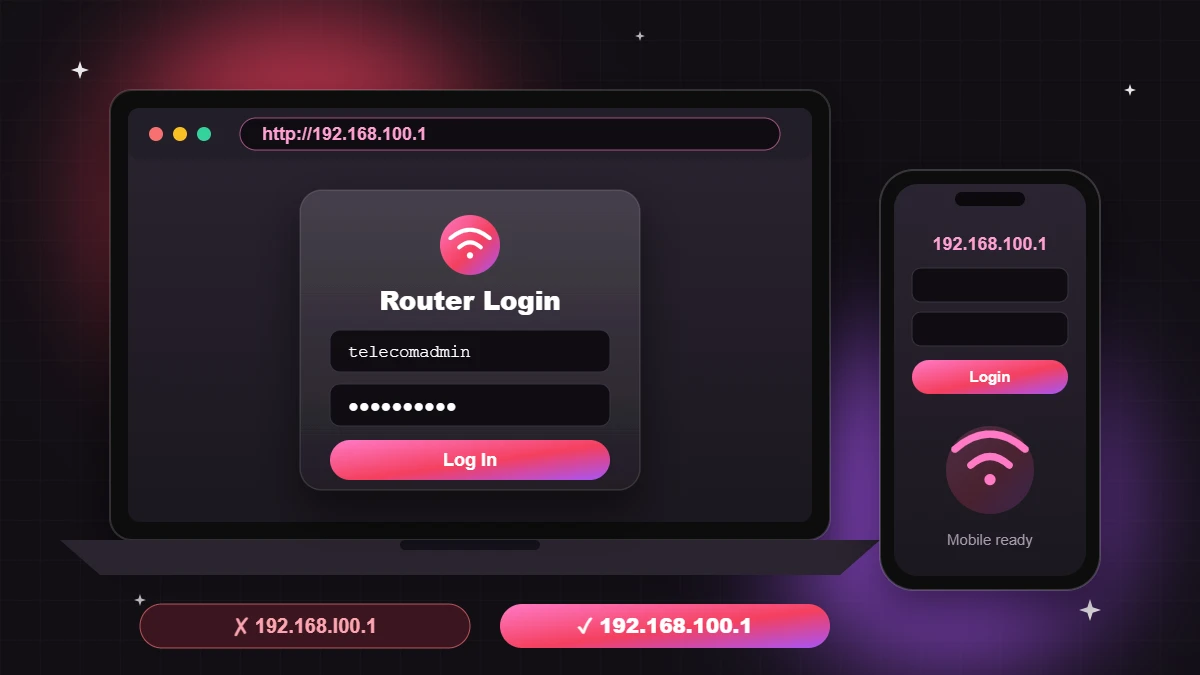
Quick answer: 192.168.l00.1 is a typo. Type http://192.168.100.1 in your browser’s address bar, log in with the username and password on your router’s sticker (Huawei default: telecomadmin / admintelecom), then open WLAN to change your WiFi password.
What Is 192.168.l00.1?
192.168.l00.1 is not a valid IP address. An IP address can only contain numbers (0–255) separated by dots, so the letter “l” makes it invalid. People who search for it really want 192.168.100.1 – a private IPv4 address used as the default gateway of many fiber ONTs, cable modems and routers.
It is used by Huawei (HG8145V5, HG8546M, HG8245H, EG8145V5), Arris, Tenda, VSOL, Askey and Ambit, and by Starlink dishes. In Pakistan, it is the login address of many PTCL Flash Fiber and Nayatel fiber modems.
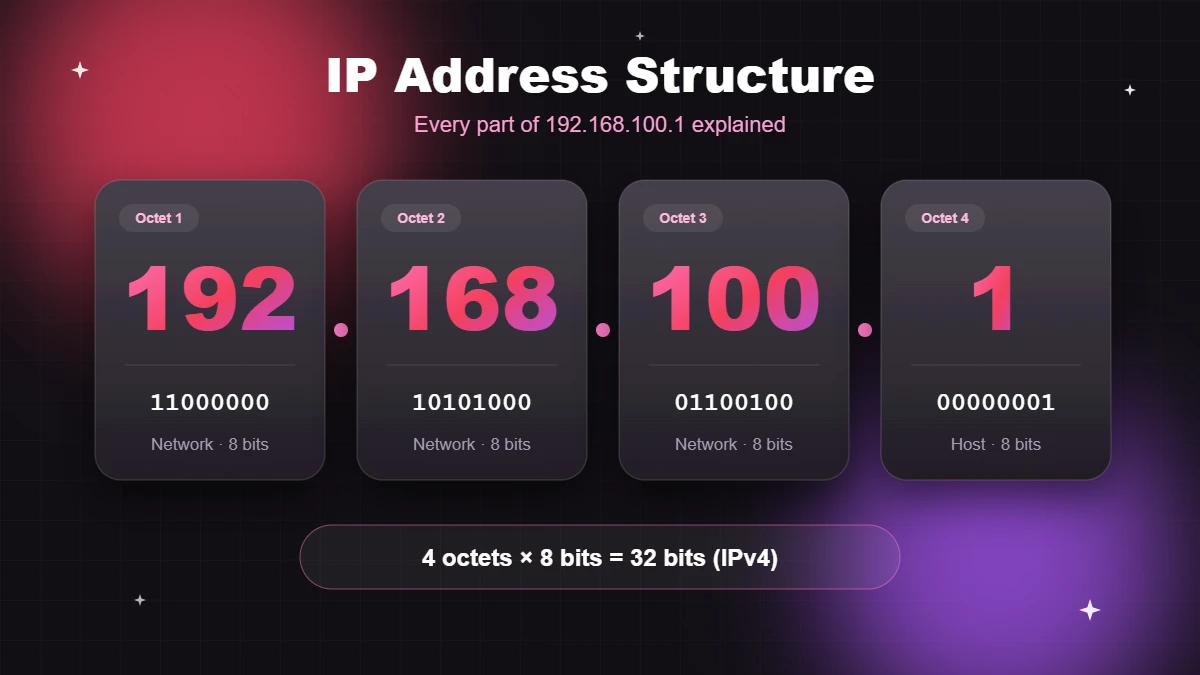
Common misspellings of 192.168.100.1
| Wrong (typo) | What went wrong |
|---|---|
| 192.168.l00.1 | Letter “l” instead of number 1 |
| 192 l.168.100.1 / 192 l.168.100 | Extra “l” and space after 192 |
| 198.168.l00.1 | 198 instead of 192 |
| 168.192.l00.1 | First two numbers swapped |
| 92.168.l00.1 / 162.168.l00.1 | Missing or wrong first digit |
| 192.168.l00.1.1 | Extra “.1” at the end |
| 192 .168.100.1 / 192. 168. 100. 1 | Spaces between the numbers |
| 192.168.100 / 192.168.100. | Last number missing |
| https //192.168.l00.1 | Missing colon and https instead of http |
| ip.192.168.l00.1 | Extra “ip.” in front |
How to Login to 192.168.100.1
Follow these 6 steps on any phone, laptop or PC to open the router admin login page.
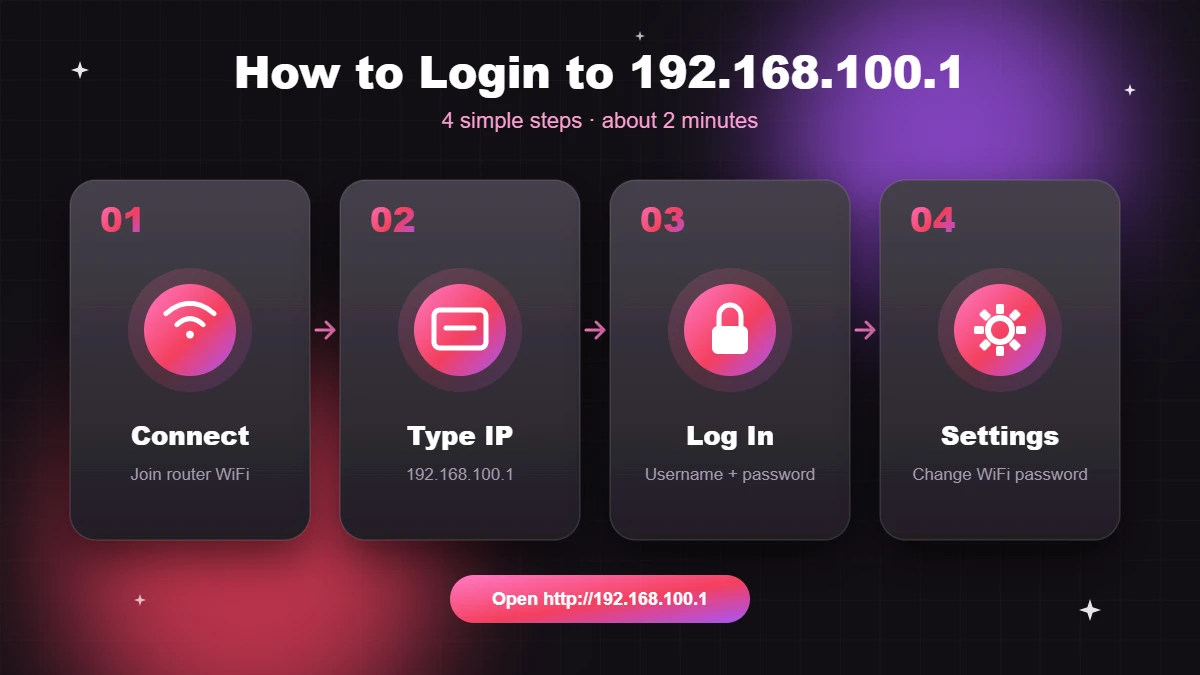
- Connect to the routerJoin its WiFi or plug in a LAN cable. Mobile data will not work.
- Open a browserUse Chrome, Edge, Firefox or Safari.
- Type http://192.168.100.1Use the address bar, not the Google search box. Don’t tap suggestions – they often contain the “l” typo.
- Press EnterThe router admin login page will open.
- Enter username & passwordUse the sticker under your router or the defaults below.
- Click LoginYou are now in the dashboard and can change WiFi settings.
How to login from a mobile phone
Connect your phone to the router’s WiFi, turn off mobile data, and open Chrome. Type the IP in the address bar. If the page looks small, tap the menu and choose “Desktop site” for the full admin panel.
192.168.l00.1 Default Username and Password
Most routers print the login details on a label at the bottom or back. If there is no label, try these common default logins.
| Brand / Device | Username | Password |
|---|---|---|
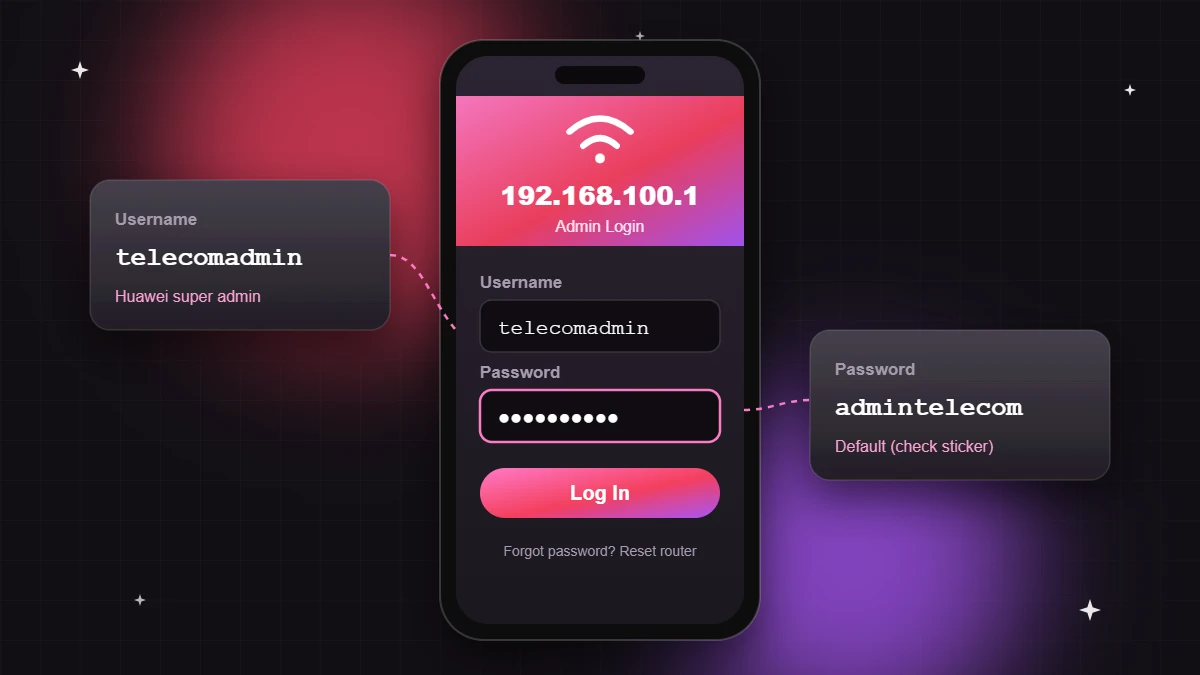
| Huawei ONT (super admin) | telecomadmin | admintelecom |
| Huawei ONT (alternative) | root | admin |
| Huawei ONT (user) | Epuser | userEp |
| PTCL Flash Fiber | admin / telecomadmin | Sticker / admintelecom |
| Nayatel ONT | admin | On sticker |
| Tenda | admin | admin |
| Arris modem | admin | password |
| VSOL ONU | admin | admin |
| Starlink | No login needed | |
What is telecomadmin?
“telecomadmin” (full guide) is the super-admin account on many Huawei fiber ONTs, and its default password is usually “admintelecom”. It gives full access to WAN, LAN and WiFi settings. Some ISPs lock this account, so the normal login (root/admin or the sticker password) may be the only one that works.
192.168.100.1 on Starlink & Arris
On a Starlink dish, this address opens a status page for alignment, outages and speed – no password needed, and WiFi is changed in the Starlink app. On Arris cable modems it shows signal levels and logs; the usual login is admin / password.
192.168.l00.1 Change WiFi Password
Changing your WiFi password keeps strangers off your network and speeds up your internet. Menu names differ by brand – follow the steps for your device.
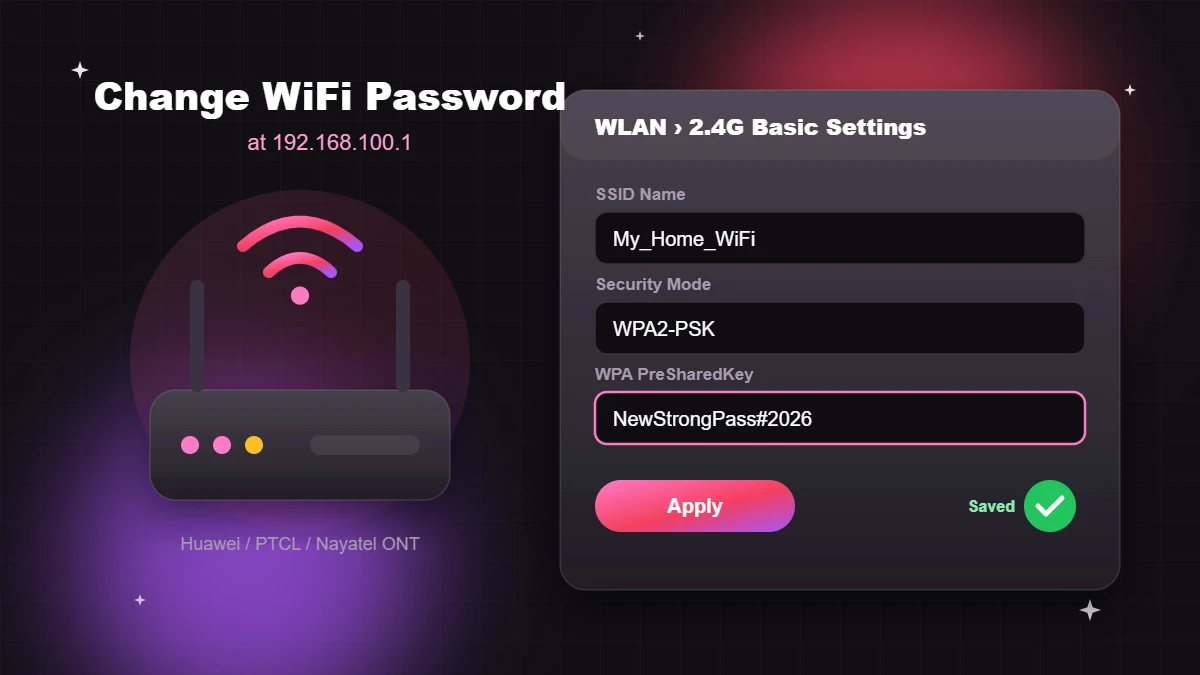
Huawei
- Open the admin page and log in with telecomadmin / admintelecom or root / admin.
- Go to WLAN → 2.4G Basic Network Settings.
- Change the SSID Name for a new WiFi name.
- Enter a new password in WPA PreSharedKey (8+ characters).
- Click Apply. Repeat under 5G Basic Network Settings.
PTCL Flash Fiber
- Open the router page and log in with the sticker details (see our PTCL router login guide).
- Click WLAN (or Advanced → WLAN).
- Type the new password in WPA PreSharedKey.
- Click Apply and reconnect your devices.
Nayatel
- Log in to the ONT using the details on its label.
- Open WLAN or Wireless Settings.
- Update the Pre-Shared Key / Password and save.
Tenda
- Log in (or use tendawifi.com) with admin / admin. Older Tenda models use 192.168.0.1.
- Go to WiFi Settings → WiFi Name & Password.
- Enter the new password and click Save.
192.168.100.1 Not Opening?
If the login page does not load, try these fixes in order.
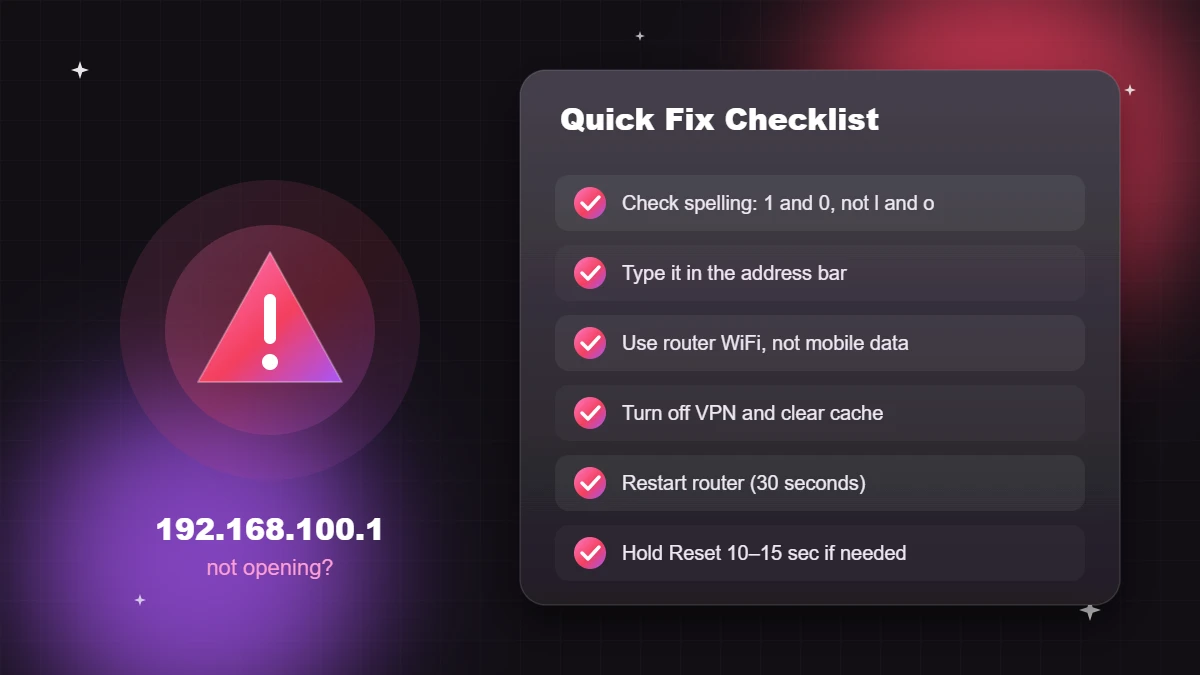
- Check the spelling. Type 192.168.100.1 – no letters, no spaces, no “www”.
- Use the address bar. Typing it in Google shows search results, not your router.
- Stay on the router’s network. Turn off mobile data and VPN.
- Find your real gateway IP. Your router may use 192.168.1.1, 192.168.0.1 or 192.168.10.1.
- Clear browser cache or try another browser or incognito mode.
- Restart the router by unplugging it for 30 seconds.
How to find your router IP address
- Windows: Command Prompt →
ipconfig→ Default Gateway - Mac: System Settings → Network → Details → TCP/IP → Router
- Android: Settings → WiFi → your network → Gateway
- iPhone: Settings → Wi-Fi → (i) → Router
What can you do in the admin panel?
- Change WiFi name (SSID) and password
- See connected devices and block unknown users
- Check fiber signal (optical power) and status
- Set up port forwarding, DNS and parental controls
- Update firmware and the admin password
192.168.100.1 vs Other Router IPs
Not every router uses the same address. This table shows which login IP each common device uses, so you can pick the right guide in seconds.
| Login IP | Commonly used by | Default login | Guide |
|---|---|---|---|
192.168.100.1 | Huawei ONT, PTCL Flash Fiber, Nayatel, Starlink, Arris | Sticker / telecomadmin | You are here |
192.168.10.1 | PTCL DSL modems | admin / admin | Open guide |
192.168.1.1 | TP-Link, Netgear, Asus, ZTE | admin / admin | Open guide |
192.168.0.1 | D-Link, Tenda | admin / blank | Open guide |
192.168.100.2 | Second router, extenders | admin / admin | Open guide |
If you are not sure which one you have, look at the label under your device or check the Default Gateway on your phone. The gateway number is always the address of the box that gives you internet.
Huawei ONT Models That Use 192.168.l00.1
Most fiber modems that ISPs in Pakistan give to customers are made by Huawei. These popular models open their admin page at this address.
| Model | Type | Used by (examples) | WiFi |
|---|---|---|---|
| HG8145V5 | GPON ONT | PTCL Flash Fiber, Nayatel | 2.4 GHz + 5 GHz |
| EG8145V5 | GPON ONT | PTCL, other FTTH ISPs | 2.4 GHz + 5 GHz |
| HG8546M | GPON ONT | Local fiber ISPs | 2.4 GHz |
| HG8245H / HG8245H5 | GPON ONT | Older fiber connections | 2.4 GHz (H5: dual band) |
| HG8145C / HS8145C5 | GPON ONT | Local fiber ISPs | 2.4 GHz |
The model name is printed on the back label, next to the serial number and the default WiFi name. Menus look almost the same on all of these models, so the steps on this page work for each of them. On a dual-band model, our 2.4 GHz vs 5 GHz guide explains which band to use for each device.
How to Secure Your Router After Login
Once you are inside the admin panel, take two minutes to make your home network safer. These simple changes stop neighbours and strangers from using your internet.
Change the admin password
Do not keep the default login. Set a new admin password under System Tools so nobody else can change your settings.
Use WPA2 or WPA3
Choose WPA2-PSK (AES) or WPA3 security. Never leave the WiFi open or on old WEP encryption.
Use a long WiFi password
Pick 12 or more characters with letters, numbers and symbols. Avoid names, phone numbers or 12345678.
Turn off WPS
WPS makes it easy to connect, but it is also easy to break. Switch it off if you do not use it.
Check connected devices
Open the device list or DHCP clients page. If you see an unknown phone or laptop, block it and change your password. Our who is connected to my WiFi guide shows every step.
Update the firmware
Install updates when your ISP offers them. New firmware fixes security holes and can make WiFi faster.
How to Change the Router IP Address
Some users change the LAN address to avoid a clash with a second router. Do this only if you know why you need it.
- Log in as adminUse the super admin account if the normal user cannot see LAN settings.
- Open LAN settingsGo to LAN → LAN Host Configuration (Huawei) or Network → LAN.
- Enter a new IPFor example 192.168.20.1, with subnet mask 255.255.255.0.
- Update DHCPChange the DHCP start and end range to match the new address.
- Save and reconnectThe device restarts; reconnect your phone or PC to the WiFi.
- Use the new addressFrom now on, open the admin page with the new IP, not the old one.
Other Router Login Guides
Using a different router or ISP? Pick your guide below.
Telecomadmin Password
Huawei super admin: telecomadmin / admintelecom
PTCL Router Login
PTCL DSL & Flash Fiber login and WiFi change
192.168.10.1 (192.168.l0.1)
PTCL modem login guide
192.168.1.1
TP-Link, Netgear, Asus & ZTE login
192.168.0.1
D-Link & Tenda router login
192.168.100.2
Second device on 192.168.100.x
Frequently Asked Questions
Is 192.168.l00.1 a correct IP address?
No. It contains the letter “l”, which is not allowed in an IP address. The correct address is 192.168.100.1.
What is the username and password for 192.168.100.1?
Check the sticker on your router first. Common defaults are telecomadmin / admintelecom and root / admin for Huawei, and admin / admin for Tenda.
How do I change my WiFi password using 192.168.l00.1?
Log in to the router, open WLAN or WiFi Settings, enter a new password in the WPA PreSharedKey field, and click Apply.
Why is 192.168.100.1 not opening?
The most common reasons are a spelling mistake, being on mobile data instead of WiFi, or your router using a different IP like 192.168.1.1.
Can I open 192.168.100.1 on my phone?
Yes. Connect to the router’s WiFi, open Chrome or Safari, and type the IP in the address bar.
Log in to 192.168.100.1 now
Remember: it is just a typo – the real router login address is 192.168.100.1. Log in with the sticker details or the default username and password above to change your WiFi password, manage devices and keep your network secure.
Open Router Login →