192.168.1.1 Login Admin – Username & Password
Typo 192.168.l.l? The correct address is 192.168.1.1
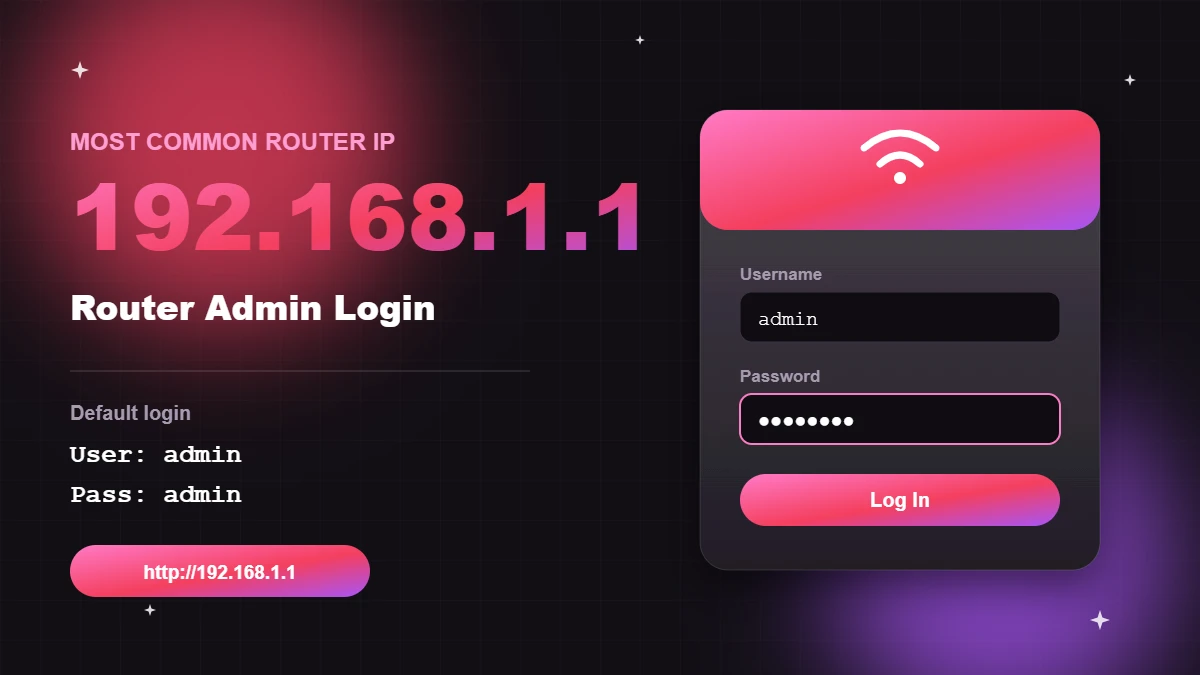
Quick answer: Open http://192.168.1.1 in your browser while connected to your router. Log in with the sticker details or the default (usually admin / admin). Then open Wireless settings to change your WiFi name and password.
What Is 192.168.1.1?
192.168.1.1 is a private IP address and the most common default gateway for home routers. Brands like TP-Link, Netgear, Linksys, Asus, ZTE and Huawei use it to open the router admin panel, where you can change WiFi settings, see connected devices and set up security.
Many people type it wrong as 192.168.l.l or 192 l.168.1.1. An IP address uses only numbers, so always type 192.168.1.1 with the number one.
Routers That Use This Login Address
Most TP-Link, Netgear, Linksys and Asus routers, plus many ZTE and Huawei modems supplied by internet providers, open their settings at 192.168.1.1. Several brands also offer an easy web name that points to the same page, which is handy if you forget the numbers.
| Brand | Web address you can also try | Usual default login |
|---|---|---|
| TP-Link | tplinkwifi.net | admin / admin on older models. Newer models ask you to create a password on first login. |
| Netgear | routerlogin.net | admin / password |
| Linksys | myrouter.local | admin / admin, or the password on the sticker |
| Asus | router.asus.com | admin / admin on older models. Newer models ask you to set your own. |
| ZTE | – | admin / admin, or the details printed on the label |
| Huawei (ISP modems) | – | Printed on the sticker – it differs by provider |
Always check the sticker on the bottom or back of your device first. Many routers made in the last few years have a unique password printed there instead of a shared default.
What a Default Gateway Does
Your router sits between your home devices and the internet. Every phone, laptop and smart TV sends its internet traffic to the router first, and the router passes it on. In networking terms, the router is your default gateway, and 192.168.1.1 is simply the address it uses on your home network.
The address comes from the private 192.168.x.x range, which is reserved for local networks and never used on the public internet. That is why the same number works in millions of homes without clashing, and why it only opens when you are connected to your own router.
Your router actually has two addresses: the private one you type to log in, and a public IP address given by your internet provider. Websites only ever see the public address. The private address is just for you and the devices in your home.
If your router is set to a different private address, such as 192.168.0.1 or 192.168.100.1, typing 192.168.1.1 will not work. The next section shows how to check the correct address on any device.
How to Login to 192.168.1.1
- Connect to the routerWiFi or LAN cable.
- Open a browserChrome, Edge, Firefox or Safari.
- Type http://192.168.1.1In the address bar.
- Enter usernameUsually admin.
- Enter passwordadmin, password, or the sticker password.
- Click LoginThe router dashboard opens.
First-Time Setup Wizard Walkthrough
A brand-new or freshly reset router starts with a quick setup wizard the first time you log in. It usually takes less than five minutes.
- Create an admin passwordMost new routers ask for this before anything else.
- Choose your time zone and regionThis keeps logs and parental control schedules accurate.
- Pick the connection typeDynamic IP for most cable and fiber lines, PPPoE if your provider gave you a username and password, or Static IP for business lines.
- Name your WiFi networksSet a name and password for 2.4 GHz and 5 GHz, or one name for both.
- Check for a firmware updateMany wizards offer this at the end. Accept it and let the router restart.
- Reconnect your devicesJoin the new WiFi name on each phone, laptop and TV.
Write your new WiFi name, WiFi password and admin password on a card and keep it somewhere safe. It will save you a reset later.
Find the Correct Gateway Address in Seconds
Guessing addresses wastes time. Your computer or phone already knows the right one – here is where to look.
Windows 10 and 11
- Right-click the Start button and open Terminal or Command Prompt.
- Type ipconfig and press Enter.
- Read the Default Gateway line under your active adapter.
macOS
- Open System Settings → Network.
- Select your connection and click Details.
- Open TCP/IP and read the Router field.
Android
- Go to Settings → WiFi.
- Tap your connected network.
- Look for Gateway or Router, sometimes under Advanced.
iPhone
- Open Settings → Wi-Fi.
- Tap the (i) icon next to your network.
- The Router line shows the address.
Log In With an Ethernet Cable
If WiFi is not working or you changed the WiFi password and lost access, connect a laptop to one of the yellow or numbered LAN ports on the router with an Ethernet cable. A wired connection does not need any WiFi password, and it keeps working while you change wireless settings. Do not use the WAN or Internet port – that one is for the cable coming from your modem or provider.
192.168.1.1 Default Username & Password
| Brand | Username | Password |
|---|---|---|
| TP-Link | admin | admin |
| Netgear | admin | password |
| Linksys | admin | admin / blank |
| Asus | admin | admin |
| ZTE | admin | admin |
| Huawei | admin | On sticker |
Change the Router Admin Password by Brand
Default admin logins are public knowledge. Anyone on your WiFi – a guest, a neighbour who guessed your key, or malware on one of your devices – could try them. Set your own admin password right after your first login.
TP-Link
- Open Advanced → System → Administration (older models: System Tools → Password).
- Enter the old password, then the new one twice.
- Click Save.
Netgear
- Go to Advanced → Administration → Set Password.
- Type the old and new password.
- Turn on password recovery if offered, then click Apply.
Asus
- Open Administration → System.
- Change the Router Login Password.
- Click Apply at the bottom of the page.
Linksys
- Open Connectivity → Basic.
- Click Edit next to Router Password.
- Enter a new password and a hint, then click Apply.
Pick a password you do not use anywhere else, and keep it different from your WiFi password. A password manager or a written note kept somewhere safe at home will stop you from needing a factory reset later.
Official Router Apps Make It Easier
Instead of typing an address into a mobile browser, you can manage most modern routers with the maker’s free app. The apps show the same settings in a clean, touch-friendly layout and often add extras such as speed tests and push alerts when a new device joins.
- TP-Link Tether and Deco – for TP-Link routers and Deco mesh systems.
- Netgear Nighthawk and Orbi – for Netgear routers and Orbi mesh WiFi.
- ASUS Router – for most Asus routers, including gaming models.
- Linksys – for Linksys smart WiFi and Velop mesh systems.
Download apps only from the Google Play Store or Apple App Store. Your phone must be connected to the router’s WiFi the first time you pair the app. Some apps also ask you to create a free cloud account so you can manage the router when you are away from home.
192.168.1.1 Change WiFi Password
TP-Link
- Log in at 192.168.1.1.
- Go to Wireless → Wireless Security.
- Enter a new Password (WPA2-PSK).
- Click Save.
Netgear
- Log in at 192.168.1.1.
- Open Wireless.
- Change Password (Network Key).
- Click Apply.
Asus
- Log in at 192.168.1.1.
- Go to Wireless → General.
- Change WPA Pre-Shared Key.
- Click Apply.
ZTE / Huawei
- Log in at 192.168.1.1.
- Open WLAN → Security.
- Change WPA Passphrase.
- Click Submit / Apply.
Best Security Settings for Home WiFi
Use this table as a checklist after you log in. These settings give strong protection without slowing down your internet.
| Setting | Recommended value | Why it matters |
|---|---|---|
| WiFi security | WPA2-PSK (AES) or WPA3 | Older WEP and TKIP can be cracked in minutes. |
| WiFi password | 12+ characters, mixed | Long passwords stop guessing attacks. |
| Admin password | Unique, not the default | Stops others from changing your router. |
| WPS | Off | The WPS PIN is a known weak point. |
| Remote management | Off | Keeps the login page private to your home. |
| UPnP | Off unless a game or app needs it | Prevents apps from opening ports on their own. |
| Firmware | Latest version | Updates fix security holes and bugs. |
| Guest network | On for visitors | Keeps guests away from your own devices. |
How to Set Up Port Forwarding
Port forwarding lets a device inside your home accept connections from the internet. Gamers use it for better online play, and many people need it to view CCTV recorders or run a home server. The steps are similar on every brand.
- Give the device a fixed addressIn the DHCP or LAN menu, reserve an IP for your console, camera or PC so it never changes.
- Open the forwarding menuLook for Port Forwarding, Virtual Server or NAT Forwarding, usually under Advanced.
- Add a new ruleEnter a name, the port number or range, the protocol (TCP, UDP or both) and the device’s fixed address.
- Save and restart the deviceSome routers also need a restart before the rule works.
- Test the portUse the game’s network test or an online port checker.
Only open the ports you really need, and remove rules you no longer use. Every open port is a door into your network. If your provider uses CGNAT, port forwarding will not work at all – ask them for a public IP address.
Fix Dead Zones: Extender or Mesh WiFi?
If some rooms have weak or no signal, changing router settings can only help so much. Thick walls, multiple floors and long distances need extra hardware.
- Move the router first – a central, raised spot often fixes weak rooms for free.
- WiFi extender – a low-cost plug-in device that repeats your signal. Good for one problem room, but speed usually drops by about half.
- Mesh WiFi system – two or three units that work as one network with a single name. Best for large homes and multi-storey houses. Popular options include TP-Link Deco, Netgear Orbi and Asus ZenWiFi.
- Access point over cable – a second router or access point connected by Ethernet gives full speed in a far room.
- Powerline adapters – send internet through your home’s electrical wiring when running a cable is not possible.
After adding an extender or mesh unit, log in to its own setup page or app to finish the setup. Mesh systems usually take over from your old router, so you may log in through the mesh app instead of the old address.
192.168.1.1 Not Opening?
- Type 192.168.1.1, not 192.168.l.l.
- Use the address bar, not the search box.
- Check your gateway – it may be 192.168.0.1 or 192.168.100.1.
- Turn off mobile data and VPN.
- Try another browser or clear the cache.
- Reset the router (hold Reset 10 seconds) if you forgot the password.
How to find your router IP address
- Windows: Command Prompt →
ipconfig→ Default Gateway - Mac: System Settings → Network → Details → TCP/IP → Router
- Android: Settings → WiFi → your network → Gateway
- iPhone: Settings → Wi-Fi → (i) → Router
Wrong Address? Fix These Typos
Router pages are picky. A single wrong character sends you to a search page or an error. Compare what you typed with this table.
| What people type | What is wrong |
|---|---|
| 192.168.l.l | Small letter L used instead of the number 1 |
| 192.168.1.l | Last digit is a letter |
| 192.168.11 | A dot is missing |
| 192.168.1.1.1 | An extra number at the end |
| 192.168.1.1 typed in Google search | Search boxes show results, not your router |
| https:// at the start | Many routers only answer on http:// |
The safest method is to type the full address with http:// at the start, directly into the bar at the very top of your browser, then press Enter.
How to Reset Your Router to Factory Settings
A reset brings back the factory username and password when you cannot remember the one you set. It also erases your WiFi name, password and internet settings, so treat it as the last option.
- Leave the router switched onA reset only works while the router has power.
- Find the Reset buttonOn TP-Link it is often shared with the WPS button. On most other brands it is a small pinhole.
- Hold it for about 10 secondsRelease when all the lights flash or turn off together.
- Wait for the restartGive it two to three minutes to boot fully.
- Connect with the sticker detailsJoin the default WiFi name and log in with the default admin login.
- Set up againRun the quick setup wizard and enter your internet account details.
If your provider gave you the device, you may need a PPPoE username and password, or a VLAN number, to get back online. Keep these details from your provider before you press reset.
Restart vs Reset: Know the Difference
People often say “reset” when they mean “restart”, and pressing the wrong button can wipe all your settings. Here is the difference.
Restart (reboot)
- Turns the router off and on again.
- Keeps every setting and password.
- Fixes most slow or dropping connections.
- Do it from the dashboard, or unplug the power for 30 seconds.
Factory reset
- Erases all settings and custom passwords.
- Returns the router to its out-of-the-box state.
- Needed only when you are locked out or the router is badly misconfigured.
- Done by holding the Reset button for about 10 seconds.
Always try a simple restart first. It solves the problem in most cases and you will not have to set up your network again.
When to Call Your Provider
Your router settings are only half of the picture. If you see any of the signs below, the problem is probably on the internet provider’s side:
- The Internet or WAN light is off or red, even after a restart.
- A cable connected straight to the router still gives slow speed or no internet.
- The router shows the WAN status as disconnected, or no public IP address.
- You need your PPPoE login details after a reset.
Have your account number, router model and a short description of the problem ready. Telling support exactly which lights are on and which steps you already tried gets you a fix much faster.
Frequently Asked Questions
What is 192.168.1.1?
It is the most common private IP address used to log in to home routers.
Is 192.168.l.l correct?
No. It uses the letter l. The correct address is 192.168.1.1.
What is the 192.168.1.1 username and password?
Usually admin / admin. Netgear uses admin / password. Check the router sticker.
How do I change my WiFi password at 192.168.1.1?
Log in, open Wireless or WLAN security settings, enter a new password and save.
Why is 192.168.1.1 not working?
Your router may use another IP such as 192.168.0.1 or 192.168.100.1, or you are not connected to it.