
Telecomadmin Password – Huawei Default Login
Default: telecomadmin / admintelecom at 192.168.100.1
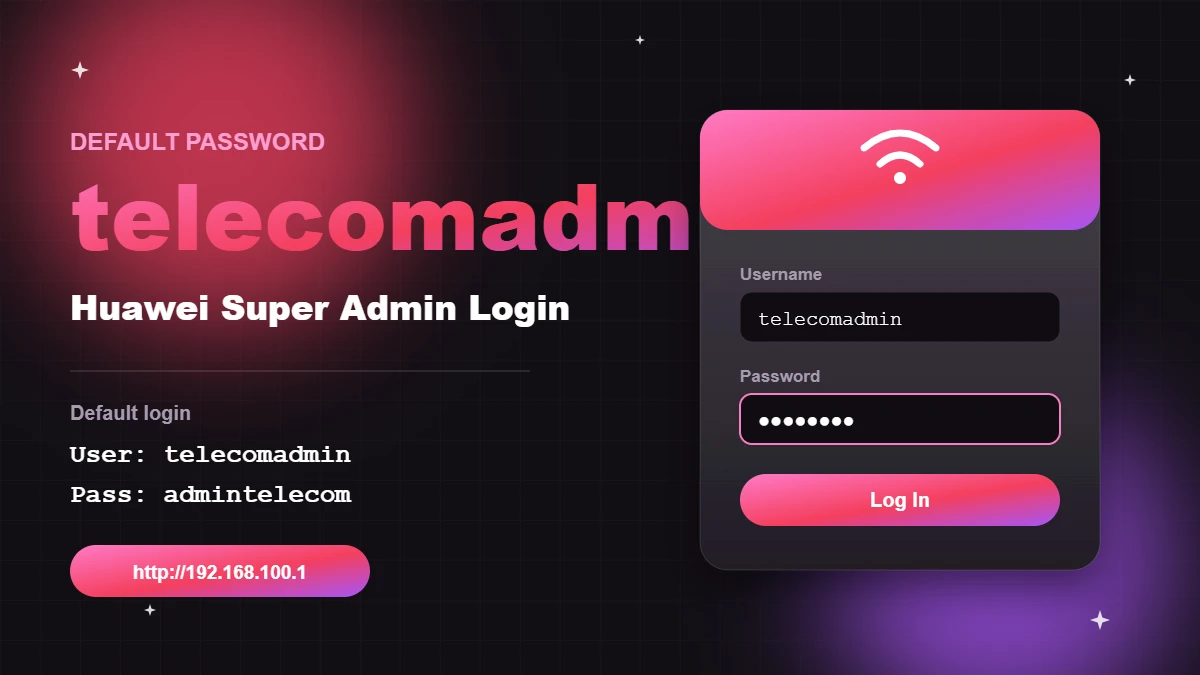
Quick answer: The default telecomadmin password on most Huawei fiber ONTs is admintelecom. Open http://192.168.100.1, type telecomadmin as the username and admintelecom as the password, then click Login. If it fails, your ISP has changed it – use the sticker login or call your provider.
What Is Telecomadmin?
telecomadmin is the super-administrator account on many Huawei fiber modems (ONTs) such as the HG8145V5, HG8546M, HG8245H and EG8145V5. Internet providers use it to manage the device. It has more rights than the normal user account: you can change WAN, LAN, WiFi, DHCP, firewall and port forwarding settings.
The normal user account (often root / admin or the password printed on the sticker) can usually only change the WiFi name and password. That is why many people search for the telecomadmin password.
Huawei ONT Account Levels Explained
Huawei fiber terminals are the box at the end of a passive optical network (PON) – the technology most fiber-to-the-home services use. Because the same device is managed by both you and your internet provider, it has more than one login level.
| Level | Who it is for | What it can change |
|---|---|---|
| Super admin | Internet provider and technicians | Everything – internet (WAN) profiles, VLANs, voice, remote management, firmware and user accounts |
| Normal user | The customer | WiFi name and password, connected devices, basic LAN and DHCP options, own login password |
For day-to-day tasks such as changing your WiFi password, the normal user account printed on the sticker is enough. The super-admin account only matters for advanced changes, and many providers now give it a unique password or disable it entirely.
Why Routers Have Default Passwords
Every network device needs a way for the first person to log in and set it up. Makers solve this with a default account that is the same on every unit, or printed on each unit’s label. Defaults are convenient for installers, but they are also widely known, which is exactly why you should replace them with your own password as soon as setup is complete. Modern devices increasingly use a unique password per unit to remove this risk, and providers often lock or randomise the super-admin account for the same reason.
Risks of Changing Advanced Settings
Logging in with full rights is not the same as knowing which settings are safe to touch. Before you change anything advanced, understand what can go wrong:
- Losing internet – deleting or editing the WAN profile, VLAN ID or PPPoE details will disconnect you, and only your provider may know the right values.
- Losing phone service – voice settings are configured remotely and are easy to break.
- Remote changes – many providers push their own configuration back to the device and may change the super-admin password at any time.
- Service terms – the ONT often belongs to the provider, and changing locked settings may be against your service agreement.
If you are not sure what a setting does, take a screenshot of the page before you change it, or leave it alone and ask your provider.
Telecomadmin Default Password List
Try these Huawei default logins in order. The first one works on most devices.
| Username | Password | Account type |
|---|---|---|
telecomadmin | admintelecom | Super admin (most common) |
telecomadmin | nE7jA%5m | Super admin (older firmware) |
root | admin | Normal user |
Epuser | userEp | Normal user |
admin | admin | Some ISP firmware |
Huawei ONT Login Addresses
Most Huawei terminals use 192.168.100.1 out of the box, but some providers change it when they configure the device. If the page will not open, check your gateway first.
| Address | When you will see it |
|---|---|
| 192.168.100.1 | Factory default on most Huawei ONTs, including PTCL Flash Fiber |
| 192.168.1.1 | Set by some providers, or on Huawei home routers |
| 192.168.18.1 | Used by some providers on newer Huawei models |
| 192.168.3.1 | Huawei WiFi routers (not ONTs) |
On Windows, run ipconfig and read the Default Gateway. On a phone, open the WiFi details and look for Router or Gateway. Whatever address appears there is the one to type in your browser.
Before You Log In
- Connect to the ONT by WiFi or, better, with a LAN cable.
- Have the sticker details ready – take a photo of the label so you do not need to move the device.
- Turn off any VPN on your computer or phone.
- Note down current settings before changing anything, so you can switch back if needed.
How to Login with Telecomadmin
- Connect to the ONTJoin its WiFi or use a LAN cable.
- Open a browserChrome, Edge, Firefox or Safari.
- Go to 192.168.100.1Type http://192.168.100.1 in the address bar.
- Enter telecomadminType telecomadmin in the Username field.
- Enter admintelecomType admintelecom in the Password field.
- Click LoginYou now have full admin access.
Log In to Huawei ONT From a Phone
- Join the ONT’s WiFiTurn off mobile data so the phone uses WiFi only.
- Open Chrome or SafariType http://192.168.100.1 in the address bar.
- Choose desktop viewHuawei pages are built for large screens. In Chrome tap the three dots and tick Desktop site.
- Enter the account detailsUse the sticker login for everyday changes.
Huawei also offers the free HUAWEI AI Life app for some home routers, but most provider-supplied ONTs only support the web page.
Change WiFi Name and Password on a Huawei ONT
You do not need super-admin rights for this. The normal user account on the sticker can change WiFi settings on almost every Huawei model.
- Log in at 192.168.100.1Use the user account on the sticker, or your own if you changed it.
- Open WLANThen choose 2.4G Basic Network Settings.
- Edit the SSID NameType a new WiFi name.
- Set the securityChoose WPA2 PreSharedKey (or WPA/WPA2) with AES encryption.
- Enter a new WPA PreSharedKeyThis is your new WiFi password – use 12 characters or more.
- Click ApplyThen repeat in 5G Basic Network Settings on dual-band models.
Change the User Login Password
- Open System ToolsFrom the top menu after logging in.
- Choose Modify Login PasswordSome firmware calls it Account Management.
- Enter the old and new passwordHuawei usually needs at least 6 characters with letters and numbers.
- Click ApplyYou will be logged out and asked to sign in again.
Changing the user password stops other people on your WiFi from opening the dashboard. Write the new password down – if you lose it, a factory reset is the only way back, and on fiber ONTs a reset can remove your internet settings.
Telecomadmin Not Working?
If you see “incorrect username or password” or the account is locked, try these fixes.
- Wait 1–5 minutes. After 3 wrong tries Huawei locks the login for a short time.
- Check caps lock. The password is all lowercase.
- Try the normal user login – root / admin or the sticker password.
- Clear browser cache or use incognito mode.
- Ask your ISP – PTCL, Nayatel and others can share or reset the admin password.
- Factory reset (hold Reset 10–15 seconds) only as a last step – it can remove your internet settings.
Common Huawei Login Error Messages
| Message | What it means | What to do |
|---|---|---|
| Incorrect user name or password | The details do not match this device | Check spelling and Caps Lock, then try the sticker account. |
| Too many retries / account locked | Several wrong attempts in a row | Wait one to five minutes before trying again. |
| Another user is logged in | Only one session is allowed at a time | Log out on the other device, or wait a few minutes. |
| Page cannot be reached | Wrong address or not connected | Check your gateway address and WiFi connection. |
What If the Provider Changed the Password?
Many internet providers now set their own super-admin password on every ONT they install, or disable remote and local super-admin access completely. This is done to protect your connection and stop accidental changes. If the default no longer works:
- Use the normal user account on the sticker – it covers WiFi, connected devices and most everyday settings.
- Ask your provider to make the change you need, such as bridge mode, a port opening or a new WiFi band.
- If you own the ONT, ask the provider whether they can share a customer admin password or switch your connection to bridge mode so you can use your own router.
- Do not use password-cracking tools or unofficial firmware – they can damage the device and may break your service agreement.
Port Forwarding on Huawei ONT
Port forwarding on Huawei terminals is called Port Mapping. On many firmware versions the normal user account can add rules.
- Open Forward RulesThen choose Port Mapping Configuration.
- Click NewSelect the internet WAN connection from the list.
- Fill in the ruleEnter a name, the internal host (your device’s local IP), the protocol and the external and internal port numbers.
- Apply and testCheck the port from outside your home with your game or camera app.
If no WAN connection appears in the list, or your public IP starts with 10. or 100.64 to 100.127, your provider is using carrier-grade NAT and port forwarding will not work. Ask them for a public IP address.
Bridge Mode: Using Your Own Router
Some people look for super-admin access only because they want to use a better WiFi router. In most cases the cleaner solution is bridge mode. In bridge mode the ONT simply converts the fiber signal, and your own router handles the internet login, WiFi and firewall.
- Ask your provider to switch the ONT to bridge mode – they can usually do it remotely.
- Get your PPPoE username, password and any VLAN ID from them.
- Connect the ONT’s LAN port to your router’s WAN port and enter those details in your router.
- Manage everything from your own router’s address from then on.
This avoids double NAT, makes port forwarding easier and lets you upgrade your WiFi without touching locked settings on the provider’s device.
Check Your Fiber Signal Strength
Huawei ONTs show the strength of the light signal coming through your fiber cable. Open Status → Optical Information (on some models, Status → PON Information).
| RX optical power | What it means |
|---|---|
| About -8 to -25 dBm | Healthy signal |
| About -25 to -27 dBm | Weak – may cause slow speed or drops |
| Below -27 dBm | Very weak – the cable may be bent or the connector dirty |
| No value / LOS light red | No signal – the fiber is disconnected or broken |
Do not unplug or clean the fiber connector yourself, and never look into the end of a fiber cable. If the signal is weak, report the reading to your provider – it helps them find the fault quickly.
What You Can Do as Telecomadmin
WiFi settings
Change SSID, password, channel and band (2.4G / 5G).
Network settings
Edit WAN, LAN IP, DHCP range and DNS servers.
Security
Firewall level, MAC filter, block unknown devices.
Advanced
Port forwarding, DMZ, UPnP and firmware update.
Factory Reset on a Huawei ONT
A reset restores the factory accounts, but on a fiber terminal it can do more harm than good. Many ONTs receive their internet profile from the provider, and a reset may wipe it.
Restart only
- Unplug the power for 30 seconds, or use System Tools → Restart.
- Keeps every setting.
- Fixes most slow or dropping connections.
Factory reset
- Hold the Reset button for about 10 seconds while the device is on.
- Erases WiFi, passwords and possibly the internet profile.
- Call your provider first – they may need to set the device up again.
Before a reset, open System Tools → Configuration File and save a backup if your account allows it. A backup can save a lot of time if something goes wrong.
Keep Your Fiber Router Secure
- Change the normal user password from the sticker default.
- Use WPA2 or WPA3 with a long WiFi key on both 2.4G and 5G.
- Turn off WPS in the WLAN menu.
- Set the firewall level in Security to Medium or higher.
- Keep UPnP off unless a game or app needs it.
- Check the user device list under Status every few weeks.
- Never share admin passwords in public forums or with unknown callers.
Huawei Models Covered by This Guide
The steps on this page apply to the most common Huawei fiber terminals supplied by internet providers, including:
- HG8145V5 and EG8145V5 – dual-band WiFi terminals used on many fiber plans.
- HG8546M – a popular single-band model on older fiber connections.
- HG8245H and HG8245Q2 – earlier models still found in many homes.
Menu names may differ slightly between firmware versions and providers, but the layout – Status, WAN, LAN, WLAN, Security, Forward Rules and System Tools – stays very similar.
Quick Summary
For everyday changes on a Huawei ONT, log in at 192.168.100.1 with the user account on the sticker. Use the super-admin account only if you understand the settings and your provider allows it. Never change WAN, VLAN or voice settings without your provider’s values, and always try a restart before a reset.
Frequently Asked Questions
What is the telecomadmin password?
The default telecomadmin password on most Huawei ONTs is admintelecom. Older firmware may use nE7jA%5m.
Where do I enter telecomadmin?
Open http://192.168.100.1 in your browser while connected to the router, then enter telecomadmin and admintelecom.
Why is telecomadmin not working?
Your ISP has probably changed or locked it. Use the sticker login, wait if the account is locked, or ask your ISP.
Is telecomadmin safe to use?
Yes, but be careful. Changing WAN or VLAN settings can break your internet connection.
Can I change the telecomadmin password?
Yes. Log in, go to System Tools → Modify Login Password, and set a new strong password.