
PTCL Router Login – 192.168.10.1 & 192.168.100.1
Login and change your PTCL WiFi password in 5 minutes
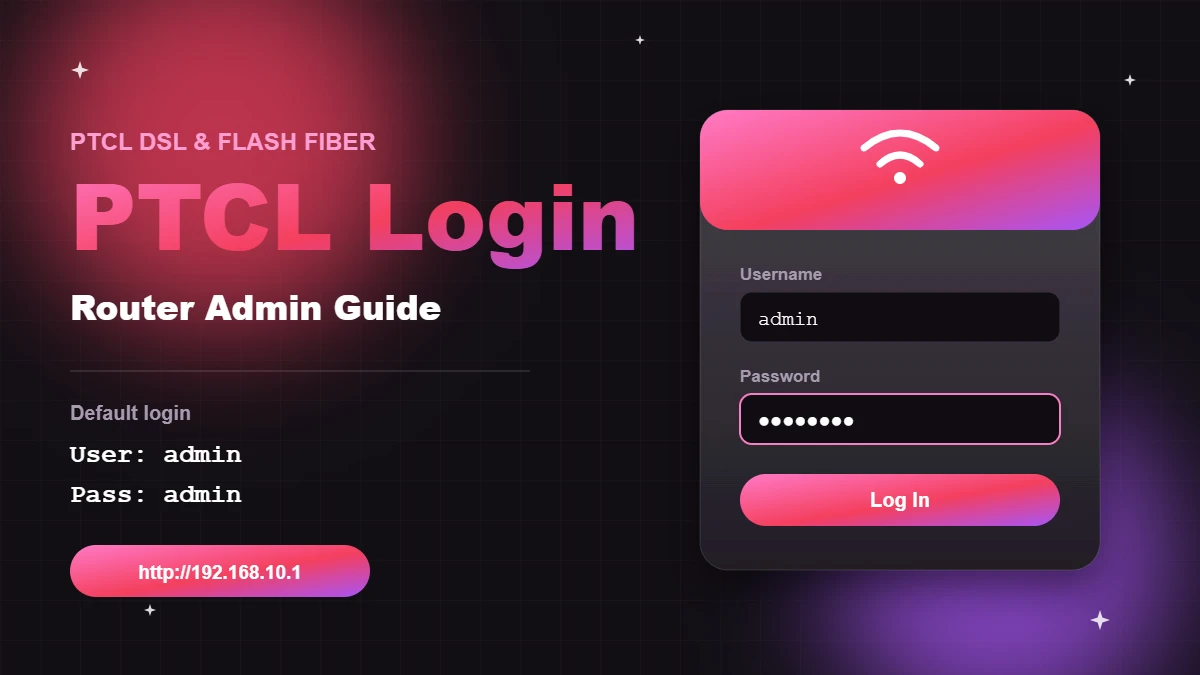
Quick answer: For a PTCL DSL modem, open http://192.168.10.1 and log in with admin / admin (or the sticker details). For PTCL Flash Fiber (Huawei ONT), open http://192.168.100.1 and use the sticker login. Then go to WLAN / Wireless to change the WiFi password.
PTCL Internet Services and Their Devices
PTCL is Pakistan’s largest fixed-line operator, and over the years it has supplied many kinds of modems and routers. Your PTCL router login steps depend on which service you have at home.
PTCL Broadband
- Internet over your copper telephone line.
- Uses a DSL modem with built-in WiFi.
- Login page: 192.168.10.1 on most models.
- Full guide: 192.168.10.1 login.
PTCL Flash Fiber
- Fiber-to-the-home internet with much higher speeds.
- Uses a Huawei or ZTE ONT (optical network terminal).
- Login page: 192.168.100.1 on most models.
- Full guide: 192.168.100.1 login.
If you are not sure which one you have, look at the cable going into the device. A thin telephone cable (RJ11) means DSL. A thin fiber cable with a green or blue connector means Flash Fiber.
Which PTCL Login IP Do You Need?
PTCL uses different devices, so the login address depends on your connection type.
| Connection | Login IP | Username | Password |
|---|---|---|---|
| PTCL DSL / broadband modem | 192.168.10.1 | admin | admin or sticker |
| PTCL Flash Fiber (Huawei ONT) | 192.168.100.1 | On sticker | On sticker |
| PTCL Flash Fiber (super admin) | 192.168.100.1 | telecomadmin | admintelecom |
How to find your router IP address
- Windows: Command Prompt →
ipconfig→ Default Gateway - Mac: System Settings → Network → Details → TCP/IP → Router
- Android: Settings → WiFi → your network → Gateway
- iPhone: Settings → Wi-Fi → (i) → Router
How to Login to PTCL Router
- Connect to PTCL WiFiOr plug in a LAN cable.
- Open a browserChrome works best.
- Type the IP192.168.10.1 (DSL) or 192.168.100.1 (Fiber).
- Enter usernameadmin, or the one on the sticker.
- Enter passwordadmin, or the one on the sticker.
- Click LoginThe PTCL router dashboard opens.
PTCL Login From a Mobile Phone
You can complete the PTCL router login from any Android phone or iPhone – no computer is needed.
- Connect to your PTCL WiFiYour phone must be on your own network.
- Turn off mobile dataSo the phone does not try to load the page over 4G.
- Open Chrome or SafariType http://192.168.10.1 for DSL or http://192.168.100.1 for Flash Fiber.
- Switch to desktop viewPTCL device pages are made for large screens. In Chrome, tap the three dots and choose Desktop site.
- Enter your PTCL login detailsUsername and password from the sticker, or the ones you set.
This is the quickest way to do a PTCL WiFi password change when you are away from your computer.
PTCL Router Login for Flash Fiber ONT
The PTCL login on a fiber ONT works a little differently from older DSL modems. Most Flash Fiber devices are made by Huawei or ZTE and have a user account printed on the sticker.
- Connect to the ONTJoin its WiFi or plug a laptop into a LAN port.
- Open 192.168.100.1Type it in the browser address bar with http:// in front.
- Use the sticker loginThe user name and password on the label give access to WiFi and basic settings.
- Change WiFi settingsOpen WLAN, then 2.4G or 5G Basic Network settings.
- Apply the changesThe ONT saves and restarts WiFi in a few seconds.
Advanced settings on Huawei ONTs are protected by a separate super-admin account. Read our telecomadmin password guide to understand what that account does and why changing advanced settings can break your PTCL connection.
Change the PTCL Router Password
Your PTCL router password (the admin login, not the WiFi key) protects all modem settings. Change it from the default so only you can make changes.
PTCL DSL modem
- Log in at 192.168.10.1.
- Open Management or Maintenance, then Access Control or Account.
- Enter a new password twice.
- Save and log in again.
Flash Fiber ONT
- Log in at 192.168.100.1.
- Open System Tools or Management, then Modify Login Password.
- Enter the old and new password.
- Click Apply.
Use a strong PTCL router password with at least 10 characters, and keep it different from your WiFi password. Store it somewhere safe – if you forget it, the only fix is a reset.
PTCL WiFi Password Change
PTCL DSL modem
- Log in at 192.168.10.1.
- Open Network → WLAN → Security (or Wireless).
- Enter a new password in WPA Pre-Shared Key.
- Click Apply / Save.
PTCL Flash Fiber
- Log in at 192.168.100.1.
- Open WLAN → 2.4G Basic Network Settings.
- Change WPA PreSharedKey.
- Click Apply, then repeat for 5G.
Use a Cable When Changing WiFi Settings
When you change the WiFi name, WiFi password or security mode, every wireless device is disconnected – including the phone or laptop you are using for the PTCL login. To avoid getting locked out halfway, connect a laptop to one of the LAN ports with an Ethernet cable before you start. A wired connection does not depend on the WiFi password, so you can finish the changes, check that everything works, and then reconnect your phones and TVs to the new network.
Change Your PTCL WiFi Name
PTCL devices ship with a WiFi name based on “PTCL” and part of the serial number. Renaming it makes your network easier to spot and hides which device you use.
- After your PTCL router login, open WLAN, Wireless or Network → WLAN.
- Edit the SSID field. On Flash Fiber ONTs, change both the 2.4G and 5G names, or give them slightly different names such as “Home” and “Home-5G”.
- Keep the security mode on WPA2-PSK / AES or WPA2/WPA3.
- Click Apply and reconnect your phones and laptops to the new name.
Use 5G (5 GHz) for phones and laptops near the device for the best speed, and 2.4G for rooms further away or older devices.
See and Block Connected Devices
If your PTCL internet is slower than usual, check who is connected. After the PTCL login, look for Device Info, User Device Information, LAN Clients or DHCP Clients. Each entry shows a device name, an IP address and a MAC address.
- Spot unknown devicesCompare the list with the phones, TVs and laptops in your home.
- Change the WiFi passwordThis removes everyone at once. Only share the new key with family.
- Add a MAC filterOn most PTCL devices, under WLAN → MAC Filter or Security → MAC Filter.
- Disable WPSStops nearby people from joining with the WPS button or PIN.
Add Your Own Router to PTCL Internet
PTCL devices are fine for small homes, but bigger houses often need a stronger router or mesh system. You can add one without changing the PTCL login settings.
- Connect a LAN port on the PTCL device to the WAN or Internet port on your new router.
- Set the new router’s internet type to Dynamic IP (DHCP).
- Give it a different LAN address from the PTCL device – for example 192.168.0.1 – to avoid conflicts.
- Turn off WiFi on the PTCL device if you only want one network in the home.
- For best gaming performance, ask PTCL about bridge mode so your own router handles the internet connection directly.
After this, you will use your own router’s address to manage WiFi, and the PTCL router login only for line status or PTCL-specific settings.
PTCL Login Not Working?
- Check the IP. DSL uses 192.168.10.1, fiber uses 192.168.100.1.
- Use the address bar, not Google search.
- Turn off mobile data and stay on PTCL WiFi.
- Wrong password? Try the sticker details or call PTCL at 1218.
- Restart the modem by unplugging it for 30 seconds.
- Reset only as a last step – you may need PTCL to set up the internet again.
PTCL Router Security Tips
- Change the default PTCL router password on day one.
- Use WPA2-PSK with AES, or WPA2/WPA3 on newer Flash Fiber ONTs.
- Pick a WiFi key of 12 or more characters – not your phone number or CNIC.
- Turn off WPS unless you use it.
- Check connected devices every few weeks.
- Do not share screenshots of the PTCL login page that show passwords or serial numbers.
- Be careful with calls or messages asking for your PTCL router password – PTCL does not need it to fix line faults.
Firmware Updates on PTCL Devices
Most PTCL-supplied modems and ONTs receive firmware updates automatically from PTCL, so you rarely need to update them yourself. If you added your own router, check its maker’s website or app for updates every few months. New firmware fixes security holes, improves WiFi stability and sometimes adds useful features such as WPA3 support.
Common PTCL Login Address Mistakes
| Typed | Correct |
|---|---|
| 192.168.l0.1 | 192.168.10.1 (number one, not letter l) |
| 192.168.1.10 | 192.168.10.1 (numbers in the wrong order) |
| 192.168.l00.1 | 192.168.100.1 (Flash Fiber) |
| ptcl.com.pk in the browser | That is the PTCL website, not your device. Use the IP address. |
Type the address in the address bar, not the search box, and press Enter. If you still see an error, check that you are connected to the PTCL WiFi and not a neighbour’s network.
PTCL Fiber ONT Lights Explained
Before trying the PTCL router login, a quick look at the ONT lights often tells you whether the problem is your settings or the fiber line itself.
| Light | Normal | What a problem looks like |
|---|---|---|
| Power | Solid green | Off – check the adapter and socket. |
| PON | Solid green | Blinking for a long time – the ONT is not registered on the network. Call PTCL. |
| LOS | Off | Red or blinking red – no fiber signal. The fiber cable may be bent, loose or cut. Do not open the connector; call PTCL. |
| Internet | Green | Off – the line is up but the internet session is not. |
| WLAN / 2.4G / 5G | On or blinking | Off – WiFi has been switched off in settings or with the WLAN button. |
A red LOS light is never fixed by a reset or a PTCL login change. It always needs a PTCL technician.
Restart Before You Reset Your PTCL Device
A restart and a reset are very different. A restart simply turns the device off and on and keeps all settings, including your PTCL router password and WiFi name. A reset wipes everything back to factory defaults.
For slow internet, WiFi drops or a page that will not load, always restart first: switch off the device, wait 30 seconds, switch it back on and give it two to three minutes. Use the reset button only when you cannot complete the PTCL login because the password is lost.
Is Your PTCL Internet Getting Full Speed?
- Test with a cablePlug a laptop into the router with an Ethernet cable and run a speed test. WiFi speed tests on phones are always lower.
- Close downloads and streamingOther devices using the internet will lower your result.
- Compare with your packageResults within about 80 to 90 percent of your package speed are normal.
- Check the line statusAfter your PTCL login, open Status or Device Info. DSL modems show line rate and SNR. Fiber ONTs show optical power.
- Restart and test againA restart clears temporary problems.
If wired speed is good but WiFi is slow, move the router to a more central place, use the 5 GHz band, or add a mesh system. If wired speed is low too, register a complaint with PTCL.
Change DNS After PTCL Login
Some users switch to a public DNS service for faster website lookups or family filtering. After the PTCL router login, open LAN or DHCP Server settings and enter a primary and secondary DNS – for example 1.1.1.1 and 1.0.0.1 (Cloudflare) or 8.8.8.8 and 8.8.4.4 (Google). Save, then reconnect your devices. If any website stops loading, set the DNS fields back to automatic.
Reset Your PTCL Router the Right Way
If you forgot your PTCL router password, a factory reset brings back the default login printed on the sticker. Be careful – a reset also removes the internet settings that PTCL configured.
DSL modem reset
- Hold the reset pinhole for about 10 seconds.
- Log in at 192.168.10.1 with the default details.
- Re-enter your PPPoE username and password from PTCL.
- Set a new WiFi name and password.
Flash Fiber ONT reset
- Hold reset for about 10 seconds only if PTCL support asks you to.
- Some ONTs lose their internet profile after a reset.
- You may need PTCL to restore the connection remotely.
- Call 1218 before resetting a fiber ONT.
How to Contact PTCL Support
When the PTCL login works but the internet does not, or the lights show a line fault, contact PTCL:
- Helpline: call 1218 from any phone.
- Customer service centre: visit your nearest PTCL office with your account details.
- Online: use the official PTCL website to register a complaint or check your bill.
Keep your PTCL landline number or account ID ready, tell the agent the colour of each light, and mention whether a wired connection also fails. Never give your PTCL router password or WiFi password to anyone who calls you claiming to be support.
Keep a Record of Your Settings
Write these details on a card and keep it near the router, out of sight of visitors:
- Your device type (DSL modem or Flash Fiber ONT) and model.
- The login address and your PTCL router password.
- Your WiFi name and WiFi password for each band.
- Your PPPoE username and password if PTCL gave them to you.
- Your PTCL account or landline number for complaints.
With this card, a reset or a new device takes minutes instead of a long call to support.
PTCL Router Login Quick Summary
For PTCL broadband on a phone line, log in at 192.168.10.1. For PTCL Flash Fiber, log in at 192.168.100.1. Use the details on the sticker, then change the WiFi password and the PTCL router password straight away. If the lights show a line fault, restart once and then call 1218.
Frequently Asked Questions
What is the PTCL router login IP?
PTCL DSL modems use 192.168.10.1. PTCL Flash Fiber Huawei ONTs use 192.168.100.1.
What is the PTCL router default password?
Most PTCL DSL modems use admin / admin. Flash Fiber devices have the login printed on the sticker.
How do I change my PTCL WiFi password?
Log in to the router, open WLAN or Wireless settings, enter a new WPA key and click Apply.
What is the PTCL helpline number?
You can call PTCL customer support at 1218 for login or internet problems.
Why can I not open 192.168.10.1?
You may have a fiber device (use 192.168.100.1), be on mobile data, or have typed the IP in the search box.