
192.168.10.1 Login – 192.168.l0.1 Admin Guide
Typo 192.168.l0.1? The correct address is 192.168.10.1
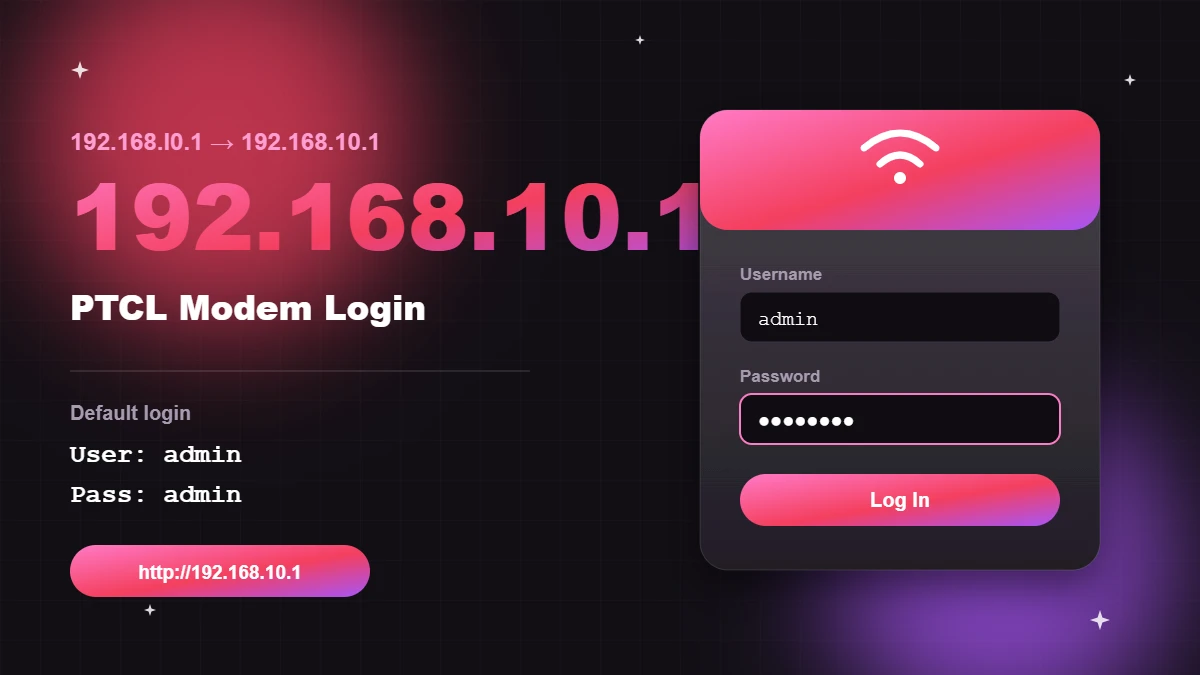
Quick answer: 192.168.l0.1 is a typo. Open http://192.168.10.1, log in with admin / admin (or the sticker details), then go to WLAN / Wireless Security to change your WiFi password. It is the default login IP for most PTCL DSL modems.
What Is 192.168.l0.1?
192.168.l0.1 is not a valid IP – the letter “l” is not allowed. The correct address is 192.168.10.1, a private IP used as the default gateway by most PTCL DSL / broadband modems and some TP-Link, Tenda and ZTE devices on ISP firmware.
| Wrong (typo) | Correct |
|---|---|
| 192.168.l0.1 | 192.168.10.1 |
| 192 l.168.10.1 | 192.168.10.1 |
| 168.192.l0.1 | 192.168.10.1 |
| 198.168.l0.1 | 192.168.10.1 |
| 192.168.10.l | 192.168.10.1 |
PTCL Devices and Their Login Addresses
PTCL has supplied many different modems over the years, and not all of them use the same address. Check which service you have before you start, because the wrong address is the most common reason the login page does not open.
| Your connection | Device | Login address |
|---|---|---|
| PTCL broadband (DSL over phone line) | PTCL DSL modem (TP-Link, ZTE, Huawei and other brands) | 192.168.10.1 |
| PTCL Flash Fiber | Huawei or ZTE fiber ONT | 192.168.100.1 |
| Your own router behind the modem | TP-Link, Tenda, D-Link and others | 192.168.0.1 or 192.168.1.1 |
The address is usually printed on the sticker under the modem, together with the default WiFi name and password. For a full walk-through of every PTCL device, see our PTCL router login guide.
How Your PTCL DSL Modem Connects You
PTCL broadband uses the copper telephone line that already runs to your home. The modem uses DSL (digital subscriber line) technology to carry internet data on that line at the same time as voice calls. A small splitter or filter separates the two signals so your phone and internet do not disturb each other.
Inside your home, the modem also works as a WiFi router. It creates your wireless network, hands out local addresses to your devices, and keeps a private address for itself – 192.168.10.1 – so you can open its settings page from any connected phone or computer.
Because it is a private address, it only works on your own network. Typing it on mobile data, or while connected to a neighbour’s WiFi, will not open your modem.
How to Login to 192.168.10.1
- Connect to the modemPTCL WiFi or LAN cable.
- Open a browserChrome works best.
- Type http://192.168.10.1In the address bar.
- Enter adminAs the username.
- Enter adminAs the password, or use the sticker.
- Click LoginThe modem dashboard opens.
Check Your Modem Address on Any Device
If the page will not open, confirm the gateway address that your device is actually using:
- Windows: open Command Prompt, type ipconfig and read the Default Gateway line.
- Mac: go to System Settings → Network → your connection → Details → TCP/IP and read the Router field.
- Android: open Settings → WiFi, tap your network and look for Gateway (sometimes under Advanced).
- iPhone: open Settings → Wi-Fi, tap the (i) icon and read the Router line.
If the gateway shows something other than 192.168.10.1, type that address instead. It usually means you are connected to a separate router or a fiber ONT rather than the DSL modem.
Log In to the PTCL Modem From Your Phone
- Join your PTCL WiFiMake sure your phone is connected to your own modem.
- Switch off mobile data and VPNOtherwise the phone may try to open the page over 4G.
- Open ChromeType the address in the top bar, not in the Google search box.
- Request the desktop siteMany PTCL modem pages are built for computers. Tap the three dots in Chrome and tick Desktop site.
- Enter the login detailsUse the username and password from the sticker or the table below.
If the page loads but the login fails, check for extra spaces and make sure Caps Lock is off. Passwords on most modems are case-sensitive.
192.168.10.1 Default Username & Password
| Device | Username | Password |
|---|---|---|
| PTCL DSL modem | admin | admin |
| TP-Link (ISP firmware) | admin | admin |
| ZTE | admin | admin |
Change the PTCL Modem Admin Password
The admin/admin login is the same on thousands of modems, so anyone on your WiFi can try it. Change it to something only you know.
- Log in to the modemUse your current admin details.
- Open the management menuIt may be called Management, Maintenance, System or Tools, depending on the brand.
- Find Access Control or AccountSelect the admin user.
- Enter a new passwordType it twice to confirm.
- Save the changeThe modem will ask you to log in again with the new password.
Some PTCL-supplied modems have a separate support account used by PTCL technicians. Leave that account alone – changing it can make remote support harder.
192.168.10.1 Change WiFi Password
PTCL modem
- Log in at 192.168.10.1.
- Open Network → WLAN → Security.
- Enter a new WPA Pre-Shared Key.
- Click Apply.
Change WiFi name
- Open WLAN → Basic.
- Edit the SSID.
- Click Apply and reconnect devices.
How to Block Unknown Users on PTCL WiFi
If your internet feels slow, someone may be using your WiFi without permission. The modem dashboard shows every device that is connected.
- Open the device listLook for Status, Device Info, LAN or WLAN Clients, or DHCP Client List.
- Compare with your own devicesEach entry shows a device name, an IP address and a MAC address. Turn off WiFi on your devices one by one if you are unsure which is which.
- Change the WiFi passwordThis is the fastest fix – it disconnects everyone, and only people you give the new password to can rejoin.
- Use MAC filtering if neededUnder WLAN or Wireless, add the unknown MAC address to a block list. Some modems call this Access Control.
- Turn off WPSWPS lets nearby people connect with a button press or a short PIN.
MAC filtering alone is not strong protection, because MAC addresses can be copied. Always combine it with a strong WPA2 password.
Using Your Own Router With PTCL Broadband
Many people add a faster WiFi router behind the PTCL modem to get better range or more speed. There are two common ways to do it:
Router behind the modem
- Connect a LAN port of the modem to the WAN port of your router.
- Set the router’s WAN to Dynamic IP.
- Turn off the modem’s WiFi to avoid two networks fighting.
- Your router will have its own login address, usually 192.168.0.1 or 192.168.1.1.
Bridge mode
- Set the modem to Bridge mode in the WAN settings.
- Enter the PPPoE username and password on your own router instead.
- Gives better performance and makes port forwarding easier.
- Keep a note of the original settings in case you need to switch back.
If the modem and your router both use the same address range, change one of them – for example, set your router’s LAN address to 192.168.0.1 – so the two devices do not conflict.
Change the PTCL WiFi Name
The factory WiFi name often includes “PTCL” and part of the modem’s serial number. You can change it to anything you like from the wireless settings.
- Open Network, WLAN or Wireless Settings after logging in.
- Find the SSID field and type a new name. Avoid your full name, house number or phone number.
- Set the security mode to WPA2-PSK with AES encryption.
- Click Apply or Save, then reconnect all your devices to the new name.
192.168.10.1 Not Opening?
- Type 192.168.10.1, not 192.168.l0.1.
- PTCL Flash Fiber? Use 192.168.100.1 instead.
- Turn off mobile data and stay on PTCL WiFi.
- Use the address bar, not the search box.
- Restart the modem for 30 seconds.
- Reset only as a last step – PTCL may need to set up the internet again.
How to find your router IP address
- Windows: Command Prompt →
ipconfig→ Default Gateway - Mac: System Settings → Network → Details → TCP/IP → Router
- Android: Settings → WiFi → your network → Gateway
- iPhone: Settings → Wi-Fi → (i) → Router
Port Forwarding on a PTCL Modem
Online gamers and people who view CCTV cameras from outside the home often need port forwarding. On most PTCL DSL modems it is under Advanced Setup → NAT → Virtual Server or Port Forwarding.
- Give your device a fixed local IPReserve it in the DHCP settings, or set it on the device itself.
- Create a virtual server ruleEnter the service name, the external and internal port, the protocol and the device’s local IP.
- Save and rebootThen test the port from outside your network.
Port forwarding only works when your connection has a public IP address. If it still fails, ask PTCL whether your line is behind CGNAT and whether a public or static IP is available for your package.
Change DNS for Faster Browsing
DNS turns website names into addresses. Your provider’s DNS works fine for most people, but a public DNS service can sometimes load pages faster or add filtering for children.
- Log in and open the LAN or DHCP settings.
- Find the Primary DNS and Secondary DNS fields.
- Enter a public service, for example Cloudflare (1.1.1.1 and 1.0.0.1) or Google (8.8.8.8 and 8.8.4.4).
- Save, then restart your devices so they pick up the new DNS.
If websites stop loading after the change, set the fields back to automatic or blank and save again.
What the PTCL Modem Lights Mean
The lights on the front of the modem quickly show where a problem is. Labels vary a little by model, but most PTCL DSL modems use these:
| Light | Normal state | Problem sign |
|---|---|---|
| Power | Solid green | Off or red – check the power adapter and socket. |
| DSL / ADSL / Link | Solid green | Blinking for a long time or off – the phone line has no signal. Check the cable and splitter, then call PTCL. |
| Internet | Solid or blinking green | Off or red – the line is up but the login failed. The PPPoE username or password may be missing or wrong. |
| WLAN / WiFi | Blinking | Off – WiFi is switched off. Press the WLAN button or enable it in settings. |
| LAN | On when a cable is used | Off – try another cable or port. |
Simple Fixes for Slow PTCL Internet
DSL speed depends a lot on the condition of your telephone line. Try these steps before calling for a complaint:
- Check the splitter – every phone set on the same line needs a filter. A missing or faulty splitter causes drops and slow speed.
- Use a short, direct cable – connect the modem to the main phone socket, not through extension wires.
- Keep the modem away from heat – an overheated modem restarts and drops the connection.
- Restart once a day during bad periods – it re-syncs the line and often restores speed.
- Change the WiFi channel – in crowded areas, try channel 1, 6 or 11 for 2.4 GHz.
- Test with a cable – if speed is fine over LAN but slow on WiFi, the issue is WiFi range or interference, not the line.
The status page in the modem shows the line rate (sync speed), SNR margin and attenuation. If the line rate is much lower than your package, or the SNR margin is very low, the fault is on the phone line and PTCL needs to fix it.
Restart Before You Reset
Most connection problems disappear after a simple restart, and a restart keeps all your settings. Switch the modem off at the power button or unplug it, wait 30 seconds, then turn it back on. Give it two to three minutes until the DSL and Internet lights are steady.
Only use the Reset pinhole if you are locked out of the settings or the modem still does not work after several restarts. A reset erases your WiFi name, WiFi password and PPPoE login, so you will have to enter everything again.
Back Up Your Modem Settings
Many PTCL modems can save a copy of all settings to your computer. Look for Backup or Save/Restore Configuration in the Management or Maintenance menu and download the file. If you ever need to reset the modem, you can restore this file in one step instead of typing every setting again. Keep the file private, because it contains your passwords.
Reset the PTCL Modem and Set It Up Again
A factory reset restores the default admin login, but it also deletes your internet settings. On a PTCL DSL modem that means the PPPoE username and password – without them, your internet will not work after the reset.
- Get your PPPoE details firstCall PTCL on 1218 or check your connection documents. The username and password are linked to your account.
- Press the Reset pinholeWith the modem on, hold it for about 10 seconds with a pin until the lights flash.
- Wait for the restartGive it two to three minutes.
- Log in with the default detailsUse the sticker or the table above.
- Open the WAN or Internet settingsChoose PPPoE and enter the username, password and any line settings PTCL gave you.
- Set your WiFi againCreate a new WiFi name and a strong password, then save.
If you are not comfortable entering line settings, PTCL support can guide you over the phone or send a technician.
PTCL Modem Security Checklist
- Change the default admin password.
- Use WPA2-PSK with AES – never WEP or an open network.
- Set a WiFi password of at least 12 characters.
- Turn off WPS if you do not use it.
- Disable remote web access from the WAN side if your modem offers it.
- Check the connected device list once a month.
- Never share your admin password or PPPoE details with anyone who calls claiming to be support – PTCL staff do not need your WiFi password.
When to Contact PTCL
Call the PTCL helpline on 1218 or visit your nearest PTCL customer service centre if:
- The DSL or Link light keeps blinking or stays off.
- The Internet light is red and you do not have your PPPoE details.
- Your line rate is far below your package speed.
- The modem is faulty and needs to be replaced.
Keep your PTCL phone number or account ID ready, tell them the colour of each light, and mention any steps you already tried. This makes the complaint quicker to register and solve.
Frequently Asked Questions
Is 192.168.l0.1 correct?
No. It contains the letter l. The correct address is 192.168.10.1.
What is the 192.168.10.1 password?
Most PTCL modems use admin / admin. Check the sticker if it does not work.
How do I change PTCL WiFi password at 192.168.10.1?
Log in, open Network → WLAN → Security, enter a new WPA key and click Apply.
Why is 192.168.10.1 not opening?
You may have a fiber device (use 192.168.100.1), be on mobile data, or have a typo.
What is the PTCL helpline?
Call 1218 for PTCL support.