2.4 GHz vs 5 GHz WiFi: 7 Simple Differences & the Best Choice
Open your WiFi list and you may see two networks from the same router, for example “PTCL-1234” and “PTCL-1234-5G”. Which one should you join? The answer comes down to 2.4 GHz vs 5 GHz, the two radio bands that almost every home router uses. One reaches further, the other is much faster, and picking the right one can fix slow speeds without paying for a bigger package.
This guide explains the 7 key differences between 2.4 GHz and 5 GHz WiFi in simple words, shows which band to use for gaming, streaming and smart devices, and walks you through switching bands on your phone, PC and router.
Quick Answer: 2.4 GHz vs 5 GHz
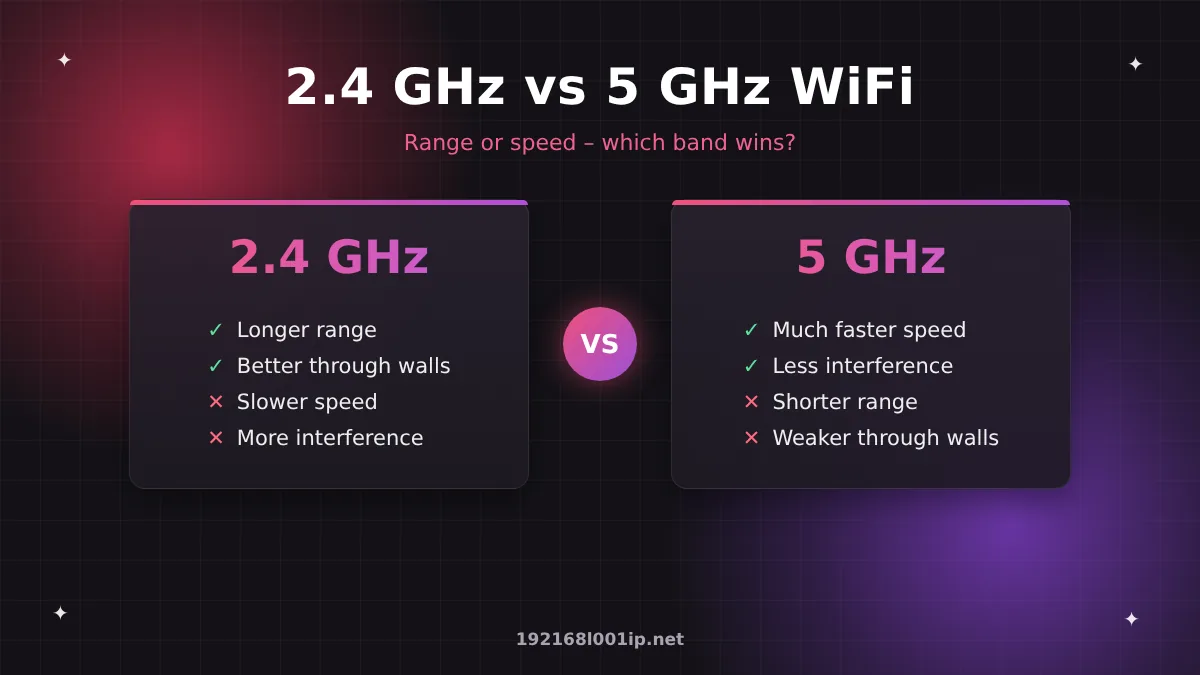
2.4 GHz covers a bigger area and goes through walls better, but it is slower and more crowded. 5 GHz is much faster and has less interference, but its signal is shorter and weaker through walls. Use 5 GHz when you are close to the router and want speed. Use 2.4 GHz for far rooms and for smart devices that only support it.
| Feature | 2.4 GHz | 5 GHz |
|---|---|---|
| Speed | Slower | Much faster |
| Range | Longer | Shorter |
| Through walls and floors | Better | Weaker |
| Interference | High (neighbours, microwaves, Bluetooth) | Low |
| Non-overlapping channels | 3 (1, 6 and 11) | Many, often 20 or more |
| Device support | Almost every WiFi device | Most phones and laptops from recent years |
| Best for | Far rooms, smart home devices | Gaming, streaming, video calls |
What Is 2.4 GHz WiFi?
2.4 GHz is the older WiFi band, used since the first home routers. “GHz” means gigahertz, which is how many times the radio wave repeats each second. A lower frequency means longer waves, and longer waves travel further and pass through walls, doors and floors more easily. That is why the 2.4 GHz signal still works in the room at the far end of the house.
The downside is that the band is narrow and very busy. Your neighbours’ routers, Bluetooth headphones, wireless cameras and even microwave ovens all use the same frequencies. In a crowded area, that noise slows everyone down.
What Is 5 GHz WiFi?
5 GHz is the newer, wider band. It has far more space, so routers can use wider channels and push much more data at once. It is also much quieter, because fewer devices around your home use it. The trade-off is range: higher frequency waves fade faster and lose more strength through concrete walls, so the 5 GHz signal is strongest in the same room as the router or one wall away.
2.4 GHz vs 5 GHz: 7 Key Differences
1. Speed
In any 2.4 GHz vs 5 GHz speed test, 5 GHz is the clear winner. In real homes, 2.4 GHz often gives somewhere around 50 to 100 Mbps, while 5 GHz can deliver several hundred Mbps close to the router. Of course, you can never get more than your internet package. On a 20 Mbps plan both bands may feel the same, but on a 100 Mbps fiber plan or higher, 5 GHz is usually the only band that lets you use the full speed over WiFi.
2. Range
Range is the biggest trade-off in the 2.4 GHz vs 5 GHz choice, and here 2.4 GHz reaches further. If your router is downstairs and your bedroom is upstairs at the other end of the house, 2.4 GHz may hold a steady signal where 5 GHz drops to one bar or disconnects.
3. Walls and Floors
Brick and concrete walls, which are common in Pakistani homes, block 5 GHz much more than 2.4 GHz. Each wall eats part of the signal. A rule of thumb: if there are two or more thick walls between you and the router, 2.4 GHz will often be more stable.
4. Interference
The 2.4 GHz band is shared with Bluetooth, cordless phones, baby monitors and microwave ovens, which run at about 2.45 GHz. When the microwave is on, video calls on 2.4 GHz can freeze. In the 2.4 GHz vs 5 GHz interference battle, 5 GHz avoids almost all of this, so it gives a smoother connection with lower lag.
5. Channels
A channel is a small lane inside the band. Most countries outside North America allow 2.4 GHz channels 1 to 13, but they overlap, so only three of them, 1, 6 and 11, can run side by side without stepping on each other. In an apartment block with dozens of routers, those three lanes fill up fast.
The 5 GHz band has many more non-overlapping channels, often 20 or more depending on your country’s rules. It can also join channels together into wide 40, 80 or 160 MHz lanes, which is where its extra speed comes from.
6. Device Support
In the 2.4 GHz vs 5 GHz match-up, device support is where 2.4 GHz clearly wins. Every WiFi device supports 2.4 GHz. Most phones and laptops made in recent years also support 5 GHz, but many smart plugs, bulbs, security cameras and printers still only work on 2.4 GHz. Very old or very cheap phones may not see 5 GHz networks at all.
7. Congestion
Because 2.4 GHz travels so far, you also pick up your neighbours’ networks through the walls. Open your WiFi list in a busy street and you may see ten or more 2.4 GHz networks. 5 GHz signals stay mostly inside your own home, so there is far less competition for airtime. That is why the 2.4 GHz vs 5 GHz gap feels biggest in flats and busy streets.
2.4 GHz vs 5 GHz: Which Band Should You Use?
There is no single best band. Match the band to the device and the room:
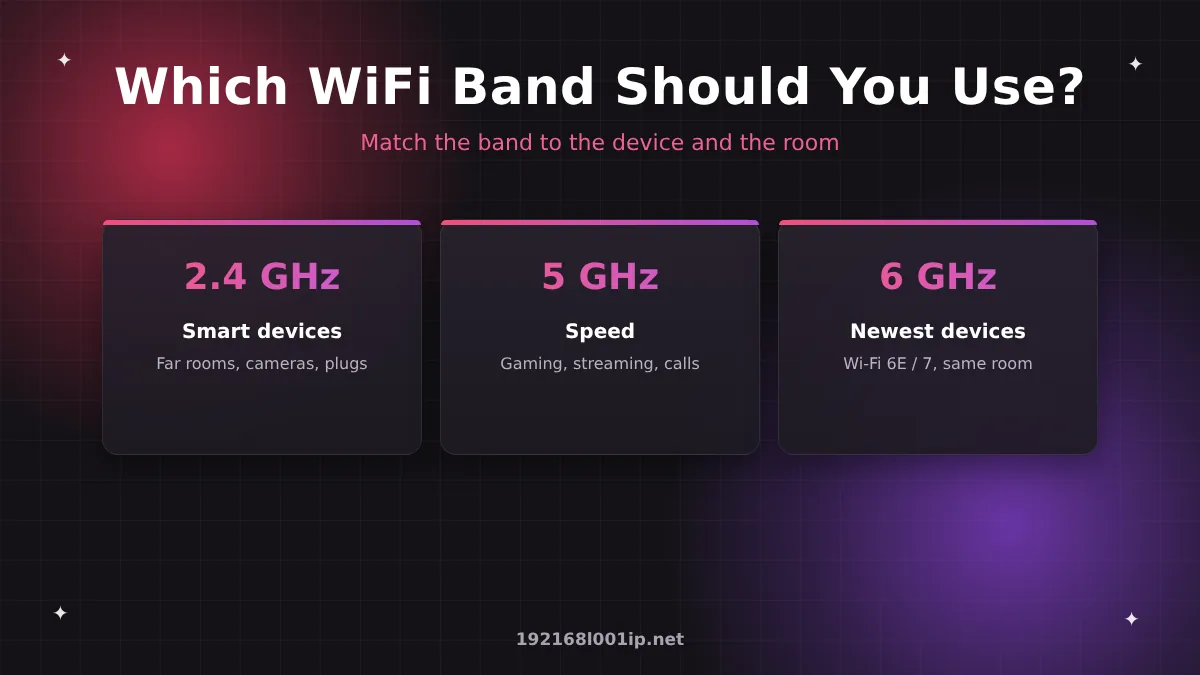
- Online gaming: 5 GHz, or a LAN cable for the lowest ping.
- Netflix, YouTube and 4K streaming: 5 GHz for a sharp picture without buffering.
- Zoom, Teams and WhatsApp video calls: 5 GHz for fewer freezes.
- Smart plugs, bulbs, cameras and doorbells: 2.4 GHz. Most of them only support it, and they need range more than speed.
- Rooms far from the router: 2.4 GHz, or add a mesh system or extender.
- Printers and older laptops: 2.4 GHz if they cannot see the 5G network.
- Phones and laptops in the same room as the router: 5 GHz every time.
What About 6 GHz, Wi-Fi 6E and Wi-Fi 7?
Newer routers add a third band: 6 GHz. It works like a super-fast, almost empty version of 5 GHz, with up to 1,200 MHz of new spectrum in countries that open the full band. It has the shortest range of the three, needs WPA3 security, and only works with Wi-Fi 6E or Wi-Fi 7 devices. Whether you can use it also depends on the rules in your country. It does not replace the 2.4 GHz vs 5 GHz choice; it simply adds a third option. Cisco has a good overview of Wi-Fi 6 vs Wi-Fi 6E vs Wi-Fi 7 if you want to go deeper.
Here is which band each WiFi generation uses:
| WiFi generation | Standard | Bands |
|---|---|---|
| Wi-Fi 4 | 802.11n | 2.4 GHz and 5 GHz |
| Wi-Fi 5 | 802.11ac | 5 GHz only |
| Wi-Fi 6 | 802.11ax | 2.4 GHz and 5 GHz |
| Wi-Fi 6E | 802.11ax | 2.4 GHz, 5 GHz and 6 GHz |
| Wi-Fi 7 | 802.11be | 2.4 GHz, 5 GHz and 6 GHz |
For most homes today, a good dual-band router using 2.4 GHz and 5 GHz is more than enough.
5G WiFi Is Not 5G Mobile Data
This confuses a lot of people. The “5G” at the end of your WiFi name simply means the 5 GHz band. It has nothing to do with 5G mobile networks from Jazz, Zong or other mobile operators. Your phone does not need to be a “5G phone” to join a 5 GHz WiFi network. It only needs a WiFi chip that supports 5 GHz.
How to Check Which Band You Are Using
- Windows 11: go to Settings → Network & internet → Wi-Fi → your network’s properties and look at Network band. Or open Command Prompt and type
netsh wlan show interfacesto see the band and channel. - Android: tap the gear next to your WiFi network. Many phones show the frequency, such as 2.4 GHz or 5 GHz, on that screen.
- Mac: hold the Option key and click the WiFi icon. The Channel line shows something like “36 (5 GHz, 80 MHz)”.
- iPhone: iOS does not show the band directly. The easiest way is to give each band its own name on the router, or check the device list on the router page.
Does My Device Support 5 GHz?
On Windows, open Command Prompt and type netsh wlan show drivers. Look at the line Radio types supported. If you see 802.11a, 802.11ac or 802.11ax, your PC can use 5 GHz. If you only see 802.11b, g and n, it is likely 2.4 GHz only.
On phones, search for your model’s specifications and look for “dual-band WiFi” or “WiFi 802.11 a/b/g/n/ac”. If your phone never shows the network ending in “5G” while you stand next to the router, it most likely does not support 5 GHz. Intel’s guide to 2.4 GHz and 5 GHz WiFi also explains how adapters handle both bands.
How to Switch Between 2.4 GHz and 5 GHz
On your phone or laptop
If your router shows two names, just tap the one ending in “5G” or “5GHz” and enter the same password. If you do not remember it, here is how to find your WiFi password on a phone or PC. To stop your device from jumping back, tap the 2.4 GHz network and choose Forget, or turn off auto-connect for it.
On a PTCL Flash Fiber or Huawei ONT
- Log in at 192.168.100.1.
- Go to WLAN → 5G Basic Network Settings.
- Tick Enable WLAN, set a network name (SSID) and a strong WPA2 password, then click Apply.
- Use WLAN → 2.4G Basic Network Settings to change the 2.4 GHz network the same way.
Not every ONT has 5 GHz. Older single-band models such as the Huawei HG8546M only offer 2.4 GHz, while dual-band models like the EG8145V5 show a separate 5G network. If you cannot log in, our telecomadmin password and PTCL router login guides will help.
On TP-Link, D-Link and Tenda routers
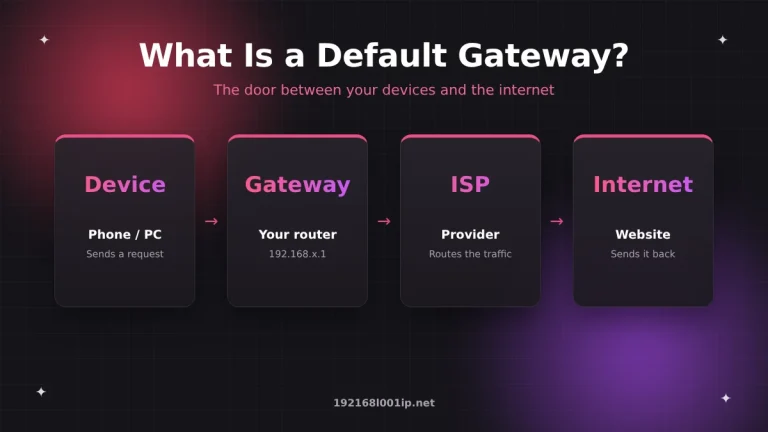
Log in at 192.168.1.1 or 192.168.0.1 and open the Wireless settings. Not sure which address your router uses? Check your default gateway. You will see separate sections for 2.4 GHz and 5 GHz, plus an option called Smart Connect or Band Steering on many models. Turn it off if you want to choose the band yourself, or keep it on to let the router decide.
One Network Name or Two?
Many routers can show both bands under a single name. This is called band steering or Smart Connect. The router moves each device to the band it thinks is best. It is simple for families, but it sometimes keeps a phone on 2.4 GHz even when 5 GHz would be faster.
Two separate names give you full control. You decide which device uses which band, and setting up smart home gadgets becomes easier, because you can point them at the 2.4 GHz name directly. If you are not sure, start with two names. You can always combine them later.
Best Channel Settings for Each Band
- 2.4 GHz: use channel 1, 6 or 11, whichever is least busy near you, with 20 MHz width. Wider 40 MHz lanes on 2.4 GHz usually cause more interference in crowded areas.
- 5 GHz: channels 36 to 48 work with almost every device. Use 80 MHz width for a good balance of speed and stability.
- Auto mode: fine for most homes. Change it only if you notice drops or slow speeds at certain times.
Free WiFi analyzer apps on Android can show which channels your neighbours are using, so you can pick the quietest one.
Common Problems and Fixes
The 5G network does not show up
Check that 5 GHz is turned on in the router settings and that your device supports it. Some older devices cannot see certain 5 GHz channels, so try setting the router to a channel between 36 and 48.
A smart plug or camera will not connect
Most smart devices need 2.4 GHz. If your router uses one name for both bands, split them into two names during setup, connect the device to the 2.4 GHz name, then join them again if you like.
5 GHz is slower than 2.4 GHz in my room
You are probably too far from the router or behind thick walls. Move closer, place the router higher and in a central spot, or add a mesh node. In far rooms, 2.4 GHz may simply be the better choice.
WiFi is slow on both bands
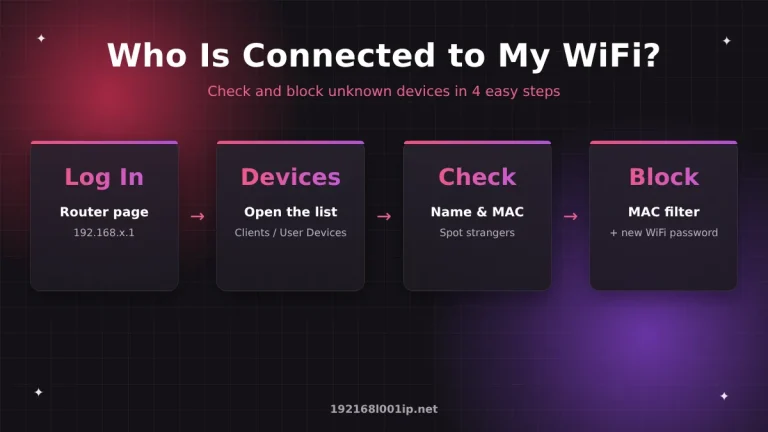
Someone else may be using your connection. Learn who is connected to your WiFi and block unknown devices. Then restart the router and test your speed again with a cable to rule out a problem with your internet line.
Tips for Faster WiFi on Any Band
- Place the router in an open, central spot, off the floor and away from metal cabinets and the microwave.
- Use a LAN cable for the TV, console or desktop PC when you can.
- Update the router firmware to get bug fixes and better performance.
- Try a faster DNS server. Our guide on what DNS is explains how it affects browsing.
- Restart the router every few weeks to clear memory and old connections.
Frequently Asked Questions
Is 5 GHz better than 2.4 GHz?
5 GHz is better for speed and stability when you are close to the router. 2.4 GHz is better for range and for smart devices. The best setup uses both bands for different devices.
Can I use 2.4 GHz and 5 GHz at the same time?
Yes. A dual-band router runs both bands together. Some devices can connect to one band while others use the other, all on the same internet connection.
Why is my 5 GHz WiFi slower than 2.4 GHz?
Distance and walls are the usual reasons. The 5 GHz signal fades quickly, so in a far room the weaker signal can end up slower than 2.4 GHz.
Does PTCL support 5 GHz WiFi?
It depends on the device you have. Dual-band PTCL fiber ONTs show a second network, often ending in “5G”. Older single-band ONTs and most DSL modems, which you manage at 192.168.10.1, only offer 2.4 GHz.
2.4 GHz vs 5 GHz: which is more secure?
Both are equally secure. Security depends on your settings, such as WPA2 or WPA3 and a strong password, not on the band.
2.4 GHz vs 5 GHz: which is better for gaming?
5 GHz gives lower lag and fewer spikes than 2.4 GHz. For the most stable ping, connect your console or PC with a LAN cable.
Conclusion
The 2.4 GHz vs 5 GHz choice is simple once you know the trade-off. 2.4 GHz gives you range and works with every device, while 5 GHz gives you speed and a cleaner signal near the router. Put phones, laptops, TVs and consoles on 5 GHz, keep smart home gadgets and far rooms on 2.4 GHz, and pick quiet channels for both. To change these settings, start with our 192.168.100.1 login guide and open the WLAN menu.