
Default Gateway: 7 Easy Ways to Find It on Any Device
Your default gateway is the device that connects your home network to the rest of the internet. In almost every home, that device is your WiFi router. Every time your phone opens a website, the request goes to the default gateway first, and the gateway sends it out to the world. Knowing its address lets you log in to your router, fix connection problems and secure your WiFi.
In this guide you will learn what a default gateway is, how it works in simple words, and seven easy ways to find it on Windows, Mac, Linux, Android, iPhone and Chromebook. We also cover the common “default gateway is not available” error and how to fix it.
What Is a Default Gateway?
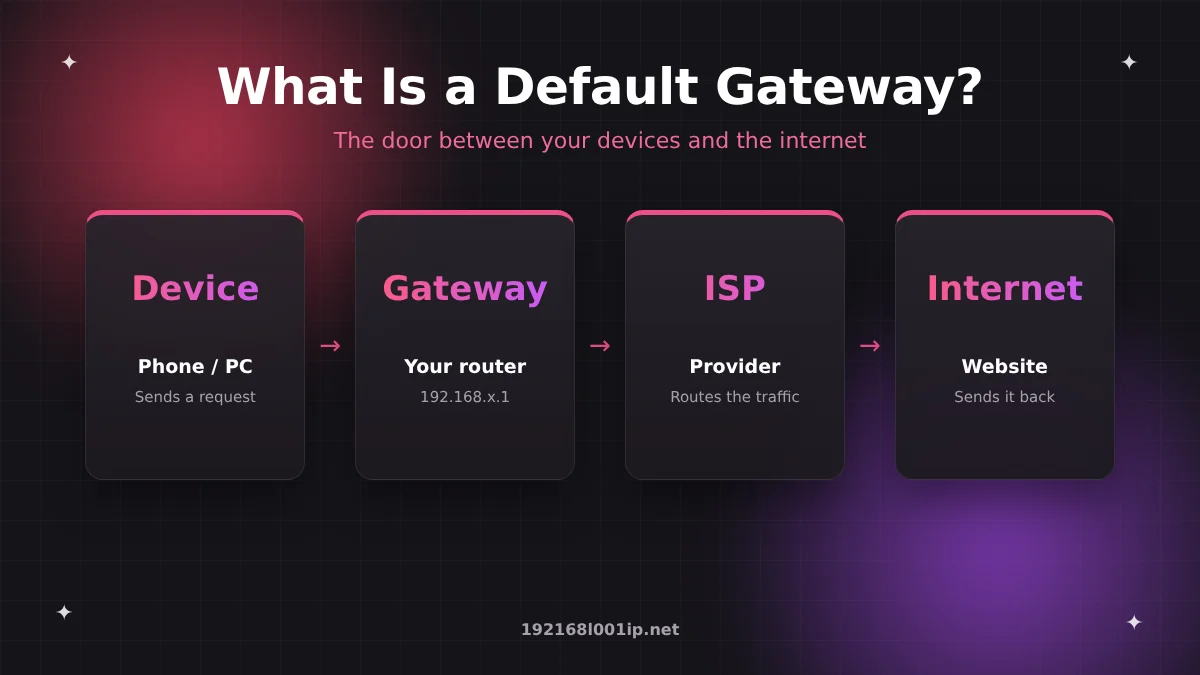
A default gateway is the address your device sends traffic to when the destination is outside your local network. Think of your home network as a building with many rooms. Devices in the same building can talk to each other directly, but to send a letter to another city, everything goes through the building’s main door. The default gateway is that main door.
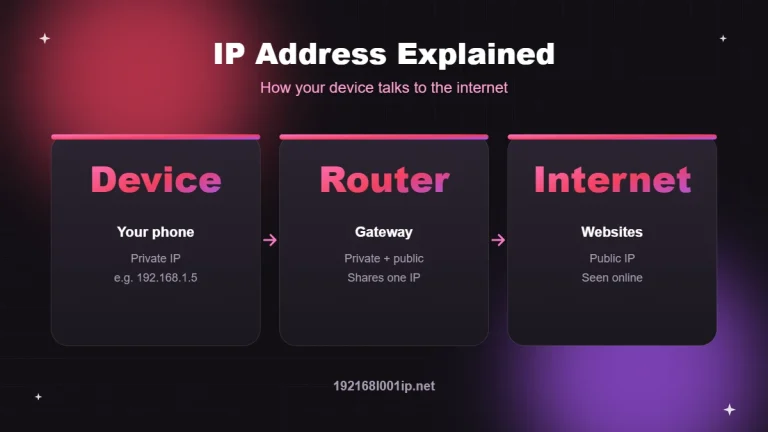
On a home network, the default gateway is the private IP address of your router, for example 192.168.1.1 or 192.168.0.1. Your router receives the traffic, swaps your private address for its public one, and forwards it to your internet provider.
The word “default” matters. A computer can have special routes for special networks, but for everything else it uses one default route. That is why it is called the default gateway – it is the path used when no other route fits.
How a Default Gateway Works
You never see it happen, but this short process runs every time you load a page, send a message or stream a video:
- Your device checks the destination. Using its subnet mask, it works out whether the address is on the same local network.
- Local traffic goes direct. If you print to a printer in the next room, the data goes straight to the printer.
- Everything else goes to the gateway. For a website or app server, your device sends the data to the default gateway.
- The router translates the address. Using NAT (network address translation), the router replaces your private address with its public one.
- The provider carries it onward. Your internet provider routes the data across the internet to the server.
- The reply comes back the same way. The router remembers who asked and passes the answer back to the right device.
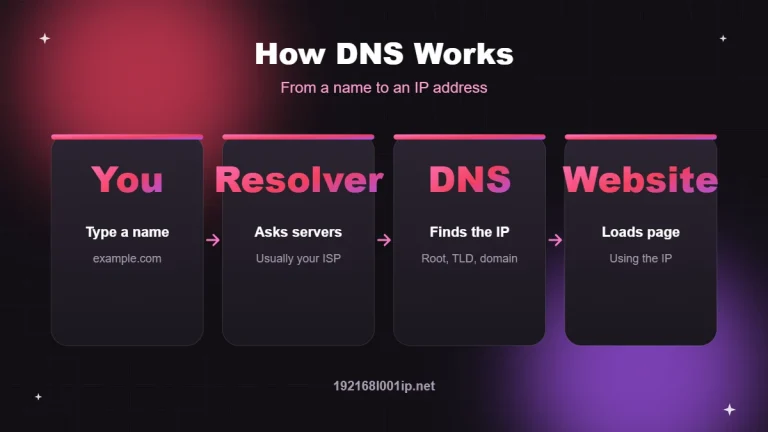
Before any of this, your device usually needs a website’s address. That lookup is handled by DNS, and on many home networks the router does that job too, which is why the same address often shows up as both gateway and DNS server.
Default Gateway vs Router vs IP Address vs DNS
These terms appear together in your network settings, so they are easy to mix up. Here is how they differ:
| Term | What it is | Typical home example |
|---|---|---|
| IP address | Your own device’s address on the local network | 192.168.1.5 |
| Subnet mask | Defines which addresses count as “local” | 255.255.255.0 |
| Default gateway | Where your device sends traffic for other networks | 192.168.1.1 |
| Router | The physical box that acts as the gateway | TP-Link, Tenda, PTCL modem, fiber ONT |
| DNS server | Turns website names into IP addresses | 192.168.1.1, 8.8.8.8 or 1.1.1.1 |
So the router is the device, and the default gateway is the address you use to reach it. When people search for their “router IP”, they are looking for the default gateway.
Common Default Gateway Addresses
Most router makers use a small set of easy addresses. If you know your router brand or internet provider, this table gives a good first guess:
| Address | Commonly used by |
|---|---|
| 192.168.1.1 | TP-Link, Linksys, Asus, Netgear, ZTE and many ISP modems |
| 192.168.0.1 | D-Link, Tenda and some TP-Link and Netgear models |
| 192.168.10.1 | Many PTCL broadband (DSL) modems in Pakistan |
| 192.168.100.1 | Huawei and ZTE fiber ONTs, including PTCL Flash Fiber |
| 192.168.8.1 | Huawei 4G routers and pocket WiFi devices |
| 192.168.1.254 | Some provider-supplied routers in the UK and US |
| 10.0.0.1 | Some cable gateways, such as Xfinity |
A guess is only a guess. The methods below show the exact address your device is using right now.
7 Easy Ways to Find Your Default Gateway
Pick the method for the device in your hand. Each one takes less than a minute, and you only need to be connected to the network you want to check.
1. Windows: Use the ipconfig Command
This is the fastest method on any Windows 10 or Windows 11 PC.
- Press Windows + R, type cmd and press Enter.
- Type ipconfig and press Enter.
- Find the adapter you are using – usually Wireless LAN adapter Wi-Fi or Ethernet adapter.
- Read the number next to Default Gateway.
Wireless LAN adapter Wi-Fi:
   IPv4 Address. . . . . . . . . . . : 192.168.1.5
   Subnet Mask . . . . . . . . . . . : 255.255.255.0
   Default Gateway . . . . . . . . . : 192.168.1.1
To show only the gateway line, type ipconfig | findstr /i "Gateway". Microsoft explains every option of this tool in its official ipconfig documentation. In PowerShell, Get-NetIPConfiguration shows the same address under IPv4DefaultGateway.
2. Windows: Use Network Connection Details
If you prefer not to type commands, the Control Panel shows the same information.
- Open the Control Panel and go to Network and Internet → Network and Sharing Center.
- Next to Connections, click the name of your WiFi or Ethernet connection.
- Click Details.
- Look for IPv4 Default Gateway in the list.
3. Mac: System Settings or Terminal
On macOS Ventura, Sonoma, Sequoia and later:
- Open the Apple menu and choose System Settings.
- Click Network, then select Wi-Fi or Ethernet.
- Click Details next to your connected network.
- Open the TCP/IP tab. The address next to Router is your default gateway.
In Terminal, type route -n get default and look at the gateway line, or use netstat -nr | grep default.
4. Linux: The ip route Command
Open a terminal and type ip route show default. The output looks like default via 192.168.1.1 dev wlan0 – the address after “via” is the gateway. On desktop versions such as Ubuntu, you can also open Settings → Wi-Fi, click the gear next to your network and read the Default Route field.
5. Android Phones
- Open Settings and tap Network & internet or Connections.
- Tap Wi-Fi (or Internet), then tap the gear or arrow next to your connected network.
- Open Advanced or View more if you see it.
- Look for Gateway or Router.
Menus differ between Samsung, Xiaomi, Oppo, Vivo and Pixel phones. If your phone does not show the gateway, a free network scanner app such as Fing will display it, or you can check the sticker on the router.
6. iPhone and iPad
- Open Settings and tap Wi-Fi.
- Tap the blue (i) icon next to your network.
- Scroll to the IPv4 Address section.
- The number next to Router is your default gateway.
7. Chromebook
- Click the time in the bottom-right corner and open Settings.
- Choose Network → Wi-Fi and click your connected network.
- Expand the Network section.
- Read the Gateway field.
What Can You Do With the Gateway Address?
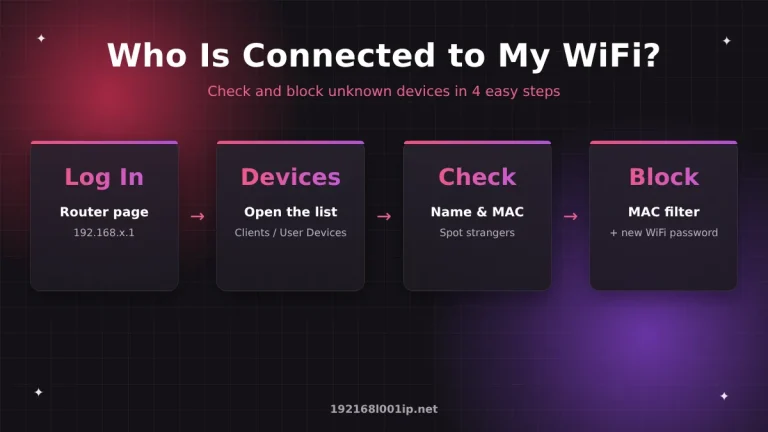
The main reason people look up their default gateway is to open the router’s settings page. Type the address into your browser’s address bar – not the search box – and press Enter. The router login page appears, and from there you can:
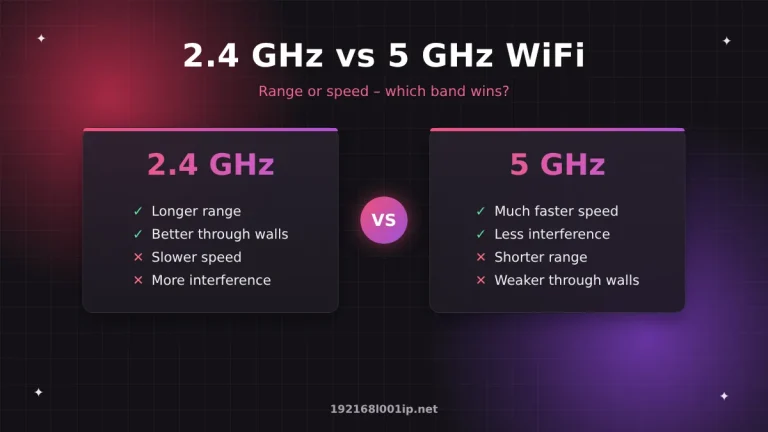
- Change your WiFi name and password, or choose between the 2.4 GHz and 5 GHz bands.
- See who is connected to your WiFi and block strangers.
- Change the admin password so nobody else can change your settings.
- Set up port forwarding for games or CCTV cameras.
- Update the router firmware for better security.
Our step-by-step guides cover the most common addresses: 192.168.1.1, 192.168.0.1, 192.168.100.1 and the PTCL router login.
How to Fix “Default Gateway Is Not Available”
Windows shows this message in the network troubleshooter when your PC loses contact with the router. The internet drops, often again and again. Work through these fixes in order and test after each one:
- Restart the router and the PC. Unplug the router for 30 seconds, plug it back in and wait two minutes before restarting the computer.
- Forget the network and reconnect. In Settings → Network & internet → Wi-Fi → Manage known networks, choose your network, click Forget, then join it again with the password.
- Stop Windows from turning off the adapter. Open Device Manager, expand Network adapters, right-click your WiFi adapter, choose Properties → Power Management and untick Allow the computer to turn off this device to save power.
- Update the network driver. Right-click the adapter in Device Manager and choose Update driver, or download the latest driver from your laptop maker’s support site.
- Reset the network stack. Open Command Prompt as administrator and run these commands one by one, then restart:
netsh winsock reset
netsh int ip reset
ipconfig /release
ipconfig /renew
ipconfig /flushdns- Turn off VPN and third-party firewall for a test. Some security apps block the gateway by mistake.
- Use Network reset. As a last step, go to Settings → Network & internet → Advanced network settings → Network reset. This removes and reinstalls all adapters, so you will need to re-enter WiFi passwords.
If other devices also lose internet at the same time, the problem is the router or the internet line, not your PC. Check the router lights and contact your provider.
Why Is My Default Gateway Blank, 0.0.0.0 or 169.254?
Sometimes the gateway field looks wrong. Each case points to a different problem:
- Blank gateway – your device is connected to WiFi but did not receive full settings from the router. Disconnect and reconnect, or restart the router.
- 0.0.0.0 – there is no valid route out of the network. This often happens with a broken driver or a wrong manual setting. Switch the adapter back to automatic (DHCP).
- Your IP starts with 169.254 – your device could not reach the router’s DHCP service at all and gave itself an emergency address. Check the cable or WiFi connection and restart the router.
- Two gateways listed – you may be connected by both cable and WiFi, or through a VPN. Disconnect the one you do not need.
Can You Change the Default Gateway?
Yes, and there are two different things people mean by this.
Change the router’s own address
Log in to the router, open the LAN settings and change its LAN IP, for example from 192.168.1.1 to 192.168.0.1. After the router restarts, every device gets the new gateway automatically. People do this when two routers in the same house clash, such as a PTCL modem and a second WiFi router using the same range.
Set a manual gateway on one device
On Windows 11, open Settings → Network & internet, select your connection, click Edit next to IP assignment, choose Manual and type the IP address, subnet mask, gateway and DNS. On Android, long-press the network, choose Modify and set IP settings to Static. A wrong value will cut the internet on that device, so write down the old settings first and switch back to automatic if anything goes wrong.
What About the IPv6 Default Gateway?
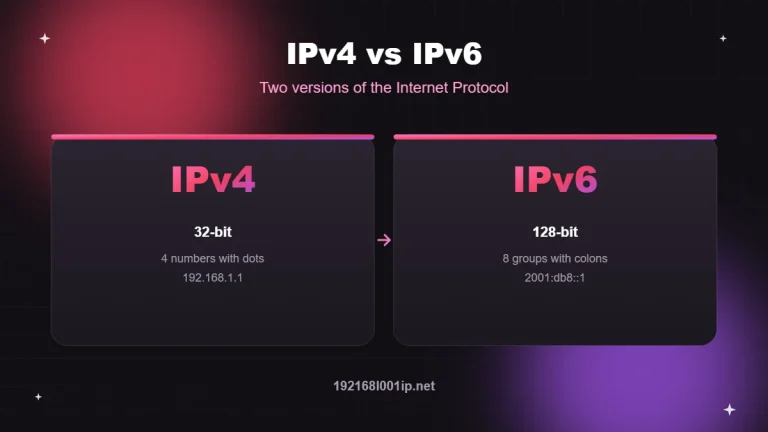
If your provider supports IPv6, ipconfig may show a second, much longer gateway that starts with fe80::. This is a link-local address that your router uses for IPv6 traffic on your home network. It works alongside the IPv4 gateway and you do not need to type it anywhere. To learn more about the two address types, read our guide to IPv4 vs IPv6.
Is It Safe to Share Your Default Gateway?
Yes. Your default gateway is a private address such as 192.168.1.1, and the same number is used in millions of homes. Nobody outside your network can reach your router just by knowing it. The real protection is the router’s admin password: if it is still admin/admin, anyone connected to your WiFi could log in. Change it the first time you open the settings page, and keep your WiFi password strong.
How to Test Your Default Gateway With Ping
A quick ping test tells you whether your device can reach the router at all. It is the first thing technicians check when the internet stops working.
- Open Command Prompt on Windows or Terminal on Mac and Linux.
- Type
ping 192.168.1.1, using your own gateway address, and press Enter. On Mac and Linux press Ctrl + C to stop. - Read the replies. Lines such as Reply from 192.168.1.1: time=2ms mean the link to the router is healthy.
If the gateway replies but websites still do not load, the problem is beyond your router – usually the internet line or DNS. If the gateway does not reply, the problem is between your device and the router: a weak WiFi signal, a loose cable or a router that needs a restart. Times above 100 ms on a home network point to heavy WiFi interference.
Two Routers? Which One Is the Gateway?
Many homes now have two boxes: a modem or fiber ONT from the provider and a second WiFi router for better coverage. In that setup each device only sees the router it is directly connected to.
- If your phone is on the second router’s WiFi, its default gateway is the second router, for example 192.168.0.1.
- That router in turn uses the provider’s device, for example 192.168.100.1 or 192.168.10.1, as its own gateway.
- To reach the provider’s device from your phone, connect to its WiFi or plug a laptop into one of its LAN ports.
This chain is normal and works well for browsing. For online gaming or remote camera access, ask your provider about bridge mode so that only one device handles routing.
Default Gateways in Offices and Larger Networks
In a business network the idea is the same, but the gateway is often a dedicated firewall or a core switch rather than a home router. Large networks may also use several gateways for backup, so that if one fails another takes over automatically. Network admins sometimes add extra static routes for certain internal networks, while all other traffic still follows the default route. For home users none of this changes anything – one router, one default gateway.
Frequently Asked Questions
Is the default gateway the same as my router’s IP address?
On a normal home network, yes. The router’s local IP address is the default gateway for every device connected to it.
What is the default gateway for PTCL?
Most PTCL broadband (DSL) modems use 192.168.10.1, while PTCL Flash Fiber ONTs usually use 192.168.100.1. Check with ipconfig or your phone’s WiFi details to be sure.
Why does my gateway end in .1?
It is only a convention. Router makers pick the first address in the range because it is easy to remember. Any address in the range can work.
Can I find the default gateway without a computer?
Yes. On iPhone open the WiFi details and read the Router field, and on Android look for Gateway in the network details. The address is also printed on most router stickers.
Is the default gateway the same as the DNS server?
They are different jobs. The gateway forwards your traffic, while DNS translates website names. Many routers do both, so the same address can appear in both fields.
Conclusion
The default gateway is simply your router’s address – the door between your devices and the internet. Use ipconfig on Windows, the Router field on Mac and iPhone, or the Gateway field on Android and Chromebook to find it in seconds. Once you have it, you can log in to your router, fix connection errors and keep your home network secure.
One Comment