
What Is DNS? A Simple Guide to How DNS Works
DNS is the phone book of the internet. Computers find each other with number addresses, but people prefer names like google.com. DNS – short for Domain Name System – connects the two. Every time you open a website, it quietly turns its name into a number in a few milliseconds.
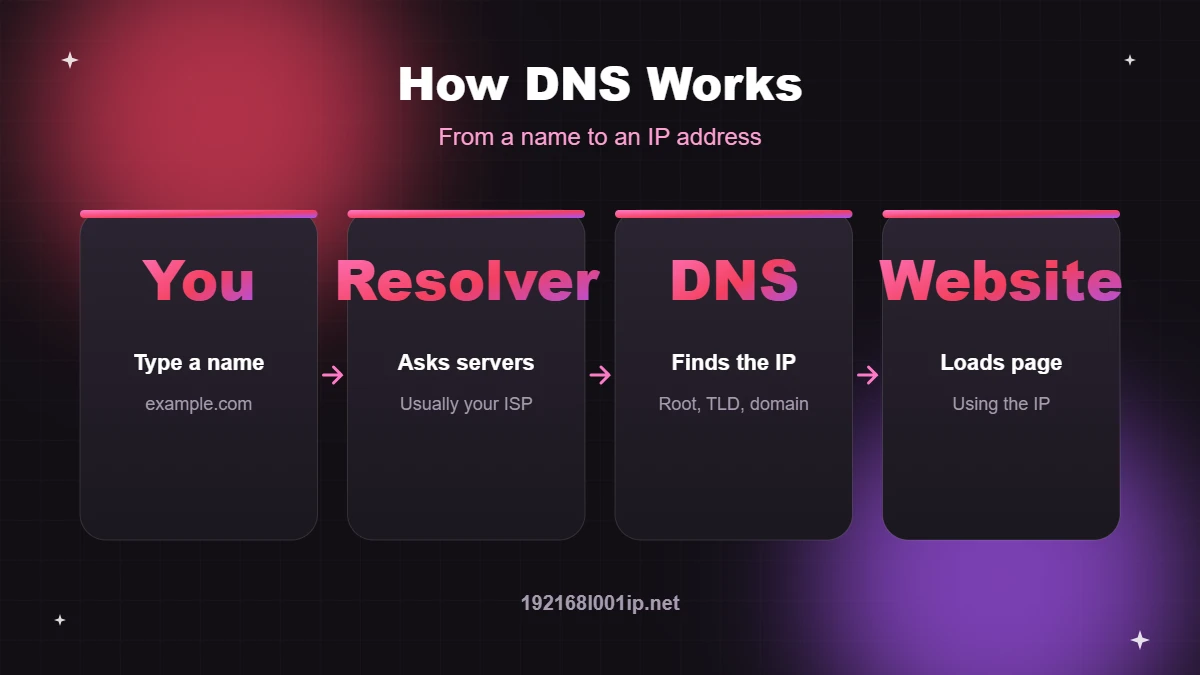
What Is DNS?
The Domain Name System is a worldwide network of servers that store which name belongs to which IP address. When you type a web address, your device asks a server for the matching number, then connects to that number. Without it, you would need to remember long strings of digits for every site you visit.
The system was created in 1983 and still runs almost every connection online today. You can read its history in the Domain Name System article on Wikipedia.
How DNS Works in 5 Easy Steps
- You type a name. For example, example.com in your browser.
- Your device asks a resolver. This is usually a server run by your internet provider, set by your router.
- The resolver asks a root server. The root server points to the server that handles “.com” names.
- The TLD server points to the domain’s own server. That server holds the real records for example.com.
- The answer comes back. The resolver returns the IP address, and your browser loads the site.
All of this usually takes less than a tenth of a second.
Common DNS Record Types
Each domain stores several kinds of records. The most common ones are:
| Record | What it does |
|---|---|
| A | Points a name to an IPv4 address |
| AAAA | Points a name to an IPv6 address |
| CNAME | Points one name to another name |
| MX | Tells email where to be delivered |
| TXT | Holds text, often used to verify a site |
| NS | Lists the servers responsible for the domain |
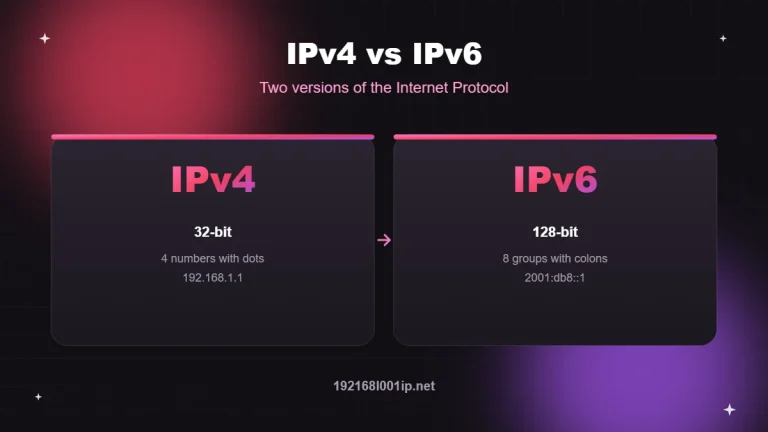
Not sure about the difference between IPv4 and IPv6 addresses? See our guide on IPv4 vs IPv6.
What Is DNS Caching?
To save time, answers are stored for a while. Your browser, your computer and your router all keep a small cache of recent lookups. The next time you visit the same site, the answer comes from the cache instead of asking again. Each record has a “time to live” (TTL) that says how long it may be kept.
If a website moved to a new server and will not load, clearing the cache often helps. On Windows, open Command Prompt and type ipconfig /flushdns.
Popular Public DNS Servers
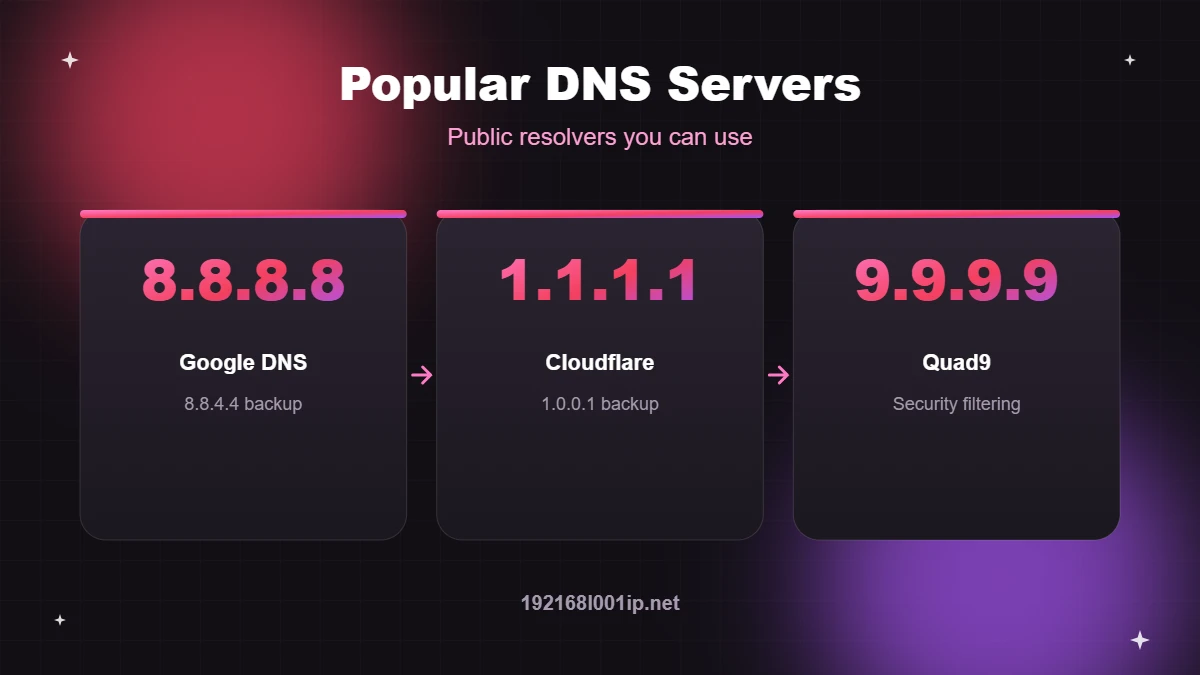
By default, your router uses the resolver of your internet provider. You can also choose a public one. Some are faster in certain areas, and some add filtering:
- Google Public DNS: 8.8.8.8 and 8.8.4.4
- Cloudflare: 1.1.1.1 and 1.0.0.1
- Quad9: 9.9.9.9 (blocks many known harmful domains)
How to Change DNS Settings
You can change it on a single device or for your whole home. Changing it on the router is the easiest way, because every connected device then uses the new setting.
- On the router: sign in to your own router (for example at 192.168.100.1 or 192.168.1.1), open the LAN or DHCP settings and enter the new primary and secondary servers.
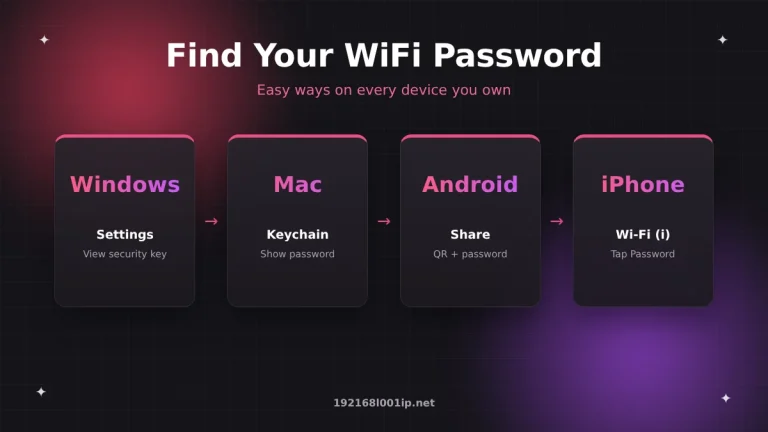
- On Windows: Settings → Network & Internet → your connection → DNS server assignment → Edit.
- On Android: Settings → Network → Private DNS, then enter a provider hostname.
- On iPhone: Settings → Wi-Fi → (i) → Configure DNS → Manual.
How to Choose a DNS Resolver
If you decide to change from your provider’s default, think about these points before you pick one:
- Speed in your area: a resolver with servers close to you usually answers faster.
- Reliability: large providers run many servers, so they rarely go down.
- Privacy: read the provider’s policy to see what it keeps about your lookups and for how long.
- Filtering: some services block known harmful or adult sites, which can be useful for families.
- Backup server: always enter a secondary address, so lookups still work if the first one is busy.
How to Test Lookup Speed
You can compare resolvers yourself in a few minutes. On Windows or Mac, open a terminal and run nslookup example.com 1.1.1.1, then try the same with 8.8.8.8 and your provider’s address. Free benchmark tools can also test many resolvers at once and show which one answers fastest from your connection.
Run the test a few times at different hours, because results change when networks are busy. Pick the one that is fast and steady, not just fast once.
Common DNS Problems
“DNS server not responding”
Restart your router and device first. If it continues, try a public resolver such as 1.1.1.1 or 8.8.8.8.
“DNS_PROBE_FINISHED_NXDOMAIN”
The name could not be found. Check the spelling of the web address, then clear the cache.
Websites load slowly
Slow lookups can delay the first moment of every page. A closer or faster resolver may help.
A Short History of DNS
In the early days of the internet, every computer kept one shared text file called HOSTS.TXT that listed each name and its number. Whenever a new machine joined, someone had to update the file and send it to everyone. As the network grew, this became slow and full of mistakes.
In 1983 Paul Mockapetris designed a new, spread-out system to replace the single file. Instead of one list, the work was split between many servers around the world, each responsible for its own part of the name space. This design is still used today, and it is the reason the internet can handle billions of names without one central bottleneck.
Simple Glossary of Name Lookup Terms
| Term | Meaning |
|---|---|
| Domain name | The easy-to-read name of a website, such as example.com. |
| Resolver | The server that does the lookup work for your device. |
| Root server | The top of the system; it points to servers for endings like .com or .pk. |
| TLD | Top-level domain – the last part of a name, such as .com, .org or .pk. |
| Authoritative server | The server that holds the official records for one domain. |
| TTL | Time to live – how many seconds an answer may be kept in a cache. |
| Propagation | The time it takes for a changed record to be seen everywhere, as old cached answers expire. |
Real-Life Examples
Opening a news site. You type its name, your resolver finds the number, and the page loads. The next time you visit, the answer comes from the cache, so the first moment of loading feels quicker.
Moving a website to a new host. The owner changes the A record to the new server. Some visitors still reach the old server until their cached answer expires, which is why changes can take a few hours to appear for everyone.
Sending an email. Your mail service looks up the MX record of the receiver’s domain to know which server should get the message.
Common Myths About DNS
“It is only for websites.”
Not true. Email, apps, games and smart devices all use name lookups behind the scenes.
“Changing it will double my internet speed.”
A faster resolver can make pages start loading a little sooner, but your plan and WiFi signal decide your actual download speed.
“Private numbers need it too.”
When you type a number such as 192.168.1.1 straight into the address bar, no lookup happens at all.
Key Takeaways
- Names like example.com are easier to remember than number addresses.
- A resolver finds the matching number by asking root, TLD and domain servers.
- Answers are saved in a cache for a short time to make the next visit faster.
- A records point to IPv4 numbers and AAAA records point to IPv6 numbers.
- Public resolvers such as 1.1.1.1 and 8.8.8.8 can be set on your router or device.
- Restarting the router and clearing the cache fixes many loading errors.
Frequently Asked Questions
What does DNS stand for?
Domain Name System.
Is it safe to change the resolver?
Yes, as long as you use a well-known provider. You can switch back at any time.
Does DNS make the internet faster?
It can speed up how quickly pages start loading, but it does not change your download speed.
Does a router login page need DNS?
No. When you type a number like 192.168.1.1, no name lookup is needed.
How long does a lookup take?
Usually between a few and a hundred milliseconds. Cached answers are almost instant.
Why do record changes take time to show?
Old answers stay in caches until their TTL runs out, so the new value appears gradually.
What is a secondary resolver for?
It is a backup. If the first server is slow or offline, your device asks the second one, so websites keep opening normally.
Can I use different settings on each device?
Yes. A setting on a phone or laptop overrides the one handed out by the router, but only for that single device. Changing it on the router is easier when you want the whole home to use the same resolver.
Conclusion
DNS turns easy names into the numbers computers need. It works through a chain of servers, saves answers in a cache, and can be changed on your router or device in a few steps. To finish the basics, read our guide on what an IP address is.

2 Comments