Find WiFi Password: 8 Easy Ways on Windows, Android & iPhone
Forgot the password for your own WiFi? It happens to everyone – a guest asks for it, you buy a new phone, or you want to connect a smart TV. The good news is that any device already connected to the network has the password saved. In this guide you will learn how to find WiFi password details on Windows, Mac, Android, iPhone, Linux and your router, in eight easy ways.
Important: these methods are for networks you own or have permission to use. They show passwords that are already saved on your own device – they cannot and should not be used to get into someone else’s network.
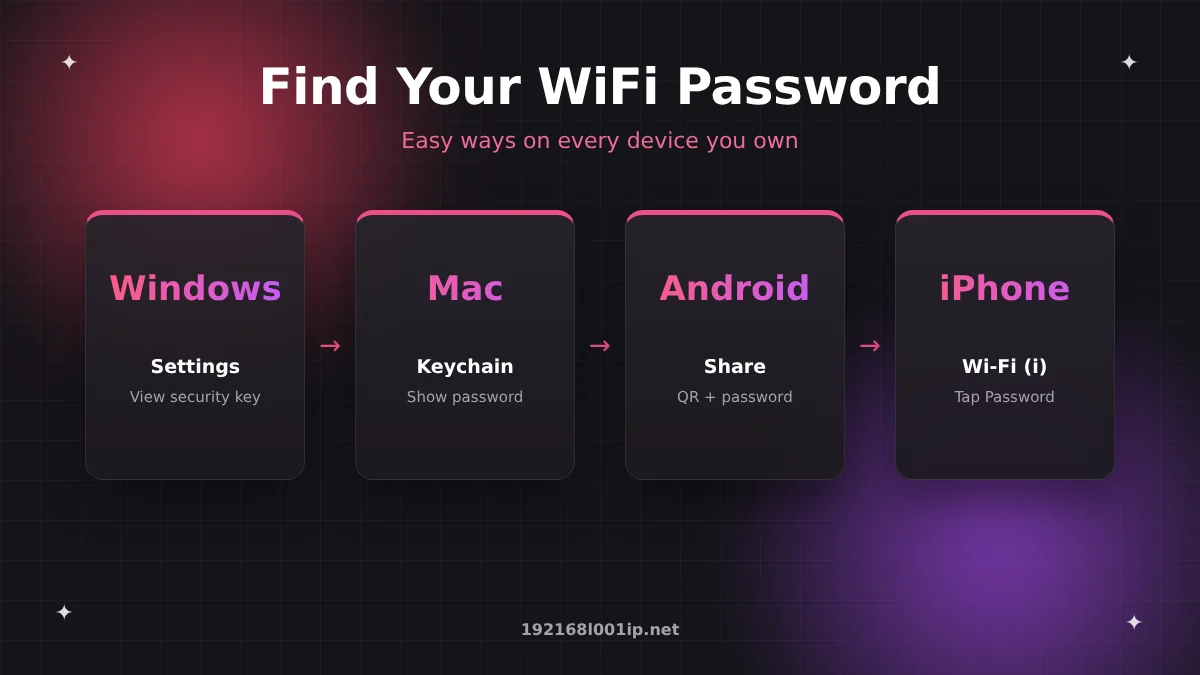
Quick Answer: Where to Find WiFi Password on Each Device
| Device | Where to look | What you need |
|---|---|---|
| Windows 11 | Settings → Wi-Fi → network properties → View Wi-Fi security key | A PC that has joined the network |
| Windows 10 and 11 | Control Panel → Wireless Properties → Show characters | Currently connected to the network |
| Any Windows PC | Command Prompt: netsh wlan show profile | Administrator access |
| Mac | System Settings → Wi-Fi, the Passwords app or Keychain Access | Your Mac login password |
| iPhone and iPad | Settings → Wi-Fi → (i) → Password | iOS 16 or later, Face ID or passcode |
| Android | Wi-Fi settings → Share → QR code | Android 10 or later |
| Router | Admin page → Wireless security | Router login details |
| Router sticker | Label on the bottom or back | The password was never changed |
1. Find WiFi Password on Windows 11 (Settings)
Newer versions of Windows 11 let you find WiFi password details right in the Settings app, without any commands.
- Press Windows + I to open Settings.
- Go to Network & internet → Wi-Fi.
- Click your connected network’s properties, or open Manage known networks and select a saved network.
- Find View Wi-Fi security key and click View.
- A small window shows the password. You can copy it from there.
If you do not see this option, your Windows version is older. Use method 2 or 3 instead – they work on every version.
2. Find WiFi Password on Windows 10 and 11 (Control Panel)
This classic way to find WiFi password details works when the PC is currently connected to the network.
- Open the Control Panel and choose Network and Internet → Network and Sharing Center.
- Next to Connections, click your WiFi network name.
- Click Wireless Properties.
- Open the Security tab.
- Tick Show characters. The password appears in the Network security key box.
Windows calls the WiFi password a “network security key”. They are the same thing.
3. Find WiFi Password With Command Prompt (Any Network You Saved)
The command line can find WiFi password keys for every network your PC has ever joined – even ones you are not connected to right now. This is handy when you want the password for your office or a relative’s house that you visited before.
- Click Start, type cmd, right-click Command Prompt and choose Run as administrator.
- Type the first command to list all saved networks.
- Type the second command with the exact network name inside the quotes.
- Look for Key Content under Security settings. That is the password.
netsh wlan show profiles
netsh wlan show profile name="HomeWiFi" key=clear
Replace HomeWiFi with your own network name. If the name has spaces, keep the quotes. If there is no Key Content line at all, the network was saved without a password – for example an open café network – or Command Prompt was not opened as administrator.
4. Find WiFi Password on Mac
Macs store WiFi passwords in the keychain, and you can find WiFi password entries there in three ways, depending on your macOS version. You will be asked for your Mac login password or Touch ID each time.
macOS Ventura and later: System Settings
- Open System Settings → Wi-Fi.
- Scroll down and click Advanced… to open the list of known networks.
- Click the … (more) button next to the network and choose Copy Password.
- Paste it into Notes or a message to see it.
macOS Sequoia and later: the Passwords app
Open the Passwords app, choose Wi-Fi in the sidebar and select your network. Click the hidden password to reveal it. If you use iCloud Keychain, networks saved on your iPhone appear here too.
Any macOS version: Keychain Access
- Open Keychain Access (search for it with Spotlight, Command + Space).
- Type your WiFi name in the search box at the top right.
- Double-click the result that says AirPort network password.
- Tick Show password and enter your Mac password.
5. Find WiFi Password on iPhone and iPad
Since iOS 16, Apple lets you find WiFi password details directly on the phone.
- Open Settings → Wi-Fi.
- Tap the blue (i) next to the network you want. For networks that are not nearby, tap Edit in the top corner to see all known networks.
- Tap the Password field.
- Confirm with Face ID, Touch ID or your passcode. The password appears and you can tap Copy.
On iOS 18 and later, the Passwords app also has a Wi-Fi section that lists every saved network. If your iPhone is on iOS 15 or older, there is no built-in way to see the key – update iOS, or use a Mac signed in to the same iCloud account.
Tip: to share your WiFi with a friend’s iPhone, you do not even need the password. Bring the two phones close together while theirs is on the WiFi login screen, and your iPhone will offer to share it automatically.
6. Find WiFi Password on Android
To find WiFi password details on Android 10 and later, use the Share option. It shows a QR code – and on many phones the password as text right under it.
- Open Settings → Network & internet → Internet (on Samsung, Settings → Connections → Wi-Fi).
- Tap the gear icon next to your connected network.
- Tap Share or QR code and confirm with your fingerprint, face or PIN.
- On Pixel, Motorola and many other phones, the password is written below the QR code.
Only a QR code on Samsung or Xiaomi? Take a screenshot of the QR code, then open it with Google Lens or your camera’s QR scanner. The scanner reads the code and shows the network name and password in plain text. You can also simply let another phone scan the code to join the network.
Viewing passwords for networks you are not connected to is not possible on standard Android without root access. Use your router or another device for those.
7. Find WiFi Password in Your Router Settings
If no device shows the key, you can still find WiFi password details in the router, which always knows it. You need to be connected by WiFi or a LAN cable, and you need the router’s admin login.
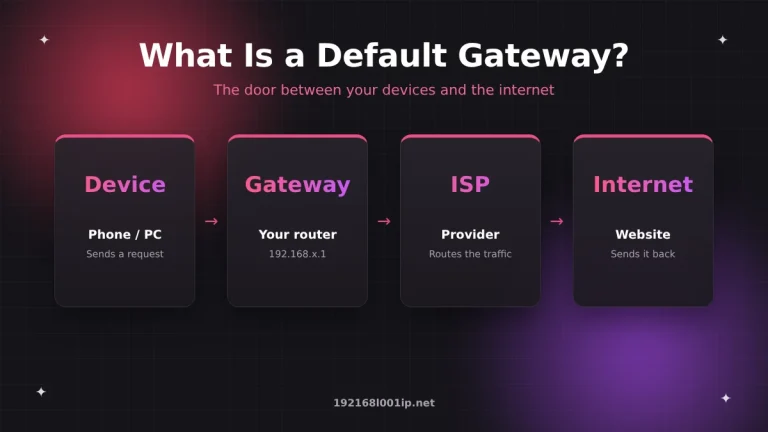
- Find your router address – it is your default gateway, usually 192.168.1.1, 192.168.0.1 or 192.168.100.1.
- Type it into your browser’s address bar and log in with the admin username and password.
- Open the Wireless, WLAN or WiFi Settings menu.
- Look under Security for a field such as WPA Pre-Shared Key, Password or Network Key. Untick “Hide” if the characters are hidden.
Menu names differ by brand. Our guides walk you through the exact screens for 192.168.1.1 routers, 192.168.0.1 routers, Huawei fiber ONTs at 192.168.100.1 and the PTCL router login. You can also set a new password from the same page if you prefer that.
8. Find WiFi Password on the Router Sticker
The quickest place to find WiFi password details for a new router is its label. Most routers come with a unique WiFi password printed on a label on the bottom or back. Look for words like Wireless Password, WiFi Key, WPA Key, Network Key or PIN. This works only if nobody has changed the password since the router was installed. Many providers’ technicians set a new password during setup, so if the sticker key fails, use one of the methods above.
Find WiFi Password on a PTCL or Huawei Modem
Many readers in Pakistan use a PTCL DSL modem or a Huawei fiber ONT. Here is the exact path to find WiFi password details on these devices:
- Connect to the modem by WiFi or LAN cable.
- Open 192.168.10.1 for PTCL DSL, or 192.168.100.1 for PTCL Flash Fiber and other Huawei ONTs.
- Log in with the username and password on the sticker, or the admin login you set.
- On a Huawei ONT, go to WLAN → 2.4G Basic Network Settings (and 5G on dual-band models). On a PTCL DSL modem, go to Network → WLAN → Security.
- The password is in the WPA PreSharedKey field. Untick Hide to see it.
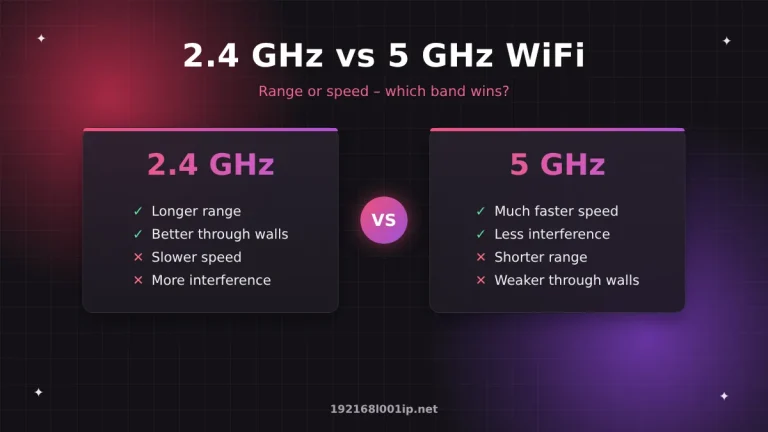
Dual-band ONTs can have a different password for 2.4G and 5G, so check both pages if one key does not work. To learn what the two bands do, read our 2.4 GHz vs 5 GHz guide.
Why Is My WiFi Password Not Working?
You found the key, but the device still says “incorrect password”? Check these common causes:
- Capital letters matter. WiFi passwords are case-sensitive – Home123 and home123 are different.
- Look-alike characters. The letter O and the number 0, or the letter l and the number 1, are easy to mix up when copying from a sticker.
- Wrong network. Make sure you chose your own network name and not a similar one from a neighbour, or the 5G network when you have the 2.4G key.
- The password was changed. If someone changed it in the router, saved copies on old devices may be out of date. Check the router settings for the current key.
- Old device, new security. Very old phones and printers may not support WPA3. Set the router to WPA2/WPA3 mixed mode.
Share WiFi Without Telling the Password
Sometimes the reason people want to find WiFi password details is just to help a guest connect. You can often skip that step:
- QR code: on Android, the Share screen shows a QR code that a guest can scan with their camera to join instantly.
- iPhone to iPhone: nearby Apple devices offer to share the WiFi automatically when the guest opens the WiFi login screen.
- Guest network: create a separate guest WiFi in the router with its own password, and keep your main key private.
- Print a WiFi card: some routers and free websites can generate a printable QR card for visitors.
Keep a Safe Record of Your Password
To avoid searching again next time, save the key somewhere safe. A password manager is the best choice, and iPhone and Mac users can rely on the Passwords app. If you prefer paper, write the network name and password on a card and keep it in a drawer near the router, not stuck on the router where every visitor can see it.
Bonus: Find WiFi Password on Linux
To find WiFi password details on Ubuntu, Linux Mint, Fedora and most other desktops that use NetworkManager, open a terminal and type nmcli device wifi show-password. It prints the current network’s name and password, plus a QR code you can scan with a phone. In the graphical settings, open Wi-Fi, click the gear next to your network, open the Security tab and tick Show password.
What About Chromebooks and Smart TVs?
ChromeOS does not have a built-in way to display saved WiFi passwords, and smart TVs, game consoles and printers almost never show them. For these devices, find WiFi password details on a phone or laptop on the same network, or look it up in your router settings.
What If None of These Work?
If no device has the password saved and you cannot log in to the router, you still have options:
- Connect with a cable. Plug a laptop into one of the router’s LAN ports. A wired connection does not need the WiFi password, and from there you can log in to the router and read or change the key.
- Use WPS. Some routers have a WPS button. Press it, then choose the network on an Android phone or Windows PC within two minutes to join without typing the password. Turn WPS off again afterwards, because it is a weak point.
- Factory reset the router. Hold the reset pinhole for about 10 seconds. The WiFi name and password go back to the ones printed on the sticker. This also erases all your settings, and on PTCL and fiber connections you may need your provider’s internet login details to get back online.
- Call your internet provider. If the router belongs to your provider, they can often show or reset the WiFi password remotely.
WiFi Password vs Router Admin Password
People often confuse these two, but they protect different things:
| WiFi password | Router admin password | |
|---|---|---|
| Also called | Network security key, WPA key, passphrase | Login password, management password |
| Used for | Joining the wireless network | Opening the router settings page |
| Who needs it | Everyone who uses your WiFi | Only you |
| Typical default | Unique key on the sticker | admin/admin or a key on the sticker |
Keep them different. That way, guests who know your WiFi password still cannot change your router settings.
Make Your WiFi Password Strong
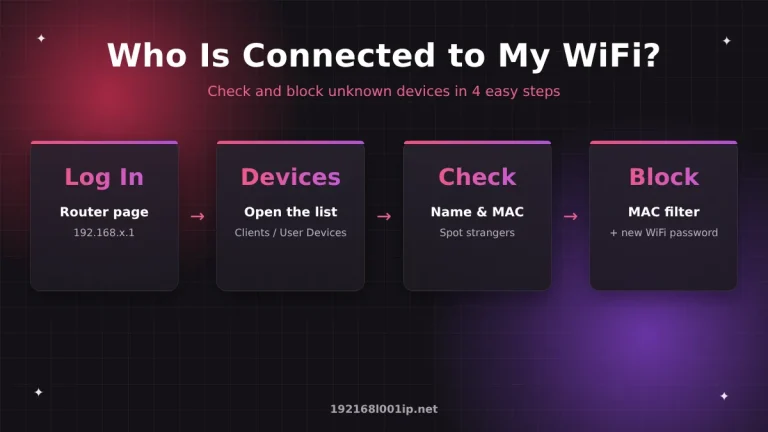
Once you find WiFi password details, it is a good moment to check how safe they are. A weak key lets neighbours use your internet and slows everyone down. If you think someone is already using it, check who is connected to your WiFi and block them.
- Use at least 12 characters, mixing words, numbers and symbols.
- Avoid your phone number, name, house number or simple patterns such as 12345678.
- Choose WPA2-PSK (AES) or WPA3 security in your router. The Wikipedia guide to Wi-Fi Protected Access explains why older WEP and WPA-TKIP should no longer be used.
- Change the password if you think too many people know it, then reconnect only your own devices.
- Create a guest network for visitors so your main password stays private.
Frequently Asked Questions
Can I find WiFi password for a network I have never joined?
No. The methods here only show passwords already saved on your devices. To join a new network, ask the owner. Trying to break into a network you do not own is illegal in most countries, including Pakistan.
Is the network security key the same as the WiFi password?
Yes. Windows, routers and some phones call it the network security key, WPA key or passphrase, but it is the same password you type to join the network.
How do I find WiFi password on my phone without root?
On iPhone with iOS 16 or later, tap the (i) next to the network and tap Password. On Android 10 or later, use the Share option to show a QR code and read the password below it or scan it with Google Lens. No root is needed.
Why does Windows not show Key Content?
Command Prompt must be opened as administrator, and the network name must be typed exactly as it appears in the list, including capital letters and spaces.
Can I see my PTCL WiFi password?
Yes. Use any of the device methods above, or log in to the PTCL modem at 192.168.10.1 (DSL) or 192.168.100.1 (Flash Fiber) and open the WLAN security settings.
Conclusion
You rarely need to reset anything to find WiFi password details. Any Windows PC, Mac, iPhone or Android phone that has joined your network can show it in a few taps, and your router settings always have the final answer. Pick the method for the device in your hand, keep the password somewhere safe, and use the chance to make it stronger.