Who Is Connected to My WiFi? 7 Easy Ways to Check & Block
Your internet feels slow at night, the WiFi light keeps blinking, and you start to wonder: who is connected to my WiFi? The good news is that you can check it yourself in about two minutes. Your router keeps a list of every phone, laptop and TV that uses your network, and you can open that list from any browser.
This guide shows 7 easy ways to see connected devices on PTCL, Huawei, TP-Link, Tenda and other routers. You will also learn how to tell your own devices apart from strangers, and how to block anyone who should not be there.
Quick Answer: How to See Who Is Connected to My WiFi
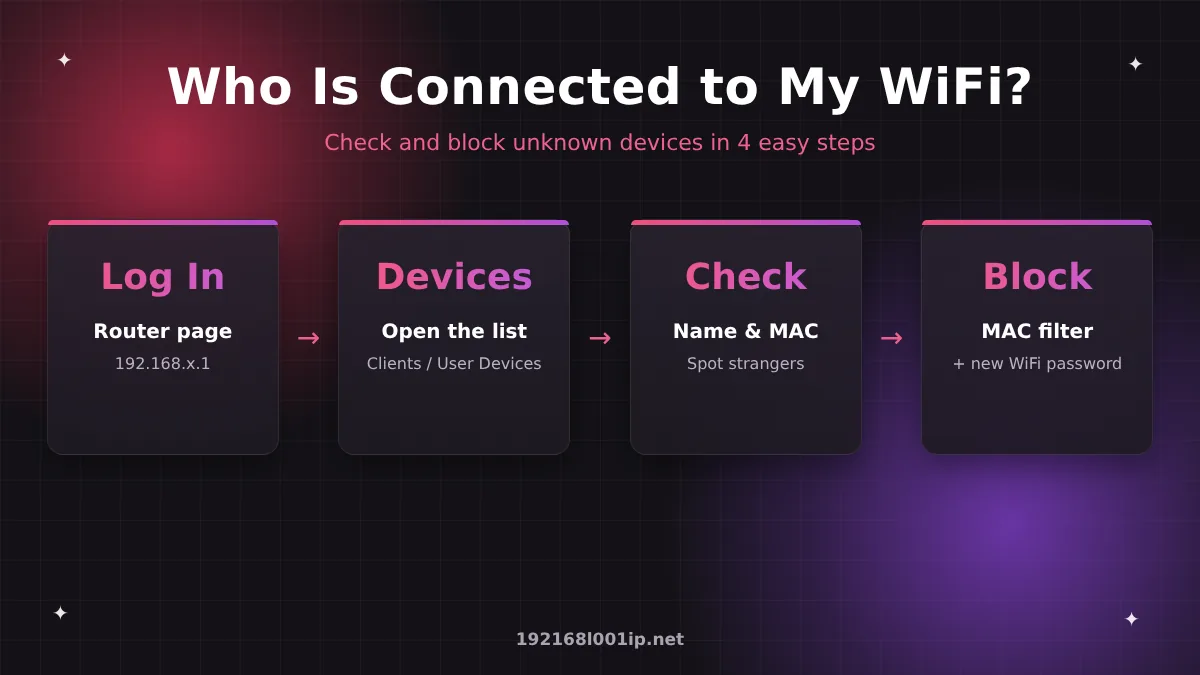
- Connect to your WiFi and open any browser.
- Type your router address, such as 192.168.100.1 or 192.168.1.1, in the address bar and log in.
- Open the device list. It is usually called User Device Information, Clients, Attached Devices or DHCP Client List.
- Check every device name and MAC address. Anything you do not recognise may be a stranger.
- Block the unknown device and change your WiFi password.
Why You Should Check Connected Devices
Asking “who is connected to my WiFi?” is not only about speed, but speed is where you feel it first. Every extra device shares the same internet connection. If a neighbour is streaming videos on your connection, your own video calls and games get slower. There is a security side too. Anyone on your network sits inside your home network, right next to your phones, cameras and shared folders. The FTC home WiFi security guide recommends a strong password and regular checks for exactly this reason.
Common signs that someone else is using your WiFi:
- Speed drops at the same time every day, even when your family is not online.
- The WiFi light on the router blinks fast while all your own devices are switched off.
- You see device names you do not own, such as “Galaxy-A14” or “android-7f3c”.
- Videos buffer and games lag even though your internet package has not changed.
7 Easy Ways to Check Who Is Connected to My WiFi
1. Use Your Router’s Admin Page (Most Accurate)
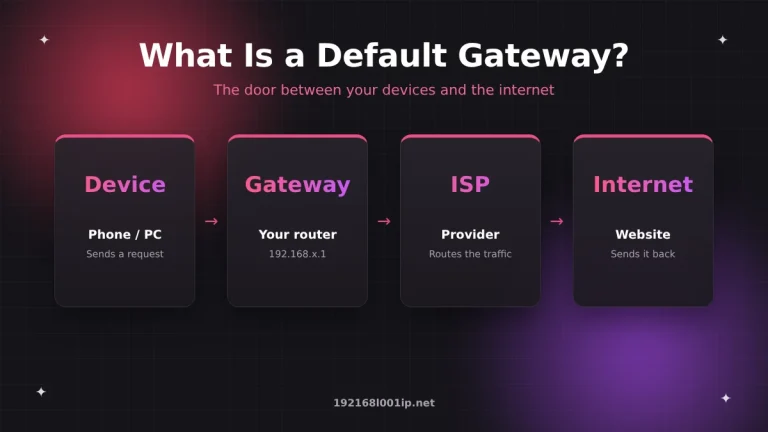
The router is the only device that sees every connection, so its admin page gives the most accurate answer to “who is connected to my WiFi?”. First, find your router’s login address. It is printed on the sticker under the router, and it is the same as your default gateway. The most common addresses are:
- 192.168.100.1 – PTCL Flash Fiber, Huawei and many other fiber ONTs
- 192.168.10.1 – PTCL DSL modems
- 192.168.1.1 – TP-Link, ZTE, Netgear and Asus routers
- 192.168.0.1 – D-Link, Tenda and some TP-Link models
Type the address in your browser, log in with the admin username and password, and open the connected devices page. You will normally see each device’s name, IP address, MAC address and whether it is online right now.
2. Check on PTCL Flash Fiber or a Huawei ONT
PTCL Flash Fiber and many other fiber connections use a Huawei ONT. To see who is connected to your WiFi on one of these devices:
- Open 192.168.100.1 and log in. If the normal user account does not work, read our telecomadmin password guide.
- Click Status in the top menu.
- Open User Device Information. It lists every device with its name, IP address, MAC address and online or offline state.
- For WiFi devices only, open Status → WLAN Information to see which devices are joined to each network name.
Menu names can change a little between models and firmware versions. If you use an older PTCL DSL modem, follow the steps in our PTCL router login guide and look for a menu called Wireless Clients, Associated Stations or DHCP Clients.
3. Use Your Router’s Mobile App
Many newer routers come with a free app, such as TP-Link Tether or Deco, Huawei AI Life and Tenda WiFi. Sign in to the app and tap Clients or Devices. The app shows each device with an icon, and you can usually block it with one tap. Fiber ONTs supplied by internet providers rarely have an app, so for those, use the browser method above.
4. Check Who Is Connected to My WiFi From Your Phone
You do not need a laptop. Connect your phone to the WiFi, open Chrome or Safari, and type the router address in the address bar, not in the Google search box. Log in and open the device list as normal. If the page looks too small, turn your phone sideways or tap “Desktop site” in the browser menu. Our 192.168.100.1 login guide has extra tips for logging in from a mobile phone.
5. Use a Network Scanner App
Scanner apps such as Fing for Android and iPhone search your network and list every device that answers, often with its brand name, like Samsung, Apple or Xiaomi. It is the quickest way to answer “who is connected to my WiFi?” when you cannot log in to the router. The limit is that most scanner apps can only show devices. To actually block someone, you still need the router’s admin page or app.
6. Use Command Prompt on Windows
Windows has a built-in command that shows other devices your computer has talked to:
- Press Windows + R, type
cmdand press Enter. - Type
arp -aand press Enter. - Look under the interface that matches your network, for example 192.168.100.x. Each “dynamic” line is a device, with its IP address and physical (MAC) address.
Ignore addresses that end in .255 and ones that start with 224, 239 or 255. Those are broadcast and multicast addresses, not real devices. Keep in mind that this list only includes devices your PC has recently talked to, so it is not complete. You can learn more in Microsoft’s arp command documentation. On a Mac, the same arp -a command works in Terminal.
7. Count Devices by Turning Yours Off
This simple trick answers “who is connected to my WiFi?” without any tools. Turn off WiFi on every phone, laptop and tablet you own. Then refresh the device list on the router page. Anything that still shows as online is either a stranger or a device you forgot about, such as a smart TV, security camera or smart plug. You can also watch the WiFi light: if it keeps blinking fast while all your devices are off, someone is still using the connection.
Who Is Connected to My WiFi? Router Menus at a Glance
Use this table to jump straight to the right menu. Exact names may differ slightly by model and firmware.
| Router | Login address | Where to see connected devices |
|---|---|---|
| PTCL Flash Fiber / Huawei ONT | 192.168.100.1 | Status → User Device Information |
| PTCL DSL modem | 192.168.10.1 | Status or Wireless → Wireless Clients / DHCP Clients |
| TP-Link (new interface) | 192.168.0.1 or 192.168.1.1 | Network Map → Clients |
| TP-Link (old interface) | 192.168.0.1 or 192.168.1.1 | Wireless → Wireless Statistics, or DHCP → DHCP Clients List |
| D-Link | 192.168.0.1 | Status → Wireless, or the Connected Clients list |
| Tenda | 192.168.0.1 | Device list on the home page |
| Netgear | 192.168.1.1 | Attached Devices |
How to Tell Your Devices From Strangers
The device list only answers half of the question “who is connected to my WiFi?”. Next, you need to know which entries are yours. Device names are not always clear. A name like “unknown” or a string of letters could be your own phone. The safest way to check is to match MAC addresses. Here is where to find the MAC address on your own devices:
- Android: open your WiFi network’s settings (tap the gear next to it) and look for MAC address. You can also check Settings → About phone → Status.
- iPhone and iPad: go to Settings → Wi-Fi, tap the (i) next to your network and look at Wi-Fi Address.
- Windows: open Command Prompt, type
ipconfig /alland find “Physical Address” under your Wi-Fi adapter. - Smart TVs and boxes: look in Settings → Network → Network Status or About.
Why your own phone may look like a stranger
Modern phones use a private or randomized MAC address for each WiFi network, so the address the router sees is not the same as the one printed on the box. Always compare with the address shown in your phone’s WiFi settings for that network. A quick tip: if the second character of a MAC address is 2, 6, A or E (for example D2:… or 3A:…), it is a randomized address. Those usually belong to phones and tablets, not to old laptops or routers.
What strange device names usually mean
- ESP_xxxxxx – smart plugs, bulbs and switches built on Espressif chips.
- android-xxxx or a phone model – an Android phone or tablet.
- iPhone, iPad or a person’s name – Apple devices.
- A blank name – often a smart TV, camera or game console that does not send a name.
Before you block anything, confirm it is not a family member’s phone or a smart device in your own home. Many routers let you rename devices, so label yours, for example “Ali iPhone” or “Lounge TV”. Next time you will spot strangers instantly.
How to Block Someone From Your WiFi
Once you have found an unknown device, use these steps to kick it off and keep it off.
1. Change Your WiFi Password (Best Fix)
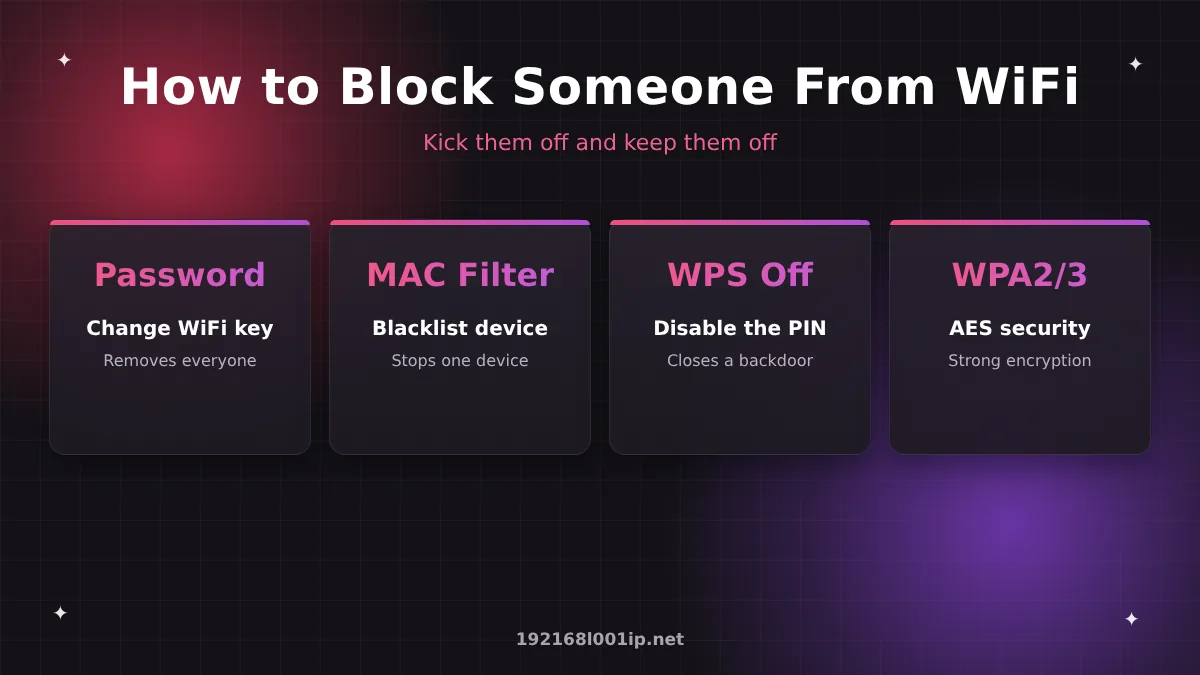
Changing the password disconnects every device at once. Only people who know the new password can come back. Use at least 12 characters with a mix of words, numbers and symbols. Follow our steps to change the WiFi password on 192.168.100.1, or the PTCL router login guide for PTCL devices. After the change, reconnect your own devices. If you forget the new password later, here is how to find your WiFi password on a phone or PC.
2. Block the Device With MAC Filtering
MAC filtering stops a specific device from joining, even if it knows the password.
- Huawei ONT: go to Security → WLAN MAC Filter Configuration, turn the filter on, choose Blacklist, add the MAC address and click Apply.
- TP-Link (new interface): go to Advanced → Security → Access Control, choose Blacklist and add the device.
- TP-Link (old interface): go to Wireless → Wireless MAC Filtering, add the MAC address and set it to Deny.
- Tenda and most router apps: tap the device in the list and choose Block or Add to blacklist.
Be careful with Whitelist mode. It blocks every device that is not on the list, so if you forget to add your own phone, you lock yourself out. If that happens, connect with a LAN cable and fix the list. Also remember that MAC filtering is not perfect, because a skilled user can change their MAC address. Always use it together with a new password.
3. Turn Off WPS
WPS lets devices connect with a button or an 8-digit PIN instead of the password. The PIN method is weak, and there are phone apps that try to guess it on routers where it is left on. That is a common way neighbours get onto a network without ever knowing the password. Open the WLAN or Wireless settings, untick Enable WPS and save.
4. Use WPA2-AES or WPA3 Security
In the same WiFi settings page, set security to WPA2-PSK with AES, or WPA3 if all your devices support it. On Huawei ONTs this is shown as WPA2 PreSharedKey with AES encryption. Never leave the network Open, and avoid old WEP or WPA-TKIP options, which are easy to break.
5. Change the Router Admin Password
If someone knows the default admin login, they can open your router, read your WiFi password and even remove your blocks. Change the admin password from the default. Our telecomadmin password guide explains how on Huawei devices.
6. Create a Guest Network for Visitors
Many routers let you create a second network name for guests. Visitors get internet, but they stay apart from your main devices, and you can change the guest password whenever you like without touching your own setup.
What If You Can’t Log In to Your Router?
- Wrong address: check your default gateway to find the right one. Type numbers only. “192.168.l00.1” with a letter L will not work.
- Page not opening: make sure you are connected to the router’s WiFi or a cable, not mobile data.
- Wrong password: try the details on the router sticker. A factory reset is the last option. On PTCL fiber devices a reset can also remove internet settings, so read the reset section in the PTCL router login guide first.
Is Hiding Your WiFi Name Enough?
No. A hidden network name stops casual users from seeing your WiFi in the list, but scanner apps can still find it in seconds. It also makes connecting your own devices more annoying. Hiding the name is fine as an extra step, but it does not replace a strong password, WPA2 or WPA3, and WPS switched off.
Too Many Devices? Speed Up Your WiFi
Sometimes every device in the list is yours. A normal home now has phones, laptops, a TV, cameras and smart plugs, and they all share the same connection. To keep things fast:
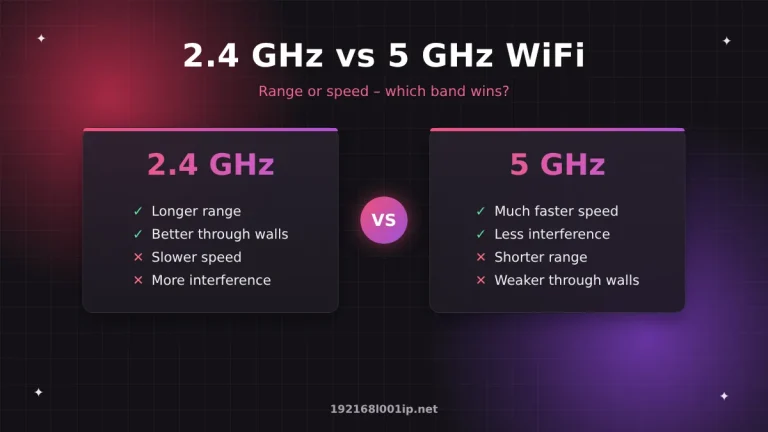
- Move phones and laptops to the faster 5 GHz network if your router has one. Our 2.4 GHz vs 5 GHz guide explains which band to use for each device.
- Connect the TV or gaming console with a LAN cable when possible.
- Turn off auto-updates and cloud backups during busy hours.
- Restart the router once in a while to clear old connections.
How to Keep Strangers Off Your WiFi for Good
- Set a monthly reminder: “Check who is connected to my WiFi”.
- Use a long, unique WiFi password and change it if too many people know it.
- Keep WPS off and security set to WPA2-AES or WPA3.
- Change the router’s admin password from the default.
- Update the router firmware when an update is offered.
- Share the guest network, or a QR code, instead of your main password.
Frequently Asked Questions
How can I see who is connected to my WiFi on my phone?
Connect your phone to the WiFi, open a browser, type your router address such as 192.168.100.1 or 192.168.1.1, log in and open the connected devices page. If your router has an app, the Clients or Devices screen shows the same list.
Can someone use my WiFi without the password?
Only if the network is open, WPS is switched on, the password is weak enough to guess, or someone shared it with them. A strong new password and WPS turned off fix almost every case.
Will the person know that I blocked them?
No message is sent to them. Their device simply fails to connect or keeps showing an error such as “Couldn’t connect” or “Incorrect password”.
Why does my router show devices that are offline?
Many routers, including Huawei ONTs, keep a history of devices that connected before. Look at the status column and only worry about devices marked as online or active.
Does changing the WiFi password remove all devices?
Yes. Every device is disconnected and must join again with the new password. That makes it the fastest way to remove everyone you do not know.
How often should I check who is connected to my WiFi?
Once a month is enough for most homes. Check straight away if your speed suddenly drops, the WiFi light blinks while your devices are off, or you have shared your password with guests.
Can I see who is connected to my WiFi without logging in to the router?
Yes, partly. A scanner app like Fing or the arp -a command on Windows can show devices on your network. However, only the router’s admin page gives the full list and lets you block devices.
Conclusion
The answer to “who is connected to my WiFi?” is always just one login away, and finding it takes only a few minutes. Log in to your router, open the device list and match every entry with your own devices. If you spot a stranger, change your WiFi password first, then block the device with MAC filtering, switch off WPS and use WPA2 or WPA3 security. Check the list once a month and your connection will stay fast and private. If you need help getting into the router, start with our 192.168.100.1 login guide.